Last updated on February 27th, 2026 at 03:11 am
This article is part of the Playwright Enterprise Automation Framework series. In this step, you will run real Playwright tests using the enterprise framework setup completed in earlier steps. So far, the framework has been prepared with configuration management, logging, reporting, and data-driven execution. Now, it is time to see everything working together through actual UI test execution.
In step 10, the focus is on running real Playwright UI tests against a calculator application using a real browser. This is the first step in the series where browser-based execution happens, allowing you to clearly understand how tests behave during runtime. To keep the learning simple and easy to follow, direct Playwright APIs are used so you can clearly see how actions, validations, and execution flow work inside the enterprise framework.
This article is part of the Playwright Enterprise Automation Framework series. Read the previous article to see how the Allure report was integrated. Once you complete this step and gain confidence in running real Playwright tests, you can move to the next article to extend the framework further.
Previous: How to Add Allure Report in Playwright Framework (Step 9)
Next: How to Improve Playwright Browser Lifecycle in Framework (Step 11)
If you are new or want a full overview, see the main guide listing all Playwright Enterprise Automation Framework features and articles.
Playwright Enterprise Automation Framework Complete Guide
- Objective and Scope of This Step
- What Was Implemented in This Step
- Test Classes Covered in This Step
- Playwright Execution Flow in the Framework
- Browser Lifecycle Management
- Data Driven Execution with Real UI Tests
- Download Updated Test Classes
- How to Execute These Tests
- Common Execution Observations
- Conclusion
- FAQs
Objective and Scope of This Step
The objective of Step 10 is to demonstrate how to run real Playwright UI tests using the enterprise automation framework built in the previous steps. This step focuses on executing actual browser-based tests while keeping the existing framework structure intact.
In this step, all enterprise framework components come together during real test execution. Configuration, logging, data-driven control, and reporting work seamlessly while tests interact with the application through the browser. This shows how the framework behaves in a real-world execution scenario.
By the end of this step, you will understand how existing Excel-based test data and result reporting are reused without any changes. You will also gain clarity on how to execute UI tests, validate results from the application, and manage test execution flow using the enterprise framework setup.
What Was Implemented in This Step
In this step, Playwright is integrated into the existing TestNG-based test classes while keeping the overall enterprise framework structure unchanged. The same execution flow, configuration, and control logic continue to work as designed, allowing a smooth transition to real UI based automation.
Real calculator tests are executed using a browser, where all user interactions are performed through the application interface. For simplicity and consistency, the calculator application is loaded from a local HTML file placed under the project resources. This approach allows tests to run reliably without depending on any external web application.
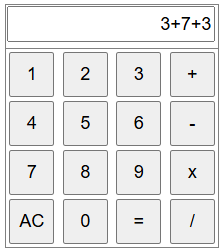
The local calculatorhtml file loaded in the browser during real Playwright test executionA single browser session is reused to execute multiple datasets within each test class. This improves execution efficiency and ensures consistent behavior across all data-driven runs. Test results are validated directly from the user interface by reading the displayed output and comparing it with the expected values.
Throughout the execution, the existing Excel-driven test control and reporting remain unchanged. Dataset level and test case level results are still captured and written back to Excel, maintaining enterprise-level visibility and control over test execution.
Test Classes Covered in This Step
This step includes four calculator test classes, each designed to validate a specific arithmetic operation using the same enterprise framework setup. All test classes follow an identical structure and execution flow, ensuring consistency and easy maintenance.
The test classes covered in this step are:
- CalcAdditionTest for addition scenarios
- CalcSubtractionTest for subtraction scenarios
- CalcMultiplicationTest for multiplication scenarios
- CalcDivisionTest for division scenarios
While the framework structure, data-driven execution, browser management, and reporting logic remain the same across all classes, the user interface actions differ based on the test purpose. Each class performs calculator interactions specific to the operation it is validating.
This consistent structure across multiple test classes demonstrates the scalability of the enterprise framework. New test scenarios can be added easily by following the same pattern, making the framework reliable and extensible for larger automation suites.
Playwright Execution Flow in the Framework
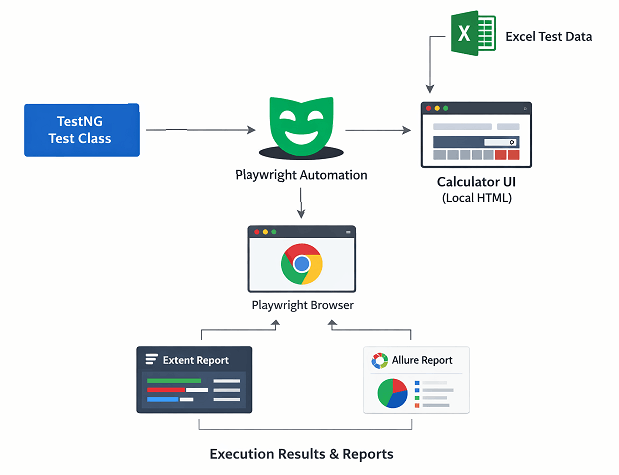
The Playwright execution starts with browser and page initialization during the test setup phase. The browser is launched once for the test class, and a single-page instance is created. This setup ensures that all test datasets execute within the same browser session.
After the browser is initialized, the test navigates to the calculator application before any test steps are executed. The application is loaded at the beginning of the test lifecycle, so it is ready for interaction when the test methods start running.
During test execution, the framework interacts with the user interface by performing actions such as entering values, clicking calculator buttons, and triggering operations through the browser. All interactions are executed using Playwright APIs, allowing tests to behave like real user actions.
Assertions are validated by reading the result displayed on the user interface after each operation. The actual value shown in the calculator result field is captured and compared with the expected value from the test data, ensuring accurate UI based validation.
This execution flow repeats for each dataset provided by the data provider. Multiple datasets are executed sequentially within the same browser session, maintaining a consistent and efficient execution flow across all data-driven test runs.
Browser Lifecycle Management
In this step, the browser is launched once per test class to keep test execution simple and efficient. Creating the browser during test setup ensures that all test datasets run within a single, controlled browser session.
The same browser and page instance are reused for all data rows provided by the data provider. This avoids unnecessary browser restarts and helps maintain a consistent application state across multiple test executions within the same class.
After all datasets have finished executing, the browser is closed cleanly at the end of the test lifecycle. This ensures that system resources are released properly and prevents leftover sessions from affecting other tests.
By managing the browser lifecycle in this way, test execution becomes faster and more stable. Reusing the browser reduces overhead, improves performance, and results in more predictable behavior during data-driven test runs.
Data Driven Execution with Real UI Tests
This step continues to use Excel-based datasets to drive test execution, just as in the previous framework steps. Test input values and expected results are read from Excel, allowing multiple test scenarios to be executed using the same test class.
The DataToRun flag controls whether a specific dataset should be executed or skipped. During execution, each dataset is checked before running the UI steps, ensuring that only approved test data is executed in the browser. This provides flexible control over which scenarios run without modifying the test code.
Each dataset is handled independently with clear pass, fail, and skip status tracking. Results are captured after every dataset execution and written back to Excel, giving precise visibility into individual test outcomes.
This approach maintains enterprise-level execution control while running real browser-based UI tests. It combines the reliability of structured data-driven testing with the realism of Playwright-based UI automation.
Download Updated Test Classes
⚠️ Important Note: This article is part of the Playwright Enterprise Automation Framework and covers Step 10 in a step-by-step build. The downloadable code is not standalone and depends on all previous steps in the series. If you landed here directly, please complete the earlier steps first to avoid setup or runtime issues.
To help you learn and practice real Playwright UI execution effectively, this step provides two separate download options. Each option is designed with a clear learning objective in mind.
Download 1: Start With the Core Implementation
Download CalcAdditionTest and Calculator.html (ZIP)
This ZIP file contains:
CalcAdditionTestcalculator.html
Use this download as your starting point. Study how Playwright interacts with the UI in the CalcAdditionTest class, including browser actions, element interaction, and result validation.
The calculator.html file should be placed under:
\src\test\resources\html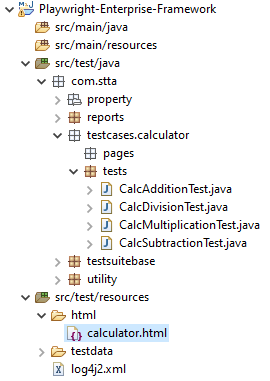
After understanding this implementation, try to apply the same Playwright UI interaction logic to the remaining calculator test classes on your own. This hands-on exercise will strengthen your understanding of how real UI tests are executed in the framework.
Download 2: Reference Implementation for Remaining Tests
Download Remaining Calculator Test Classes (ZIP)
This ZIP file contains:
CalcSubtractionTestCalcMultiplicationTestCalcDivisionTest
Use this download only if needed, for example, if you want to verify your implementation or if you are unable to complete the UI interaction logic for the remaining test classes. Reviewing these files will help you compare approaches and reinforce consistent framework design.
Both downloads contain ready-to-run test classes that integrate seamlessly with the existing framework, including Excel-driven execution control and reporting.
It is recommended to attempt the first implementation yourself before reviewing the reference files for maximum learning value.
How to Execute These Tests
You can execute the calculator tests either individually or as part of the full test suite using TestNG.
Here’s a complete, rewritten “Running a Single Test Class” subsection for your article, incorporating all the framework-specific options and the <exclude> method:
Running a Single Test Class
In this framework, there are multiple ways to run only one test class while keeping the suite structure intact:
- Modify TestNG XML – Open
addsub.xmland include only the class you want to run, for exampleCalcAdditionTest, while removingCalcSubtractionTest. Then execute the XML file from your IDE. - Use TestNG
<exclude>Tag – You can keep both classes inaddsub.xmlbut excludeCalcSubtractionTestby adding an<exclude>entry:
<class name="com.stta.testcases.calculator.tests.CalcSubtractionTest">
    <exclude name="*"/>
</class>
This will run only CalcAdditionTest without removing other classes from the suite.
- Skip Execution via Excel – Open
AddSub.xlsand go to theTestCasesListsheet. Set the CaseToRun flag toNforCalcSubtractionTest. During execution, the framework will automatically skip this test and run onlyCalcAdditionTest.
These methods allow you to execute a single test class while keeping your framework configurations, data-driven logic, and reporting fully functional.
Running All Calculator Tests Together
To execute all calculator tests, use the master testng.xml file. This file references the suite files addsub.xml and muldiv.xml, which together include all four calculator test classes: CalcAdditionTest, CalcSubtractionTest, CalcMultiplicationTest, and CalcDivisionTest. Running testng.xml will execute the entire calculator test suite sequentially.
Expected Browser Behavior
During execution, a real browser window will open and perform all calculator operations as defined by the datasets. The browser is launched once per test class, and all datasets in that class are executed in the same session, providing clear visibility into UI interactions.
Viewing Test Results
Results are recorded at both the dataset and test case levels. Execution details are written back to the Excel file, while logs and reports generated by the framework (e.g., Extent Reports) provide detailed insights into test outcomes. This allows you to track pass, fail, and skipped datasets efficiently.
Common Execution Observations
When running the calculator tests using the enterprise framework, several consistent behaviors can be observed:
- The browser opens only once per test class. All datasets within that class are executed using the same browser session, which improves efficiency and maintains a consistent application state.
- UI actions follow the dataset order as defined in the Excel file. Each dataset is executed sequentially, ensuring predictable and repeatable test behavior.
- Results for each dataset are written back to Excel immediately after execution. This includes pass, fail, or skip status, providing dataset-level visibility throughout the test run.
- At the end of all dataset executions, the final test case status is calculated and updated in Excel. This summary reflects the overall outcome of the test class, giving a clear picture of success or failure for the entire test.
These observations highlight the structured and controlled execution flow provided by the enterprise framework when running real Playwright tests.
Conclusion
In this step, you learned how to execute real UI tests using Playwright within the enterprise automation framework. You saw how existing TestNG, Excel-driven execution, and reporting components come together during actual browser-based test runs.
By integrating Playwright into the framework, you now have confidence in running real Playwright tests with controlled browser lifecycle management, reliable data-driven execution, and consistent result reporting. This step reinforces how the Playwright Enterprise Automation Framework supports scalable and maintainable UI automation without breaking existing design principles.
With this foundation in place, you are ready to move to the next step, where the framework will be extended further to handle more advanced enterprise testing scenarios.
FAQs
Do I need an internet connection to run these Playwright tests?
No, these tests run on a local HTML file (calculator.html) stored under src/test/resources/html. Playwright launches a real browser locally, so no external network is required for execution.
Where should I place the calculator.html file for the tests to work?
Place calculator.html under src/test/resources/html in your project. Playwright uses this path to navigate to the local calculator UI before executing any test.
How is Excel data used in real UI tests?
Excel datasets control which rows of data are executed using the DataToRun flag. Each dataset is applied to the calculator UI in order, and results are logged in Excel and reports after execution.