Playwright Java keyboard actions are one of the most common interactions in browser automation. Whether you are filling forms, simulating user input, or testing keyboard shortcuts, mastering keyboard handling is essential in Playwright automation.
In Playwright, keyboard actions such as typing text, pressing keys, and handling shortcuts are simple yet powerful. These actions help you simulate real user behavior accurately, which improves test reliability and coverage.
In this guide, you will learn how to handle keyboard input in Playwright Java, including typing text, pressing keys, and using keyboard shortcuts.
- How to Use Keyboard Actions in Playwright Java Quickly?
- How to Perform Keyboard Actions in Playwright Java?
- What is Playwright Java Keyboard API?
- How to Type Text Using keyboard().type() in Playwright Java?
- How to Press Keys Using keyboard().press() in Playwright Java?
- How to Use locator.press() in Playwright Java?
- How to Use keyboard().down() and keyboard().up() in Playwright Java?
- How to Use keyboard().insertText() in Playwright Java?
- What Keys Are Supported in Playwright Java Keyboard Actions?
- Common Keyboard Keys You Can Use
- Arrow Keys for Navigation
- Modifier Keys in Playwright
- Function Keys Support
- Example: Using Different Keys in Playwright Java
- Playwright Keyboard Keys List by Category
- Can You Use Key Codes Instead of Names?
- Are Keyboard Keys Case Sensitive in Playwright?
- Does Playwright Support All Browser Keys?
- What Are Real Use Cases of Keyboard Actions in Playwright Java?
- What Are Best Practices for Keyboard Actions in Playwright?
- Advanced Tips for Stable Keyboard Automation
- Common Mistakes to Avoid in Keyboard Automation
- Common Keyboard Issues in Playwright Java with Fixes
- Why are keyboard actions not working in Playwright Java?
- Why does keyboard().press() fail due to incorrect key names?
- Why do keyboard shortcuts not work on macOS in Playwright?
- Advanced Keyboard Scenarios in Playwright Java
- Keyboard Behavior and Execution in Playwright Java
- Examples in Other Languages
- Related Playwright Tutorials
- Conclusion
- FAQS
- What are keyboard actions in Playwright Java?
- How do you type text in Playwright Java?
- How do you press Enter key in Playwright Java?
- How do you perform keyboard shortcuts in Playwright Java?
- Does Playwright support special keys like Tab and Escape?
- Why are keyboard actions not working in Playwright?
- Do Playwright keyboard actions trigger key events automatically?
- How does keyboard().type() work internally in Playwright?
- Can you simulate human typing speed in Playwright Java?
- Which method is faster for input in Playwright Java?
- Do keyboard actions work without clicking an element first?
- Which is better keyboard().type() or locator.fill() in Playwright Java?
- Can Playwright handle keyboard events automatically?
- Why is keyboard().type() not working in
How to Use Keyboard Actions in Playwright Java Quickly?
You can perform keyboard actions in Playwright Java using the page.keyboard() API to type text, press keys, and trigger shortcuts.
Here is a quick example showing how to type text and press a key using Playwright Java.
page.keyboard().type("text");
page.keyboard().press("Enter");
How to Perform Keyboard Actions in Playwright Java?
After understanding the quick usage, let’s explore how keyboard actions work in detail with a complete example.
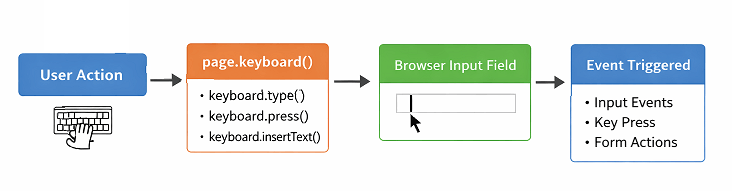
The keyboard() API works directly with the active page and mimics real user input, which makes it useful for form filling, search inputs, and shortcut validations.
The diagram below shows how keyboard actions work internally in Playwright Java.
Before performing keyboard actions, make sure your browser setup is correct. You can follow this step by step guide to launch a browser in Playwright Java.
Here is a quick example to type text and press a key in Playwright Java.
import com.microsoft.playwright.*;

public class KeyboardExample {
    public static void main(String[] args) {
        try (Playwright playwright = Playwright.create()) {
            Browser browser = playwright.chromium().launch();
            Page page = browser.newPage();

            page.navigate("https://example.com");

            // Focus on input field
            page.locator("#username").click();

            // Type text
            page.keyboard().type("testuser");

            // Press Enter key
            page.keyboard().press("Enter");
        }
    }
}
This example shows how to use keyboard().type() for entering text and keyboard().press() to simulate key press events.
Before using these methods in detail, it is important to understand how the keyboard API works in Playwright Java.
What is Playwright Java Keyboard API?
The Playwright Java Keyboard API allows you to simulate user keyboard actions such as typing text, pressing keys, and executing shortcuts using the page.keyboard() interface.
This API is useful when you need to test input fields, form submissions, search boxes, or any feature that depends on keyboard behavior.
Playwright provides multiple methods to handle keyboard actions efficiently. Below are the most commonly used methods.
keyboard().type()to type text like a real userkeyboard().press()to press a specific key or key combinationkeyboard().down()to press and hold a keykeyboard().up()to release a pressed keykeyboard().insertText()to insert text without triggering key events
Each method serves a different purpose depending on the testing scenario. For example, type() is best for realistic typing, while insertText() is useful for faster input without triggering events.
For more details on supported methods and behavior, refer to the official Playwright keyboard API documentation.
When to Use Keyboard Actions in Playwright Java?
You should use keyboard actions when testing features that depend on user input, keyboard shortcuts, or key based navigation.
- Filling login and registration forms
- Testing search functionality
- Validating keyboard shortcuts like Ctrl + C or Ctrl + V
- Handling Enter, Tab, Escape, and arrow keys
Is Keyboard API different from locator.fill()?
Yes. The locator.fill() method directly sets the value of an input field, while keyboard actions simulate real typing behavior with key events.
If you want to understand input handling in more detail, you can also learn how to handle text box in Playwright Java with different input methods and validations.
Does keyboard().type() trigger events?
Yes. The keyboard().type() method triggers keydown, keypress, and keyup events, which makes it closer to real user interaction.
Now that you understand the basics, let’s explore how to type text using keyboard actions.
What is the Difference Between keyboard() and locator Methods in Playwright Java?
The image below compares different input methods in Playwright Java.
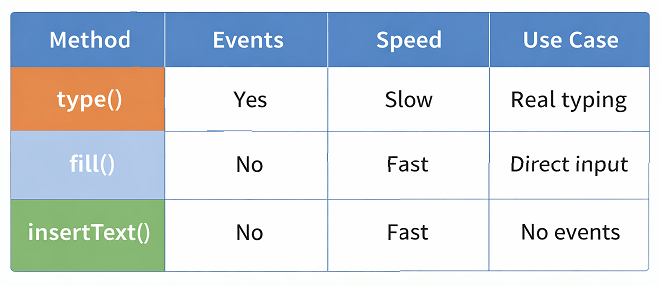
keyboard() and locator methods serve different purposes in Playwright Java. Keyboard actions simulate real user input, while locator methods directly interact with elements.
Below is a comparison to help you choose the right approach.
| Method | Triggers Events | Speed | Scope | Best Use Case |
|---|---|---|---|---|
| keyboard().type() | Yes | Slower | Page level | Real typing simulation |
| keyboard().press() | Yes | Medium | Page level | Key press and shortcuts |
| locator.fill() | No | Fast | Element level | Direct input without events |
| locator.press() | Yes | Fast | Element level | Press key on specific element |
How to Type Text Using keyboard().type() in Playwright Java?
You can type text in Playwright Java using the keyboard().type() method. This method sends individual key events for each character.
It is useful when you want to trigger input related events such as keydown, keypress, and keyup while entering text into a field.
Follow the steps below to type text using keyboard actions.
- Navigate to the required page
- Click on the input field to focus
- Use
keyboard().type()to enter text
To make typing actions more reliable, you should use stable selectors. Learn how to use getByRole locator in Playwright Java for better element targeting.
The example below demonstrates typing text into an input field.
import com.microsoft.playwright.*;

public class TypeExample {
    public static void main(String[] args) {
        try (Playwright playwright = Playwright.create()) {
            Browser browser = playwright.chromium().launch();
            Page page = browser.newPage();

            page.navigate("https://example.com");

            // Focus on input field
            page.locator("#username").click();

            // Type text like a real user
            page.keyboard().type("Playwright Java");
        }
    }
}
This example shows how text is typed character by character, similar to how a real user interacts with the keyboard.
This approach is useful when handling keyboard input in Playwright Java where event triggering is required.
How to Add Delay While Typing in Playwright Java?
You can add delay while typing by using the overloaded type() method with options. This helps simulate slow typing behavior.
The example below shows how to type text with delay.
import com.microsoft.playwright.Keyboard;

page.keyboard().type("Slow typing example",
    new Keyboard.TypeOptions().setDelay(100));
In this example, a delay of 100 milliseconds is added between each key press.
When Should You Use keyboard().type()?
You should use keyboard().type() when you need realistic typing behavior or when your application depends on keyboard events.
- Validating live search suggestions
- Testing input validation logic
- Triggering JavaScript key events
Is keyboard().type() slower than fill()?
Yes. The keyboard().type() method is slower because it simulates real typing, while locator.fill() sets the value instantly.
In addition to typing, you often need to press specific keys or trigger actions using the keyboard.
How to Press Keys Using keyboard().press() in Playwright Java?
You can press keys in Playwright Java using the keyboard().press() method. This method simulates a full key press action including keydown and keyup events. This method is commonly used in Playwright Java press key examples such as submitting forms or triggering actions.
It is commonly used for actions like submitting forms, navigating fields using Tab, or triggering keyboard shortcuts.
Follow these steps to press a key in Playwright Java.
- Navigate to the page
- Focus on the required element
- Use
keyboard().press()with the key name
The example below demonstrates how to press the Enter key.
import com.microsoft.playwright.*;

public class PressKeyExample {
    public static void main(String[] args) {
        try (Playwright playwright = Playwright.create()) {
            Browser browser = playwright.chromium().launch();
            Page page = browser.newPage();

            page.navigate("https://example.com");

            // Focus on input field
            page.locator("#search").click();

            // Type query
            page.keyboard().type("Playwright");

            // Press Enter key
            page.keyboard().press("Enter");
        }
    }
}
This example shows how to trigger form submission using the Enter key.
How to Press Special Keys in Playwright Java?
You can press special keys by passing their names as strings to the press() method.
Here are some commonly used keys.
- Enter
- Tab
- Escape
- Backspace
- Delete
- ArrowUp, ArrowDown, ArrowLeft, ArrowRight
Example of pressing Tab and Escape keys.
page.keyboard().press("Tab");
page.keyboard().press("Escape");
How to Use Keyboard Shortcuts in Playwright Java?
You can perform keyboard shortcuts by combining keys using the + operator inside the press() method.
This is useful for actions like copy, paste, select all, and undo.
Example of common shortcuts.
// Select all text
page.keyboard().press("Control+A");

// Copy text
page.keyboard().press("Control+C");

// Paste text
page.keyboard().press("Control+V");
On macOS, you should use Meta instead of Control.
Some keyboard shortcuts are also used for navigation. You can explore keyboard based scrolling in Playwright Java to understand how arrow keys and page keys help in scrolling scenarios.
Playwright Java keyboard shortcuts are useful for testing copy paste, undo, and select all actions.
Can keyboard().press() handle key combinations?
Yes. The keyboard().press() method supports key combinations like Control + A or Shift + Tab.
Does press() trigger keyboard events?
Yes. The press() method triggers both keydown and keyup events automatically.
How to Use locator.press() in Playwright Java?
You can press a key on a specific element in Playwright Java using the locator.press() method. This method targets a particular element instead of the active page.
It is useful when you want to trigger keyboard actions directly on an element without manually focusing it.
Follow these steps to use locator.press() in Playwright Java.
- Locate the target element
- Use locator.press() with the required key
The example below demonstrates pressing the Enter key on an input field.
page.locator("#search").press("Enter");This approach is useful when you want more precise control over element specific keyboard interactions.
When Should You Use locator.press() Instead of keyboard().press()?
You should use locator.press() when you want to send a key event directly to a specific element instead of the currently focused element.
- When multiple input fields are present on the page
- You want to avoid manual focus handling
- When working with dynamic UI elements
For more advanced control, Playwright also allows you to manually handle key press and release actions.
How to Use keyboard().down() and keyboard().up() in Playwright Java?
You can control key press and release manually in Playwright Java using keyboard().down() and keyboard().up(). These methods allow you to simulate holding a key and releasing it when needed.
This is useful for advanced scenarios such as selecting text using Shift, dragging with keyboard combinations, or handling complex shortcuts.
Follow these steps to use key down and key up actions.
- Navigate to the page
- Focus on the required element
- Use
keyboard().down()to press and hold a key - Use
keyboard().up()to release the key
The example below demonstrates how to hold Shift and type uppercase text.
import com.microsoft.playwright.*;

public class KeyDownUpExample {
    public static void main(String[] args) {
        try (Playwright playwright = Playwright.create()) {
            Browser browser = playwright.chromium().launch();
            Page page = browser.newPage();

            page.navigate("https://example.com");

            // Focus on input field
            page.locator("#username").click();

            // Hold Shift key
            page.keyboard().down("Shift");

            // Type uppercase text
            page.keyboard().type("playwright");

            // Release Shift key
            page.keyboard().up("Shift");
        }
    }
}
This example shows how holding the Shift key converts typed text into uppercase.
When Should You Use keyboard().down() and keyboard().up()?
You should use these methods when you need precise control over key press duration or when combining multiple keys manually.
- Holding Shift for text selection
- Simulating Ctrl key combinations step by step
- Testing drag and select keyboard behavior
What is the Difference Between press() and down() with up()?
The press() method performs both keydown and keyup automatically, while down() and up() give you manual control over each step.
Can You Combine Multiple Keys Using down()?
Yes. You can hold one key using down() and then press another key to simulate combinations like Shift + Arrow keys.
Example of selecting text using Shift and ArrowRight.
page.keyboard().down("Shift");
page.keyboard().press("ArrowRight");
page.keyboard().press("ArrowRight");
page.keyboard().up("Shift");
Apart from simulating key events, Playwright also provides a faster way to insert text directly.
How to Use keyboard().insertText() in Playwright Java?
You can insert text in Playwright Java using the keyboard().insertText() method. This method directly inserts text into the focused element without triggering keyboard events.
It is useful when you want faster input or when your test does not depend on keydown, keypress, or keyup events.
Follow these steps to use insertText in Playwright Java.
- Navigate to the page
- Focus on the input field
- Use
keyboard().insertText()to insert text
The example below demonstrates how to insert text into an input field.
import com.microsoft.playwright.*;

public class InsertTextExample {
    public static void main(String[] args) {
        try (Playwright playwright = Playwright.create()) {
            Browser browser = playwright.chromium().launch();
            Page page = browser.newPage();

            page.navigate("https://example.com");

            // Focus on input field
            page.locator("#username").click();

            // Insert text directly
            page.keyboard().insertText("Playwright Fast Input");
        }
    }
}
This example shows how text is inserted instantly without simulating individual key presses.
What is the Difference Between type() and insertText()?
The type() method simulates real typing with key events, while insertText() directly sets the text without triggering those events.
| Method | Triggers Events | Speed | Use Case |
|---|---|---|---|
| keyboard().type() | Yes | Slower | Real user simulation |
| keyboard().insertText() | No | Faster | Direct input without events |
When Should You Use insertText()?
You should use insertText() when speed is important and your test does not depend on keyboard events.
- Filling large text fields quickly
- Bypassing event based validations
- Improving test execution speed
Does insertText() trigger validation events?
No. The insertText() method does not trigger key related events, so event based validations may not run.
To use keyboard actions effectively, it is important to know which keys are supported in Playwright.
What Keys Are Supported in Playwright Java Keyboard Actions?
The image below shows the commonly used keyboard keys supported in Playwright Java for automation testing.
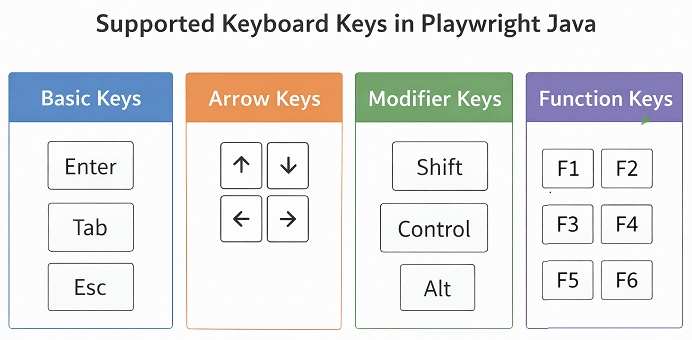
Playwright Java supports a wide range of keyboard keys including standard keys, special keys, and modifier keys. You can use these keys with methods like press(), down(), and up().
These keys help perform keyboard input interactions such as navigation, editing, and shortcut execution.
Below are commonly used supported keys in Playwright.
Common Keyboard Keys You Can Use
These keys are frequently used in automation scenarios.
- Enter
- Tab
- Escape
- Backspace
- Delete
- Space
These keys are used to handle keyboard events in Playwright Java effectively.
Arrow Keys for Navigation
You can use arrow keys to navigate within input fields, dropdowns, or UI components.
- ArrowUp
- ArrowDown
- ArrowLeft
- ArrowRight
Modifier Keys in Playwright
Modifier keys are used in combination with other keys to perform shortcuts.
- Shift
- Control
- Alt
- Meta (used in macOS)
Function Keys Support
Playwright also supports function keys which are useful in certain browser or application level actions.
- F1 to F12
Example: Using Different Keys in Playwright Java
The example below shows how to use different types of keys in automation.
// Press Enter
page.keyboard().press("Enter");

// Navigate using arrow keys
page.keyboard().press("ArrowDown");

// Use Escape key
page.keyboard().press("Escape");

// Use function key
page.keyboard().press("F5");
Playwright Keyboard Keys List by Category
Below is a categorized list of commonly used keyboard keys in Playwright Java.
| Category | Keys | Usage |
|---|---|---|
| Basic Keys | Enter, Tab, Escape, Space | Form submission, navigation, closing dialogs |
| Editing Keys | Backspace, Delete | Text editing and input correction |
| Arrow Keys | ArrowUp, ArrowDown, ArrowLeft, ArrowRight | Navigation within inputs, dropdowns, menus |
| Modifier Keys | Shift, Control, Alt, Meta | Used with combinations for shortcuts |
| Function Keys | F1 to F12 | Browser or system level actions |
Can You Use Key Codes Instead of Names?
No. Playwright uses key names as strings instead of numeric key codes, which makes the API easier to use and more readable.
Are Keyboard Keys Case Sensitive in Playwright?
Yes. Key names should match the exact format supported by Playwright, such as Enter or ArrowUp.
Does Playwright Support All Browser Keys?
Yes. Playwright supports most standard keys used in modern browsers, including special and modifier keys.
Now let’s look at how keyboard actions are used in real automation scenarios.
What Are Real Use Cases of Keyboard Actions in Playwright Java?
Keyboard actions in Playwright Java are widely used to mimic user input in automation tests. They help validate features that depend on typing, navigation, and keyboard shortcuts.
Below are common real world scenarios where keyboard actions are essential.
- Submitting forms using Enter key
- Navigating fields using Tab key
- Testing search suggestions while typing
- Validating copy paste functionality
- Handling dropdown navigation using arrow keys
These scenarios ensure your application behaves correctly under real user interactions.
Example: Submit Form Using Enter Key
This example shows how to submit a form using the Enter key after typing in a field.
page.locator("#email").click();
page.keyboard().type("test@example.com");
page.keyboard().press("Enter");
This is a common Playwright key press Enter Java example used in form submissions.
Example: Navigate Using Tab Key
This example demonstrates how to move focus between fields using the Tab key.
page.keyboard().press("Tab");
page.keyboard().press("Tab");
Example: Select Text Using Shift and Arrow Keys
This example shows how to select text using Shift and Arrow keys.
page.keyboard().down("Shift");
page.keyboard().press("ArrowRight");
page.keyboard().press("ArrowRight");
page.keyboard().up("Shift");
What Are Best Practices for Keyboard Actions in Playwright?
Following best practices helps make your automation tests stable and reliable.
- Always ensure the correct element is focused before performing keyboard actions to avoid unexpected failures
- Use keyboard().type() when your application depends on key events like keydown or keyup
- Use keyboard().insertText() for faster execution when event triggering is not required
- Avoid unnecessary delays unless your application specifically depends on typing speed
- Prefer locator-based actions when direct input is sufficient to improve test performance
Advanced Tips for Stable Keyboard Automation
- Always wait for elements to be visible and interactable before sending keyboard input
- Use explicit focus actions like click() instead of relying on implicit focus
- Handle platform-specific keys such as Meta for macOS and Control for Windows carefully
- Avoid chaining too many keyboard actions without validation checkpoints
- Combine keyboard actions with assertions to verify expected behavior
Common Mistakes to Avoid in Keyboard Automation
Avoid these common mistakes to prevent flaky tests.
- Typing without focusing the input field
- Using wrong key names like enter instead of Enter
- Relying on keyboard actions when
fill()is more suitable - Ignoring platform specific keys like Meta for macOS
Common Keyboard Issues in Playwright Java with Fixes
Below are common issues developers face when working with keyboard actions in Playwright Java along with their solutions.
Why are keyboard actions not working in Playwright Java?
If the element is not focused, keyboard input will not work as expected.
// Incorrect
page.keyboard().type("test");

// Correct
page.locator("#username").click();
page.keyboard().type("test");
Why does keyboard().press() fail due to incorrect key names?
Using incorrect key names like “enter” instead of “Enter” can cause failures.
// Incorrect
page.keyboard().press("enter");

// Correct
page.keyboard().press("Enter");
Why do keyboard shortcuts not work on macOS in Playwright?
Using Control instead of Meta on macOS can break shortcut tests.
// Windows
page.keyboard().press("Control+C");

// macOS
page.keyboard().press("Meta+C");
Advanced Keyboard Scenarios in Playwright Java
In real world automation, keyboard actions are not always limited to simple typing or key presses. You may need to handle complex scenarios such as working with iframes, contenteditable elements, global shortcuts, or managing focus across dynamic UI components. Understanding these advanced cases helps you build more stable and production ready Playwright tests.
Keyboard Actions in iFrames
When working with iframes, keyboard actions must be performed inside the correct frame context. Playwright does not automatically send keyboard input to an iframe unless you switch to it.
Follow these steps to handle keyboard actions in an iframe.
- Locate the iframe using frameLocator()
- Interact with elements inside the iframe
- Apply keyboard actions after focusing the element
// Switch to iframe and type text
page.frameLocator("#frameId").locator("#input").click();
page.keyboard().type("Playwright inside iframe");
If you do not switch to the correct frame, keyboard actions may fail because the element is not in the active context.
Handling contenteditable Elements
Contenteditable elements behave differently from standard input fields. These elements are often used in rich text editors and require focus before typing.
To interact with contenteditable elements, you must click on the element and then use keyboard actions.
// Click contenteditable element
page.locator("[contenteditable='true']").click();

// Type text
page.keyboard().type("Typing in rich text editor");
Unlike input fields, contenteditable elements rely heavily on keyboard events, so using keyboard().type() is the preferred approach.
Using Keyboard on Non-Input Elements
Keyboard actions are not limited to input fields. Many applications support global keyboard shortcuts that work on the entire page or specific components.
Examples include:
- Pressing Escape to close a modal
- Using Ctrl + K to open search
- Navigating menus using arrow keys
// Close modal using Escape
page.keyboard().press("Escape");

// Open search using shortcut
page.keyboard().press("Control+K");
These actions work on the active page or component, even without focusing a specific input field.
Focus Management for Keyboard Actions
Keyboard actions depend on which element is currently focused. If the wrong element is active, your test may fail or produce unexpected results.
Common focus related challenges include:
- Multiple input fields on the page
- Dynamic UI elements like modals or dropdowns
- Auto focus behavior in forms
Best practices for focus management:
- Always click the target element before typing
- Avoid relying on default focus behavior
- Use assertions to verify the correct element is active
To better understand how elements are identified and focused, check this guide on Playwright locators with Java which explains how to target elements accurately.
// Ensure correct element is focused
page.locator("#email").click();
page.keyboard().type("test@example.com");
Proper focus handling improves test stability and reduces flaky behavior.
page.keyboard() vs locator.press()
Both page.keyboard() and locator.press() can be used for keyboard actions, but they serve different purposes.
- page.keyboard() works on the currently focused element and simulates global keyboard input
- locator.press() sends a key press directly to a specific element without requiring manual focus
Example using page.keyboard():
// Requires focus
page.locator("#search").click();
page.keyboard().press("Enter");
Example using locator.press():
// Directly targets element
page.locator("#search").press("Enter");
Use page.keyboard() when simulating real user behavior and locator.press() when you want precise and reliable element level interaction.
Keyboard Behavior and Execution in Playwright Java
Understanding how keyboard actions behave during execution is important for building stable Playwright tests. Playwright automatically handles waiting and event triggering, but issues like focus, timing, and incorrect usage can still affect results. In this section, you will learn how keyboard actions execute and what factors impact their behavior in real scenarios.
Does Playwright Automatically Wait Before Keyboard Actions?
Yes. Playwright automatically waits for elements to be ready before performing actions, which reduces the need for manual waits.
Can Keyboard Actions Fail Due to Focus Issues?
Yes. If the element is not focused, keyboard actions may not work as expected. Always ensure the correct element is active.
Examples in Other Languages
Playwright keyboard actions work similarly across different languages. Below are examples in JavaScript and Python.
JavaScript Example: Typing Text and Pressing Enter
This example shows how to type text and press Enter using Playwright in JavaScript.
await page.keyboard.type("Playwright");
await page.keyboard.press("Enter");
Python Example: Keyboard Actions
This Python example demonstrates typing text and pressing a key using Playwright.
page.keyboard.type("Playwright")
page.keyboard.press("Enter")
Related Playwright Tutorials
To build a strong foundation in Playwright automation, it is important to understand related concepts along with keyboard actions. Below are some useful tutorials that will help you continue learning step by step.
- Click an element in Playwright Java with examples
- Handle dropdown values in Playwright Java step by step
- Handle checkbox in Playwright Java with real scenarios
- Handle alerts in Playwright Java with examples
- Handle multiple tabs and windows in Playwright Java
These tutorials will help you understand how different Playwright features work together in real world automation scenarios.
Conclusion
Keyboard actions in Playwright Java provide a powerful way to simulate real user interactions in automation tests. From typing text to handling shortcuts and special keys, these actions help you validate complex user flows effectively.
In this guide, you learned how to use keyboard().type(), keyboard().press(), keyboard().down(), keyboard().up(), and keyboard().insertText() with practical examples. Each method serves a specific purpose depending on your testing needs.
As a next step, try combining keyboard actions with locators and assertions to build more advanced and reliable test scenarios in Playwright Java.
FAQS
What are keyboard actions in Playwright Java?
Keyboard actions in Playwright Java allow you to simulate user input such as typing text, pressing keys, and using shortcuts through the keyboard API.
How do you type text in Playwright Java?
You can type text in Playwright Java using keyboard().type() after focusing on an input field. This method sends key events for each character, making it suitable for testing input validation and real typing behavior.
How do you press Enter key in Playwright Java?
You can press the Enter key in Playwright Java using keyboard().press(“Enter”). This is commonly used to submit forms or trigger search actions.
How do you perform keyboard shortcuts in Playwright Java?
You can perform shortcuts using keyboard().press() with combinations like “Control+C” or “Control+V”.
Does Playwright support special keys like Tab and Escape?
Yes, Playwright supports special keys such as Tab, Escape, Enter, and arrow keys.
Why are keyboard actions not working in Playwright?
Keyboard actions may fail in Playwright Java if the element is not focused, the selector is incorrect, or an unsupported key name is used. Always ensure the correct element is active before performing keyboard input.
Do Playwright keyboard actions trigger key events automatically?
Yes, methods like type() and press() automatically trigger key events such as keydown and keyup.
How does keyboard().type() work internally in Playwright?
The keyboard().type() method sends a sequence of key events such as keydown, keypress, and keyup for each character. This helps simulate real typing behavior in automation tests.
Can you simulate human typing speed in Playwright Java?
Yes, you can simulate human typing by adding delay using keyboard().type() with delay options.
Which method is faster for input in Playwright Java?
The insertText() method is faster because it directly inserts text without triggering keyboard events.
Do keyboard actions work without clicking an element first?
No, the element must be focused before performing keyboard actions.
Which is better keyboard().type() or locator.fill() in Playwright Java?
keyboard().type() is better for simulating real typing and triggering events, while locator.fill() is faster and directly sets the value. Choose based on whether your test depends on keyboard events.
Can Playwright handle keyboard events automatically?
Yes, Playwright automatically triggers keyboard events such as keydown and keyup when using methods like keyboard().type() and keyboard().press().
Why is keyboard().type() not working in
keyboard().type() may not work if the element is not focused, the selector is incorrect, or the element is not visible. Always click the element before typing and ensure it is interactable.