Playwright test stuck on loading page problems usually happen when the browser keeps waiting for navigation, API responses, or UI elements that never fully finish loading. In many cases, the issue comes from incorrect waits, unstable locators, or background network activity instead of Playwright itself.
This problem is common while automating login flows, dashboards, single page applications, and API driven pages. A test may work locally but suddenly freeze in headless mode or CI pipelines because the application behaves differently under slower environments.
If you are still learning Playwright fundamentals, this beginner-friendly Playwright TypeScript tutorial can help you understand navigation, locators, waits, and assertions before troubleshooting advanced loading behavior.
In this guide, you will learn how to fix Playwright loading issues using reliable waits, debugging tools, API monitoring, and practical TypeScript examples. You will also see common mistakes that frequently cause Playwright tests to hang indefinitely.
- How to Fix Playwright Test Stuck on Loading Page?
- What Does “Playwright Test Stuck on Loading Page” Actually Mean?
- Why Do Playwright Tests Get Stuck on Loading Pages?
- How to Fix Playwright Test Stuck on Loading Page Step by Step
- Best Waiting Strategies in Playwright
- How to Debug Playwright Tests Stuck on Loading Pages
- Common Mistakes That Keep Playwright Tests Loading Forever
- How to Fix Playwright Loading Issues in CI/CD Pipelines
- Examples in Other Languages
- Best Practices to Prevent Playwright Tests From Getting Stuck
- Related Playwright Tutorials
- Conclusion
- FAQs
How to Fix Playwright Test Stuck on Loading Page?
You can fix a Playwright test stuck on a loading page by waiting for the correct page state, avoiding unnecessary networkidle waits, using stable locators, and debugging pending API or UI actions. In many real projects, the issue comes from incorrect waits rather than Playwright itself.
import { test, expect } from '@playwright/test';

test('fix loading issue', async ({ page }) => {
  await page.goto('https://example.com');

  await expect(page.getByRole('button', { name: 'Login' }))
  .toBeVisible();
  await page.getByRole('button', { name: 'Login' }).click();

  await page.waitForURL('**/dashboard');

  await expect(page.getByRole('heading', { name: 'Dashboard' }))
    .toBeVisible();
});
The example above waits for a real application state instead of using hard waits like waitForTimeout().
What Does “Playwright Test Stuck on Loading Page” Actually Mean?
A Playwright test is considered stuck on a loading page when the automation keeps waiting for navigation, API calls, or UI events that never fully complete. The browser may still be active, but the test stops progressing.
This issue is common in React, Angular, Vue, and Next.js applications where background API calls, websocket traffic, lazy loading, and analytics scripts continue running even after the visible UI appears ready.
Here is where most beginners make mistakes. They assume the page is still loading visually, so they add larger timeouts. However, the real issue is usually that Playwright is waiting for the wrong condition.
What Are the Most Common Symptoms?
These are the most common signs that a Playwright test is stuck on loading.
- The test hangs after
page.goto() - The browser spinner keeps running forever
waitForLoadState('networkidle')never finishes- The page loads manually but fails in automation
- Tests fail only in headless mode or CI pipelines
- Elements become visible slowly because APIs are pending
- The test passes locally but freezes in Jenkins or GitHub Actions
The following example shows a common Playwright loading issue where the browser remains active but the test never proceeds to the next step.
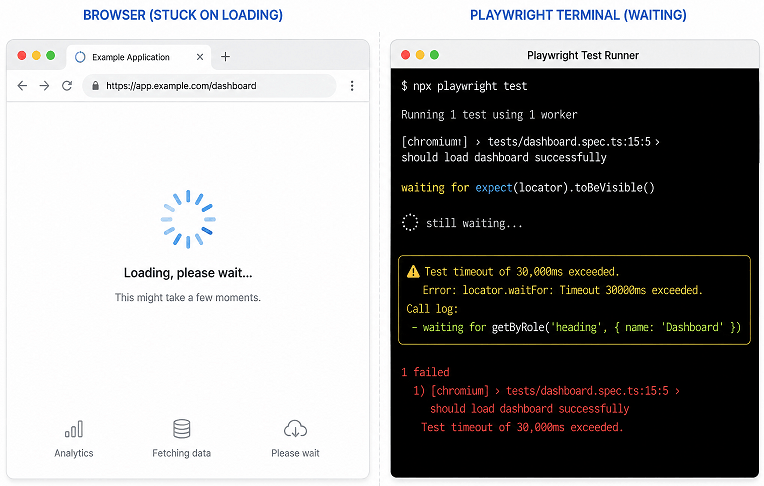
In practical automation environments, endless loading is commonly triggered by:
- Long polling network requests
- Tracking or analytics scripts
- Third-party widgets
- Incorrect iframe handling
- Improper navigation waits
- Unstable selectors
- Background websocket connections
Why Does This Happen Frequently in React and SPA Applications?
Modern frontend applications rarely become completely idle. Frameworks like React and Next.js continuously fetch data in the background. Because of this, Playwright may keep waiting if the test relies on outdated waiting strategies.
As per official Playwright guidance, using networkidle as the primary readiness check is not always reliable. Waiting for visible UI states, expected URLs, or important API responses is usually a safer and more stable approach.
Simply put, the page may already be usable for users even though some network activity is still happening in the background.
Why Do Playwright Tests Get Stuck on Loading Pages?
Playwright tests usually get stuck on loading pages because the automation waits for a condition that never completes. Common causes include pending API calls, unstable locators, authentication redirects, endless navigation after page.goto(), and incorrect waiting logic.
Many loading problems happen during redirects and page transitions, so understanding different Playwright navigation methods in TypeScript can help you debug synchronization issues more effectively.
The actual problem is unstable waiting logic, incorrect synchronization, or application behavior that changes between environments.
Does waitForLoadState(‘networkidle’) Cause Hanging Issues?
Yes. Overusing waitForLoadState('networkidle') is one of the biggest reasons Playwright tests freeze on loading screens.
Many web applications continuously send background requests for analytics, notifications, websocket updates, or live data. Because of this, the network rarely stays idle for long enough (500ms) in modern apps.
For more details, the official Playwright documentation explains why networkidle should be used carefully in modern applications.
The diagram below explains why waitForLoadState(‘networkidle’) can cause Playwright tests to hang in applications with continuous background activity.
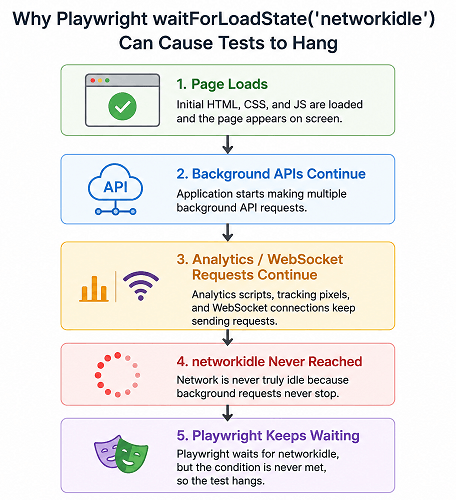
This pattern commonly causes loading issues in Playwright suites.
await page.goto('https://example.com');

await page.waitForLoadState('networkidle');
A safer and more stable approach is waiting for a meaningful UI state.
await page.goto('https://example.com');

await expect(
  page.getByRole('heading', { name: 'Dashboard' })
).toBeVisible();
This approach focuses on what the user actually sees instead of background network behavior.
Can Incorrect Locators Cause Endless Loading?
Yes. Wrong or unstable locators can make Playwright wait forever for elements that never appear.
This happens frequently when:
- Selectors change dynamically
- Elements exist inside iframes
- The locator points to hidden elements
- The page renders content asynchronously
- The application uses virtual DOM rendering
Many beginners keep increasing timeout values instead of checking whether the locator itself is valid.
If Playwright keeps waiting for elements that never appear, these common waitForSelector timeout issues in Playwright can help you identify unstable selectors faster.
Why Do Tests Freeze After Login?
Authentication flows are one of the biggest sources of loading issues in Playwright automation.
After login, applications often trigger:
- Multiple API calls
- Token validation
- User profile loading
- Permission checks
- Feature flag requests
- Redirect chains
If the test immediately interacts with the page before the application becomes stable, Playwright may wait indefinitely for actions to complete.
This issue appears frequently in applications that use Single Sign-On authentication and multiple redirect layers.
Can Third-Party Scripts Keep the Page Loading Forever?
Yes. Third-party scripts are one of the most ignored causes of Playwright loading issues.
These scripts may include:
- Google Analytics
- Chat widgets
- Heatmap tools
- Advertisement scripts
- Monitoring tools
- Customer support integrations
Some of these services continuously make background requests. As a result, Playwright may never detect a fully idle page state.
Does Headless Mode Behave Differently?
Yes. Some applications behave differently in headless browsers.
In headless execution, timing differences, rendering speed, security policies, or bot detection mechanisms may affect page loading behavior. A test that works perfectly in headed mode can suddenly freeze in CI pipelines.
This is why debugging in headed mode first is strongly recommended before optimizing for headless execution.
How to Fix Playwright Test Stuck on Loading Page Step by Step
You can fix most Playwright loading issues by figuring out what the test is actually waiting for.
Instead of increasing timeouts everywhere, focus on identifying the exact synchronization problem. This usually makes tests faster, cleaner, and much more stable.
Now let’s fix the problem step by step using practical debugging approaches that work in real Playwright projects.
Step 1: Remove Unnecessary waitForTimeout() Calls
Hard waits are one of the most common reasons tests become slow, flaky, and unreliable.
A lot of beginners try adding random delays when tests start freezing. It may appear to work temporarily, but the underlying synchronization issue still remains and usually comes back later in CI or headless runs.
Avoid this approach.
await page.waitForTimeout(10000);Use meaningful waits based on actual application behavior.
await expect(
  page.getByText('Welcome')
).toBeVisible();
This makes the test faster and much more stable across environments.
Step 2: Stop Relying Too Much on networkidle
Instead of this:
await page.waitForLoadState('networkidle');Prefer waiting for:
- Visible UI elements
- Expected URLs
- Specific API responses
- Loading spinners disappearing
- User-visible page states
Here is a better example.
await page.waitForURL('**/dashboard');

await expect(
  page.getByRole('heading', { name: 'Dashboard' })
).toBeVisible();
Step 3: Check Whether API Calls Are Stuck
Sometimes the UI never becomes ready because backend APIs remain pending or fail silently.
This is very common in applications using lazy loading or microservices.
You can debug network requests using Playwright event listeners.
page.on('request', request => {
  console.log('Request:', request.url());
});

page.on('response', response => {
  console.log('Response:', response.url(), response.status());
});
Once these logs start appearing in the terminal, you can quickly spot requests that behave abnormally. Typical problems include:
- Never return
- Return 500 errors
- Get blocked in CI
- Take unusually long time
Step 4: Verify the Locator Is Actually Correct
Playwright may appear stuck when it is repeatedly waiting for an element that does not exist.
This happens frequently after UI redesigns, dynamic rendering, or iframe usage.
Instead of vague CSS selectors:
await page.locator('.btn').click();Prefer stable user-focused locators.
await page.getByRole('button', {
  name: 'Submit'
}).click();
Step 5: Run the Test in Headed Mode
One of the fastest ways to debug loading issues is running the browser visibly.
Use this command:
npx playwright test --headed
This helps you observe:
- Infinite loaders
- Unexpected popups
- Authentication redirects
- Broken UI states
- Slow rendering issues
Sometimes the issue becomes obvious within seconds after watching the browser run visually. Hidden redirects, blocked popups, or endless loaders are much easier to notice in headed mode.
Step 6: Use Playwright Trace Viewer for Deep Debugging
Playwright Trace Viewer is one of the most powerful debugging tools for loading issues.
The official Trace Viewer documentation explains how to inspect network activity, screenshots, DOM snapshots, and failed actions step by step.
Enable tracing in your Playwright configuration.
import { defineConfig } from '@playwright/test';

export default defineConfig({
  use: {
    trace: 'on-first-retry'
  }
});
Then open the trace report.
npx playwright show-trace trace.zipThe trace viewer shows:
- Network activity
- Element waits
- Screenshots
- Console logs
- Navigation timing
- Action-by-action execution
Trace Viewer often exposes the exact moment where the application stops progressing. This makes root cause analysis much faster compared to plain console logs alone.
After fixing the immediate loading issue, the next step is choosing waiting strategies that prevent the same problem from returning later.
Best Waiting Strategies in Playwright
The best waiting strategy in Playwright is validating user-visible states such as element visibility, expected URLs, or important API responses instead of using hard waits or endless network waits.
Modern Playwright frameworks rely on UI visibility, URL validation, and API responses instead of hardcoded delays.
Which Waiting Method Should You Use in Playwright?
Different loading situations require different waiting strategies. Using the correct method is important for preventing hanging tests.
| Waiting Method | Best Used For | Recommended |
|---|---|---|
expect().toBeVisible() | UI readiness validation | Yes |
waitForURL() | Navigation and redirects | Yes |
waitForResponse() | Critical API synchronization | Yes |
waitForLoadState('load') | Basic page load completion | Sometimes |
waitForLoadState('networkidle') | Applications with no background traffic | Use Carefully |
waitForTimeout() | Temporary debugging only | No |
Why Is UI-Based Waiting More Reliable?
UI-based waiting focuses on what the user actually sees instead of hidden browser activity.
For example, waiting for a dashboard heading is more reliable than waiting for all network calls to stop.
await expect(
  page.getByRole('heading', {
    name: 'Dashboard'
  })
).toBeVisible();
This approach works well even when analytics scripts or background requests continue running.
How to Wait for API Responses Properly?
Sometimes the page depends on specific API responses before becoming usable. In such cases, waiting for the API directly is a cleaner solution.
await Promise.all([
  page.waitForResponse(response =>
    response.url().includes('/api/user') &&
    response.status() === 200
  ),
  page.getByRole('button', { name: 'Login' }).click()
]);
This prevents race conditions where the UI loads slower than expected.
Can Auto-Waiting in Playwright Solve Loading Problems?
Yes. Playwright already includes built-in auto-waiting for most user actions.
For example, Playwright automatically waits before:
- Clicking elements
- Typing into fields
- Selecting options
- Navigating pages
- Performing assertions
A common mistake is adding manual waits after almost every action. In most cases, Playwright’s built-in auto-waiting already handles synchronization more reliably.
However, incorrect assertions targeting hidden elements, outdated text, or unstable UI states can still cause Playwright to wait until the timeout is reached.
Important Note Before You Proceed
If your Playwright test still hangs after improving waits, the next thing to check is browser console errors, failed API calls, or authentication redirects. These hidden issues are responsible for many endless loading problems in large web applications.
Sometimes improving waits alone is not enough. When tests still freeze randomly, proper debugging becomes the fastest way to identify the real issue.
How to Debug Playwright Tests Stuck on Loading Pages
The fastest way to debug a Playwright loading issue is identifying the exact step where the test stops progressing. Playwright Inspector, Trace Viewer, browser logs, and network monitoring tools help expose the root cause quickly.
Most endless loading problems become much easier to fix once you can see what the browser is actually doing behind the scenes.
How to Use Playwright Debug Mode?
Playwright debug mode pauses execution and lets you inspect every action step by step.
Run this command:
npx playwright test --debug
This opens the Playwright Inspector where you can:
- Pause test execution
- Inspect locators
- Watch browser actions live
- Check action timing
- Step through each command
This is often the quickest way to identify whether the issue comes from navigation, locators, or APIs.
How to Capture Browser Console Errors?
JavaScript errors inside the browser can silently break page rendering and keep the application stuck in a loading state.
You can capture browser console logs like this.
page.on('console', message => {
  console.log(message.type(), message.text());
});
This helps detect:
- Frontend JavaScript crashes
- CORS issues
- Failed API calls
- React rendering errors
- Authentication problems
Console logs often expose frontend problems immediately, especially in React and SPA applications where JavaScript rendering failures may silently keep the page stuck in a partial loading state.
How to Detect Failed Network Requests?
Failed API calls are one of the biggest hidden reasons Playwright tests freeze during loading.
You can track failed requests using this event listener.
page.on('requestfailed', request => {
  console.log('Failed:', request.url(), request.failure());
});
This is especially useful when:
- Tests fail only in CI pipelines
- APIs work locally but fail remotely
- Environment variables are missing
- Authentication tokens expire
Slow or unstable backend APIs can also delay critical UI rendering and keep Playwright waiting longer than expected.
How to Slow Down Execution for Investigation?
Sometimes tests execute too quickly to understand what is happening visually.
You can slow down browser actions using slowMo.
const browser = await chromium.launch({
  headless: false,
  slowMo: 1000
});
This adds a delay between actions so you can observe:
- Redirect loops
- Loading overlays
- Invisible popups
- Unexpected UI transitions
This approach makes it much easier to catch redirect loops, delayed rendering, and timing related UI problems that appear too quickly during normal execution.
Can Screenshots Help Identify Loading Problems?
Yes. Capturing screenshots at critical points helps identify whether the application visually loaded correctly.
Take screenshots before and after important actions.
await page.screenshot({
  path: 'loading-page.png',
  fullPage: true
});
Screenshots often reveal:
- Hidden error messages
- Loader overlays
- Permission popups
- Broken rendering states
- Unexpected redirects
Why Trace Viewer Is Better Than Plain Logs
Logs only show text output. Playwright Trace Viewer shows the complete browser timeline including screenshots, DOM snapshots, network activity, and execution flow.
This gives much deeper visibility into loading problems compared to traditional console logging.
Even experienced automation engineers occasionally introduce unstable waiting patterns without realizing it. The following mistakes are responsible for many flaky Playwright suites.
Common Mistakes That Keep Playwright Tests Loading Forever
Many Playwright loading issues are caused by small mistakes that are easy to overlook during automation development. These problems often create unstable tests that randomly freeze, especially in CI pipelines or headless execution.
Using waitForTimeout() as a Permanent Solution
Adding large static waits is one of the most common beginner mistakes.
Many testers do this:
await page.waitForTimeout(15000);
This may temporarily hide synchronization issues, but it creates slower and less reliable tests.
A better approach is waiting for meaningful application states.
await expect(
  page.getByText('Order Confirmed')
).toBeVisible();
This keeps tests stable even when execution speed changes across environments.
Waiting for the Wrong Page State
Not every application fully reaches the networkidle state.
Applications with:
- Websockets
- Live dashboards
- Polling APIs
- Background analytics
- Real-time notifications
may continuously generate network activity.
As a result, Playwright may keep waiting forever if the test depends entirely on networkidle.
Ignoring Loading Spinners and Overlays
Sometimes the page technically loads, but a loading overlay blocks interactions.
This is very common in large dashboards and SPA applications.
Instead of immediately clicking elements, wait for loaders to disappear.
await expect(
  page.locator('.loading-spinner')
).toBeHidden();
This is a practical technique many generic tutorials fail to mention.
Using Weak or Dynamic Selectors
Dynamic CSS classes often change between builds and environments.
This selector is fragile:
await page.locator('.btn-primary-458').click();
Prefer stable user-facing locators.
await page.getByRole('button', {
  name: 'Checkout'
}).click();
Stable locators reduce flaky loading and retry behavior significantly.
Skipping Error Validation After Navigation
Many tests assume navigation succeeded without verifying the actual page state.
However, the application may silently redirect to:
- Error pages
- Login pages
- Permission denied screens
- Expired session pages
Always validate the expected page after navigation.
await expect(page).toHaveURL(/dashboard/);
This quickly exposes hidden redirect problems.
Running Tests Too Fast After Login
Immediately interacting with the UI after authentication is another common issue.
Modern applications often need extra time for:
- User profile loading
- Role permissions
- Feature flags
- Session initialization
- Dashboard rendering
Instead of using arbitrary waits, validate that the application is actually ready for interaction.
Important Insight Most Blogs Miss
In many enterprise applications, loading problems are not caused by frontend rendering alone. They often come from hidden backend latency, unstable test environments, shared databases, or slow third-party integrations.
This is why a Playwright test may pass consistently on a local machine but freeze randomly in CI pipelines.
Local debugging is only part of the challenge. Many teams start seeing serious loading issues after moving Playwright execution into CI/CD pipelines.
How to Fix Playwright Loading Issues in CI/CD Pipelines
Playwright tests may freeze in CI/CD pipelines because cloud environments are slower, resource constrained, and more sensitive to timing issues than local machines.
Why Do Playwright Tests Fail More in CI?
CI environments commonly introduce timing and stability problems that are not visible locally.
Common reasons include:
- Slow CPU or memory allocation
- Delayed API responses
- Shared infrastructure load
- Different browser versions
- Headless execution differences
- Missing environment variables
- Network restrictions
Because of these differences, page rendering, API responses, and overall loading states may take much longer to stabilize in CI environments.
Should You Increase Playwright Timeouts in CI?
Sometimes increasing timeouts helps, but it should not be the first solution.
First identify the actual bottleneck. If the application genuinely needs more time in CI, increase targeted timeouts instead of global delays.
Understanding different timeout types is important because many Playwright timeout errors are actually caused by incorrect waits, delayed APIs, or unstable environment behavior.
Avoid this approach:
timeout: 120000Prefer focused timeouts for specific operations.
await expect(
  page.getByText('Dashboard')
).toBeVisible({
  timeout: 30000
});
This keeps the overall suite faster and easier to debug.
How to Run Playwright More Reliably in CI?
These practices improve Playwright stability significantly in CI pipelines.
- Use retries for flaky environments
- Enable tracing on failures
- Capture screenshots and videos
- Avoid unnecessary parallel execution
- Use stable test data
- Reduce dependency on third-party services
- Validate environment variables early
Here is a practical Playwright configuration example.
use: {
  trace: 'on-first-retry',
  screenshot: 'only-on-failure',
  video: 'retain-on-failure'
},

retries: process.env.CI ? 2 : 0
This setup gives much better visibility into CI loading failures.
Can Parallel Execution Cause Endless Loading?
Yes. Running too many Playwright tests simultaneously can overload applications and APIs.
This is especially common in:
- Shared QA environments
- Microservice architectures
- Applications with rate limiting
- Database heavy workflows
If multiple tests compete for the same resources, loading times may increase dramatically.
Shared QA and staging environments can also introduce unstable response times, API throttling, and database contention that make Playwright execution inconsistent.
Reducing worker count often improves stability.
workers: 2This is a surprisingly effective fix for many flaky CI pipelines.
How to Detect Environment-Specific Problems?
Some loading issues happen only in CI because configuration differs from local execution.
Check these areas carefully:
- Base URLs
- Authentication secrets
- API endpoints
- Feature flags
- Proxy settings
- Browser permissions
- Environment variables
One missing environment variable can silently keep the application stuck on loading screens.
Common Observation in Large Automation Suites
In large test suites, loading issues often come from unstable environments rather than Playwright code itself.
Teams frequently spend hours debugging selectors when the actual issue is a slow API, overloaded database, expired token, or unstable deployment.
This is why monitoring backend health is just as important as improving frontend automation logic.
Examples in Other Languages
Playwright loading issues can happen in every supported language because the root problem is usually related to waits, navigation timing, or application behavior. The overall debugging approach remains almost the same across TypeScript, JavaScript, Java, and Python.
The following examples show practical ways to prevent tests from getting stuck on loading pages.
JavaScript Example: Waiting for a Stable UI State
This JavaScript example waits for a visible dashboard heading instead of relying on endless network activity.
const { test, expect } = require('@playwright/test');

test('dashboard loading fix', async ({ page }) => {
  await page.goto('https://example.com');

  await page.getByRole('button', {
    name: 'Login'
  }).click();

  await expect(
    page.getByRole('heading', {
      name: 'Dashboard'
    })
  ).toBeVisible();
});
This is one of the safest approaches for dynamic frontend applications.
TypeScript Implementation: Waiting for API Response
This TypeScript example waits for an important API response before validating the UI.
import { test, expect } from '@playwright/test';

test('wait for api response', async ({ page }) => {
  await page.goto('https://example.com');

  await Promise.all([
    page.waitForResponse(response =>
      response.url().includes('/api/dashboard') &&
      response.status() === 200
    ),

    page.getByRole('button', {
      name: 'Load Dashboard'
    }).click()
  ]);

  await expect(
    page.getByText('Welcome')
  ).toBeVisible();
});
This technique is extremely useful for applications with delayed backend processing.
Java Example: Preventing Endless Navigation Waits
This Java example uses a meaningful element validation after page navigation.
import com.microsoft.playwright.*;
import static com.microsoft.playwright.assertions.PlaywrightAssertions.assertThat;

public class LoadingFixExample {
    public static void main(String[] args) {
        Playwright playwright = Playwright.create();

        Browser browser = playwright.chromium().launch(
            new BrowserType.LaunchOptions()
                .setHeadless(false)
        );

        Page page = browser.newPage();

        page.navigate("https://example.com");

        page.getByRole(
            AriaRole.BUTTON,
            new Page.GetByRoleOptions().setName("Login")
        ).click();

        assertThat(
            page.getByRole(
                AriaRole.HEADING,
                new Page.GetByRoleOptions().setName("Dashboard")
            )
        ).isVisible();

        browser.close();
        playwright.close();
    }
}
This approach is cleaner than adding large timeout values after navigation.
Python Example: Debugging Failed Requests
This Python example captures failed network requests that may keep the page loading forever.
from playwright.sync_api import sync_playwright

with sync_playwright() as p:
    browser = p.chromium.launch(headless=True)
    page = browser.new_page()

    page.on(
        "requestfailed",
        lambda request: print(
            "Failed Request:",
            request.url
        )
    )

    page.goto("https://example.com")

    browser.close()
Capturing failed requests is a powerful debugging technique that many beginner tutorials completely skip.
Once loading issues are resolved, the next goal should be preventing the same instability from appearing again as the automation framework grows.
Best Practices to Prevent Playwright Tests From Getting Stuck
Preventing loading issues is easier than debugging them later. A well-designed Playwright framework should use reliable waiting logic, meaningful validations, and clean locator strategies from the beginning.
Use User-Focused Locators Instead of Fragile CSS Selectors
Stable locators improve both readability and test reliability.
Prefer:
page.getByRole('button', {
  name: 'Checkout'
});
Avoid highly dynamic selectors based on auto-generated CSS classes.
page.locator('.btn-458-primary');
Role-based locators align better with how real users interact with applications.
Wait for Business-Level Validation Instead of Technical Events
Technical load states do not always represent real application readiness.
Instead of waiting only for navigation completion, validate meaningful business states such as:
- User dashboard visibility
- Order confirmation message
- Profile data loaded
- Cart item count updated
- Search results displayed
This makes tests more aligned with actual user behavior.
Keep Test Environments Stable
Environment instability is one of the biggest hidden causes of endless loading issues.
Try to maintain:
- Stable test data
- Consistent API environments
- Reliable authentication setup
- Predictable database state
- Controlled third-party integrations
Even perfectly written Playwright code can become flaky in unstable environments.
Use Playwright Retries Carefully
Retries can help reduce temporary CI instability, but they should not hide genuine loading problems.
A small retry count is usually enough.
retries: 1
If a test constantly needs retries, investigate the root cause instead of increasing retry counts repeatedly.
Monitor Slow APIs During Automation Runs
Backend performance directly affects frontend automation stability.
Monitoring slow APIs helps identify:
- Performance bottlenecks
- Timeout risks
- Unstable services
- Delayed page rendering
Backend latency is often the real reason tests appear stuck.
Does Playwright Auto-Wait Enough for Most Cases?
Yes. Playwright already includes powerful built-in waiting behavior for actions and assertions.
In many cases, adding extra manual waits actually makes tests less stable.
According to official Playwright recommendations, relying on locators and assertions is usually more reliable than adding explicit timing logic everywhere.
Here Is the Catch Most Teams Discover Late
Many flaky loading problems are introduced gradually as automation frameworks grow larger. Small synchronization shortcuts that seem harmless in early stages become major stability issues later.
Teams that invest early in reliable waiting pattern usually spend far less time debugging flaky tests later. Clean waits, reusable utilities, and predictable application states make a huge difference as the framework grows.
Related Playwright Tutorials
If you want to build a more stable Playwright automation framework, these related tutorials can help.
- Launch a Browser in Playwright TypeScript (Quick Guide)
- Playwright Project Structure (TypeScript) + Examples
- Playwright Actions in TypeScript: Click, Type, Fill Guide
- Playwright TypeScript Locators: Complete Guide (2026)
- Playwright TypeScript Assertions Complete Guide
Conclusion
Playwright test stuck on loading page issues are usually caused by incorrect waits, unstable locators, pending API requests, or application level synchronization problems. In many cases, the page is already usable, but the test is still waiting for the wrong condition.
The most reliable solution is using meaningful waits based on real user visible states instead of large timeouts or endless networkidle waits. Stable locators, API validation, Trace Viewer, and proper debugging techniques can dramatically improve automation reliability.
If you are building a scalable automation framework, focus on clean synchronization from the beginning. Small waiting mistakes often become major stability problems later as the project grows.
Now you can apply these current Playwright best practices to debug and fix loading issues faster in both local and CI environments.
FAQs
What causes Playwright tests to get stuck on loading pages?
Playwright tests usually get stuck because the test waits for a condition that never completes. Common reasons include endless network requests, unstable locators, slow APIs, authentication redirects, or incorrect waiting strategies.
Is waitForLoadState(‘networkidle’) recommended in Playwright?
The networkidle state should be used carefully. Many modern applications continuously make background requests, so the network may never become fully idle. Waiting for visible UI elements is usually more reliable.
How do I debug a Playwright test stuck on loading?
You can debug loading issues using Playwright Inspector, Trace Viewer, screenshots, console logs, and network request listeners. Running tests in headed mode also helps identify hidden UI problems.
Why does my Playwright test work locally but fail in CI?
CI environments are often slower and more resource constrained than local machines. Delayed APIs, environment differences, missing variables, or parallel execution can cause loading issues in CI pipelines.
Should I use waitForTimeout() to fix loading problems?
No. waitForTimeout() is not a reliable long-term solution. It slows down tests and hides real synchronization problems. Current best practice is waiting for meaningful UI or API conditions.
Can API failures cause endless loading in Playwright?
Yes. Failed or slow backend APIs can prevent the UI from becoming ready. Monitoring network responses and failed requests helps identify these issues quickly.
What is the best waiting strategy in Playwright?
The best approach is waiting for user-visible states such as element visibility, expected URLs, or important API responses instead of arbitrary delays.
Do third-party scripts affect Playwright loading behavior?
Yes. Analytics tools, chat widgets, monitoring scripts, and advertisement services can continuously generate network requests and keep pages from reaching the networkidle state.
How can I make Playwright tests more stable?
Use stable locators, avoid hard waits, validate meaningful UI states, monitor APIs, enable tracing, and keep test environments predictable.
Does Playwright automatically wait for elements?
Yes. Playwright includes built-in auto-waiting for actions and assertions. In many cases, extra manual waits are unnecessary and can reduce test stability.