Last updated on March 10th, 2026 at 05:02 am
In this step, we will learn how to add an Extent Report in Playwright Enterprise Framework. Extent Report is a popular reporting tool used in automated testing to generate clean, interactive, and detailed HTML reports of test execution. With this report, you can easily track which tests passed, failed, or were skipped, along with step-level logs and important metadata.
What is an Extent Report
Extent Report is a reporting library that creates visually appealing HTML reports for automated tests. It provides color-coded status, test hierarchy, execution logs, and can include screenshots for failed tests, making it easier to analyze results.
Why is it useful in the Playwright Enterprise Framework
Integrating the Extent Report into the Playwright Enterprise Framework improves test visibility and accountability. Testers and stakeholders can quickly understand test outcomes without needing to read raw logs. It complements existing logging and data-driven reporting, giving a professional overview of test execution.
What this step will implement
In Step 8, we will add the Extent Report to the framework by:
- Adding the Extent Report dependency in
pom.xml - Creating Extent report management classes
- Integrating TestNG listeners for reporting
- Updating
SuiteBaseto initialize and flush the report - Ensuring test-level PASS/FAIL/SKIP status is captured
This setup will provide a complete, professional HTML report for all automated tests executed in the framework.
This article is part of the Playwright Enterprise Automation Framework series. In this step, you will learn how to add Extent Reports to generate clear, visual test results. You can review the previous step on logging or proceed to the next step for generating the Allure report in the Enterprise Framework.
Previous article: How to Add Logging in Playwright Enterprise Framework (Step 7)
Next article: How to Add Allure Report in Playwright Framework (Step 9)
If you are new to this series, you can start from the beginning and learn how to build the Playwright Enterprise Automation Framework from scratch in the main guide:
Enterprise Playwright Automation Framework Guide
Add Extent Report Dependency
The first step to integrate the Extent Report in the Playwright Enterprise Framework is to add the required dependency in the project’s pom.xml file. This ensures that Maven automatically downloads the Extent Report library and makes it available for the framework during test execution.
<dependency>
	<groupId>com.aventstack</groupId>
	<artifactId>extentreports</artifactId>
	<version>5.1.1</version>
</dependency>
By including this dependency, the framework can generate detailed HTML reports, track test execution status such as PASS, FAIL, or SKIP, and include useful logs and metadata for every test run.
For detailed customization options and advanced features, you can refer to the official ExtentReports Java documentation.
Add Configuration Flag
To control whether the Extent Report is generated for a test run, we use a configuration flag in the Param.properties file. The property addExtentReport=true determines if the framework should initialize and create the HTML report during execution.
This conditional approach allows flexibility. For example, if you are running quick tests or debugging and do not need a report, you can set this flag to false to skip report generation. When set to true, the framework automatically creates the Extent Report at the end of the test suite, capturing all test results, logs, and metadata.
Additionally, this flag makes the framework extensible for future enhancements. If you decide to implement a different reporting tool later, you can set addExtentReport=false to disable Extent Report without impacting other parts of the framework. This ensures smooth integration of alternative reports whenever needed.
Create Extent Report Classes
To integrate the Extent Report into the framework, three new classes are added under the reports package:
1. ExtentManager
Role:
The ExtentManager class is responsible for creating and configuring a single Extent Report instance. It ensures that only one report is generated per test suite run, and it sets up the report’s name, theme, timestamp format, and system information like OS, user, and framework details.
Example:
ExtentReports extent = ExtentManager.getExtentReports();This instance is then used across the framework for logging test results.
2. ExtentTestManager
Role:ExtentTestManager manages thread-safe test instances using ThreadLocal. Each test method gets its own ExtentTest object, ensuring that reports work correctly in parallel test execution. It provides methods to set, get, and remove test instances during execution.
Example:
ExtentTestManager.setTest(test);
ExtentTest test = ExtentTestManager.getTest();
3. ExtentReportListener
Role:ExtentReportListener is a TestNG listener that hooks into the test lifecycle events. It automatically logs the PASS, FAIL, or SKIP status for each test and connects with ExtentTestManager to manage test-level reporting. This listener works seamlessly with TestNG XML suites to generate reports without additional code in test classes.
Example:
@Override
public void onTestSuccess(ITestResult result) {
    ExtentTestManager.getTest().pass("Test passed successfully");
}

@Override
public void onTestFailure(ITestResult result) {
    ExtentTestManager.getTest().fail(result.getThrowable());
}
Together, these three classes provide a complete Extent Report integration:
ExtentManager→ manages report instance and configurationExtentTestManager→ handles thread-safe test objectsExtentReportListener→ captures test results automatically
This setup ensures that your framework generates professional HTML reports for every test execution with minimal manual effort.
Integrate Listener in TestNG XML Files
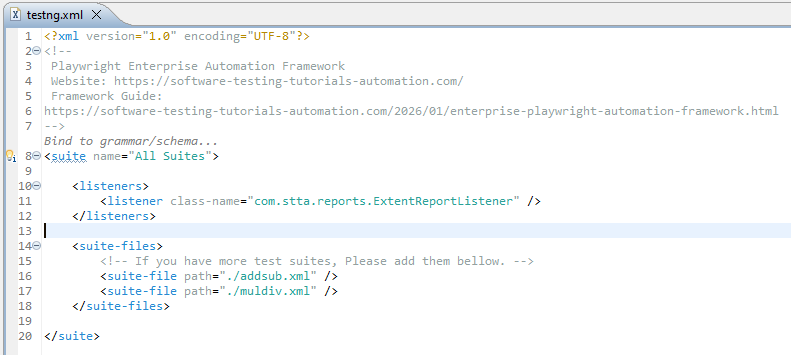
To make the Extent Report work automatically for all test executions, we need to register the ExtentReportListener in the TestNG XML files. This is done by adding a <listeners> block at the suite level.
Example of listener registration in XML:
<listeners>
    <listener class-name="com.stta.reports.ExtentReportListener"/>
</listeners>
This <listeners> block should be added to all relevant suite XML files, such as the master suite and individual feature suites like AddSub and MulDiv.
Why the Listener is Required
The listener is essential because it hooks into the TestNG lifecycle and listens to every test event. As a result, it automatically tracks key execution states such as when a test starts, when it passes, when it fails, and when it gets skipped.
Without the listener, the framework would not be able to update the Extent Report in real time. By using the listener, test results are captured automatically without requiring additional logging code in each test class. This ensures consistency, thread-safety, and clean integration with the Extent Report classes (ExtentManager and ExtentTestManager).
Integrate with SuiteBase
To manage the Extent Report efficiently, the framework integrates it centrally in SuiteBase. This ensures that the report is initialized once before the suite runs and flushed after all tests complete, maintaining a clean and consistent report across all test cases.
BeforeSuite: Conditional Extent Initialization
In the @BeforeSuite method of SuiteBase, the framework checks the configuration flag addExtentReport. If this flag is set to true, it initializes the Extent Report instance using ExtentManager.
This conditional initialization allows flexibility, letting you enable or disable report generation as needed. For example, during quick test runs or when implementing a different reporting tool in the future, you can set addExtentReport=false to skip Extent Report.
AfterSuite: Flush Report
At the end of the suite, in the @AfterSuite method, the framework calls the flush method on the Extent Report instance. Flushing ensures that all logged test results, statuses, and metadata are written to the HTML report. This guarantees that a complete and accurate report is generated after every test run.
Central Management of Extent Instance
By managing the Extent Report in SuiteBase, the framework ensures:
- Single point of control: Only one Extent Report instance is used across all tests.
- Consistency: All test classes log to the same report automatically via the listener.
- Thread-safety: Combined with
ExtentTestManager, it supports parallel test execution. - Ease of maintenance: Any future changes to report configuration or initialization can be done in
SuiteBasewithout modifying individual test classes.
This approach keeps the reporting system clean, reliable, and easily extendable within the framework.
Download All Updated & New Files
⚠️ Important Note: This article is part of the Playwright Enterprise Automation Framework and covers Step 8 in a step-by-step build. The downloadable code is not standalone and depends on all previous steps in the series. If you landed here directly, please complete the earlier steps first to avoid setup or runtime issues.
To make it easy to implement the Extent Report in the Playwright Framework Step 8, a zip file is provided that contains all the new and updated files introduced in this step. You can download the zip and directly use the files in your existing framework without manually creating or modifying each file.
Download Link
Download Step 8 Extent Report Files (ZIP)
What’s Included in the Download
- New report classes
ExtentManagerExtentTestManagerExtentReportListener
- Updated framework file
SuiteBasewith Extent Report initialization and flush logic
- Updated TestNG XML files
- Master suite XML
- AddSub suite XML
- MulDiv suite XML with listener configuration
- pom.xml file with extent report dependency
- Update properties file
- Param.properties file with flag addExtentReport=true
How to Use the Downloaded Files
- Download the zip file using the link above.
- Extract the contents into your project workspace.
- Copy the new report classes into the appropriate
reportspackage. - Replace the existing
SuiteBasefile with the updated version. - Update your TestNG XML files with the provided versions.
- Verify that
addExtentReport=trueis set inParam.properties. - Run any TestNG suite to generate the Extent Report.
After execution, the HTML Extent Report will be generated automatically for the test run.
Execute Tests and View Report
Once the Extent Report is integrated into the framework, generating the report is straightforward. You simply need to run your TestNG suites as usual, and the report will be created automatically at the end of execution.
How to Run Suites and Generate a Report
You can execute the tests by running:
- The master TestNG suite XML, or
- Any individual suite XML, such as AddSub or MulDiv
As long as addExtentReport=true is set in Param.properties, the framework will initialize the Extent Report before execution and flush it after all tests complete.
Open HTML Report Path
After execution, the Extent Report is generated as an HTML file inside the project directory under the target > extent-report folder. You can open this file in any web browser to view the complete test execution report.
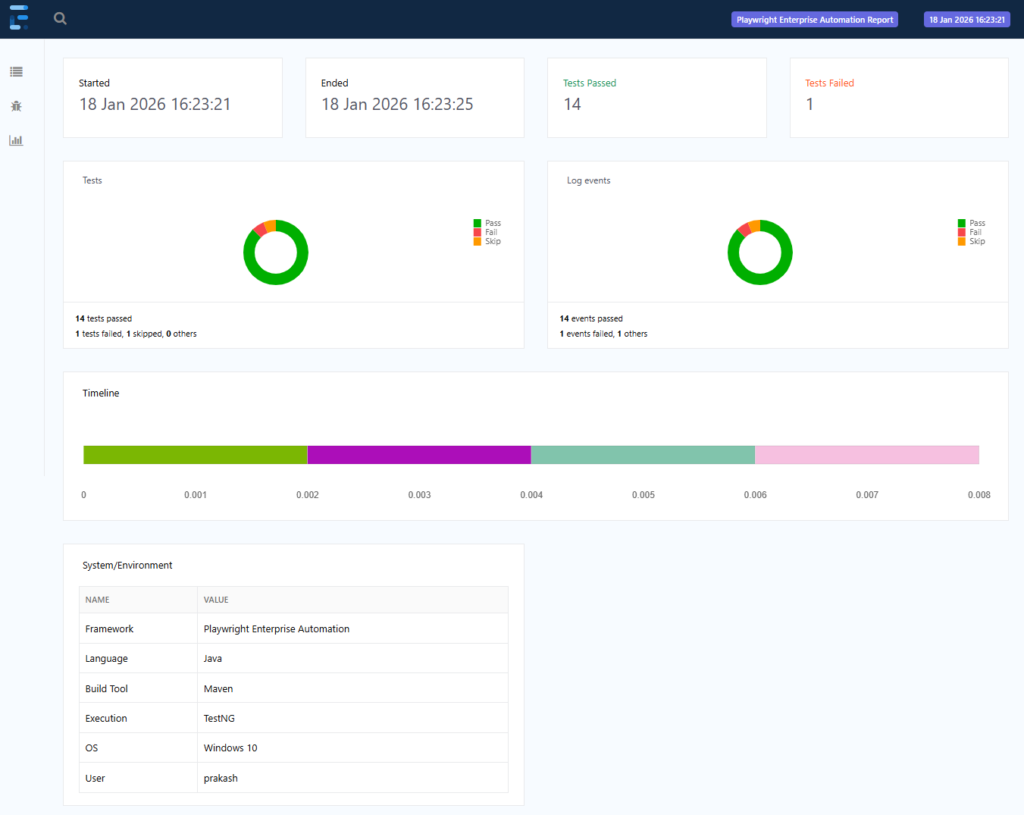
View PASS FAIL SKIP Status and Test Metadata
The Extent Report clearly highlights:
- PASS tests in green
- FAIL tests in red
- SKIP tests in a distinct skipped state
Along with test status, the report also displays useful test metadata, such as:
- Test name and test class
- Execution start and end time
- Environment and system details
- Error stack trace for failed tests
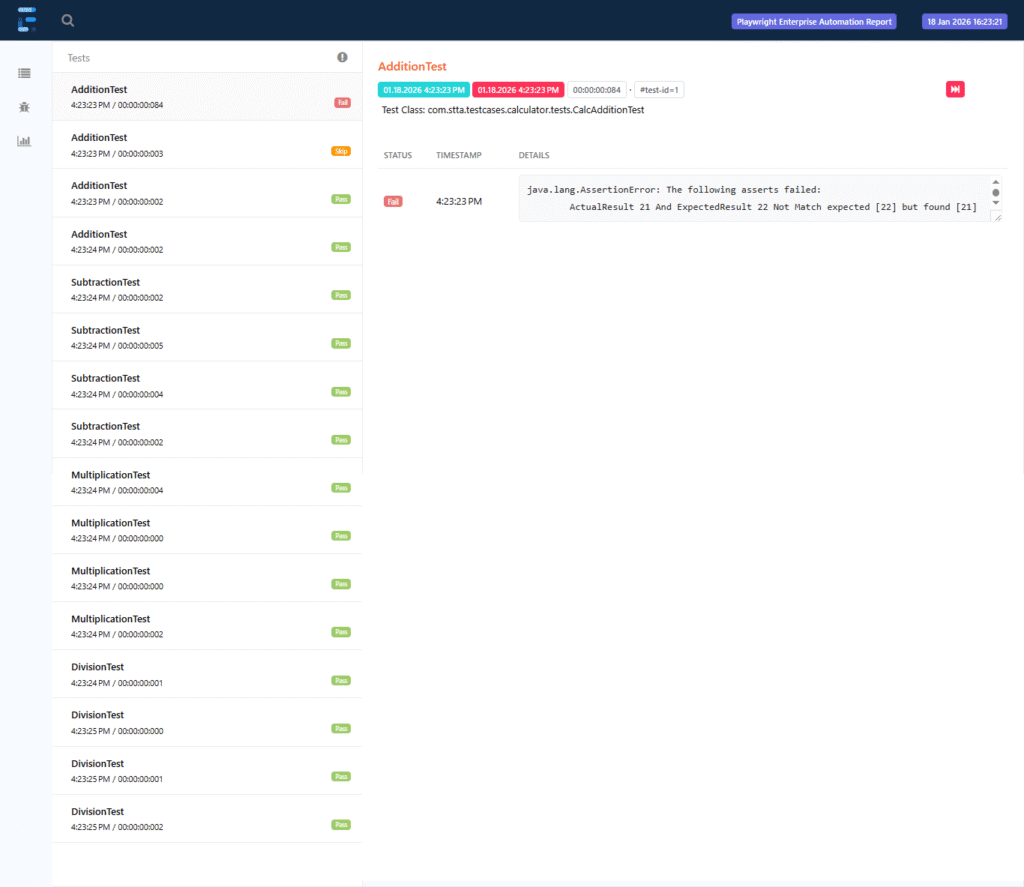
This makes it easy to analyze failures quickly and share test results with the team or stakeholders.
Conclusion
In Step 8, we successfully added the Extent Report in the Playwright Framework to enhance test execution reporting. This step introduced conditional report generation, centralized report management in SuiteBase, TestNG listener integration, and a structured reporting setup using Extent Manager classes.
Having an Extent Report in the framework provides clear benefits. It offers a professional HTML report, highlights PASS, FAIL, and SKIP test statuses, and presents important test metadata in an easy-to-understand format. As a result, debugging becomes faster, and test results are easier to share with teams and stakeholders.
In the next step of the Playwright Enterprise Automation Framework series, we will further enhance reporting by adding more advanced capabilities on top of this setup. Stay connected to continue building a robust and enterprise-ready automation framework.
FAQs
What is an Extent Report in the Playwright framework?
Extent Report is a reporting library that generates HTML test execution reports in the Playwright framework. It shows test results such as PASS, FAIL, and SKIP along with logs and execution details.
Where is the Extent Report generated in this framework?
The Extent Report is generated as an HTML file inside the project’s target > extent-report folder after the test suite execution is completed.
Can I disable the Extent Report without changing code?
Yes. You can disable the Extent Report by setting addExtentReport=false in the Param.properties file. No code changes are required.
Does the Extent Report support parallel execution in this framework?
Yes. The framework uses a thread-safe implementation, so the Extent Report works correctly even when tests are executed in parallel.