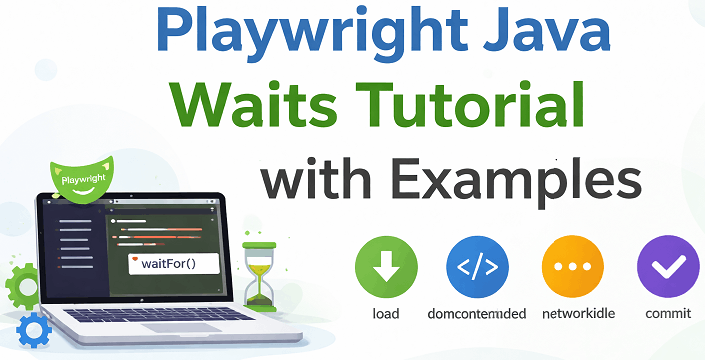
Handling waits is one of the most important parts of building stable automation tests. Many beginners struggle with flaky tests because elements load at different times. This is where Playwright Java waits become essential for reliable execution.
In Playwright, waiting is smart and built into most actions. However, understanding explicit waits, waitFor methods, and load states helps you write faster and more stable tests. It also prevents unnecessary delays and improves test performance.
In this guide, you will learn everything about Playwright Java waits with simple examples. By the end, you will know how to use waitFor methods, handle page load states, and apply best practices for real world automation.
Let us first understand how Playwright handles waits without using traditional hard waits like Thread.sleep.
- How to Handle Waits in Playwright Java Without Using Thread.sleep?
- What Are Waits in Playwright Java?
- Does Playwright Java Use Auto Waiting?
- What Are All Explicit Wait Methods Available in Playwright Java?
- How to Use Explicit Wait in Playwright Java for Dynamic Elements?
- How to Handle Dynamic Elements in Playwright Java?
- How to Wait for API Response in Playwright Java?
- Wait for Custom Conditions in Playwright Java Using waitForFunction
- How to Wait for Element in Playwright Java Using waitForSelector?
- What Is the Difference Between locator.waitFor and waitForSelector?
- How to Wait for Page Load State in Playwright Java?
- How to Wait for Page Navigation in Playwright Java After Click?
- How to Wait for URL Change in Playwright Java?
- What Are Best Practices to Handle Waits in Playwright Java Tests?
- How to Handle Timeouts in Playwright Java?
- Common Mistakes When Using Waits in Playwright
- Examples in Other Languages
- Related Playwright Tutorials
- Conclusion
- FAQs
- Does Playwright Java need explicit waits?
- What is auto waiting in Playwright?
- What Is waitForTimeout in Playwright Java and When Should You Use It?
- How to wait for element in Playwright Java?
- What is waitForLoadState in Playwright?
- Is waitForSelector deprecated in Playwright?
- What is the best wait strategy in Playwright Java?
- Can Playwright wait for API responses?
- Why should I avoid hard waits in Playwright?
- How to wait for element in Playwright Java without timeout?
How to Handle Waits in Playwright Java Without Using Thread.sleep?
You can handle waits in Playwright Java without using Thread.sleep by relying on built in auto waiting and waitFor methods.
In most cases, you do not need to write manual waits because Playwright handles synchronization internally. However, you can use explicit wait methods when dealing with dynamic elements or complex page behavior.
// Example: Wait for an element to be visible
page.locator("#loginButton").waitFor();
Can You Use Playwright Java Waits Without Thread.sleep?
Yes. Playwright Java provides built in auto waiting and explicit wait methods, so you do not need to use Thread.sleep in most cases.
What Are Waits in Playwright Java?
Waits in Playwright Java are methods that ensure elements or pages are ready before performing actions. They help handle dynamic content and prevent test failures caused by timing issues.
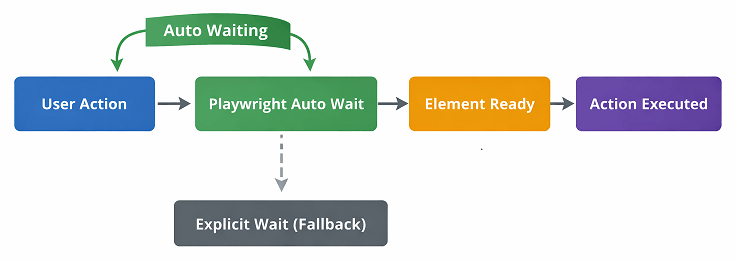
They are essential when working with slow loading elements or dynamic user interfaces.
- Auto waiting for elements
- Explicit waits using waitFor methods
- Page load state waits
- Network and navigation waits
Does Playwright Java Use Auto Waiting?
Yes. Playwright Java uses auto waiting by default for most actions such as click, fill, and type.
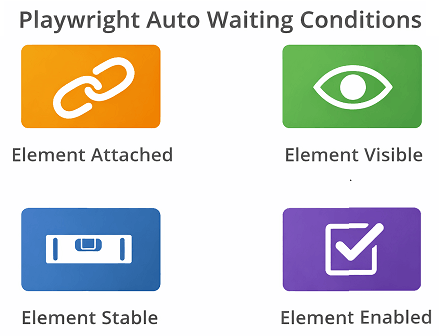
This means Playwright automatically waits for:
- Attachment to the DOM
- Visibility on the page
- Stability (no ongoing animations)
- Enabled state before interaction
Because of this, you usually do not need to add manual waits in your test scripts.
When Should You Use Explicit Waits in Playwright?
Use explicit waits only when auto waiting is not enough. This usually happens in dynamic UI scenarios or delayed API responses.
Common scenarios include:
- Waiting for API response updates
- Handling dynamic loaders or spinners
- Waiting for text or attribute changes
- Custom conditions not covered by auto waiting
What Are All Explicit Wait Methods Available in Playwright Java?
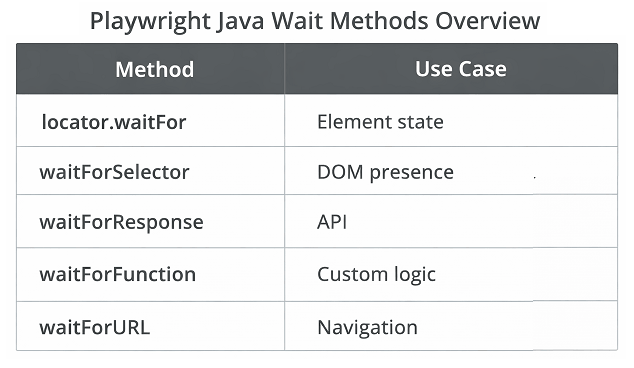
Playwright Java provides multiple explicit wait methods for different scenarios.
- locator.waitFor() for element state
- page.waitForSelector() for DOM presence
- page.waitForResponse() for API calls
- page.waitForFunction() for custom conditions
- page.waitForURL() for navigation
For complete details and advanced usage, you can refer to the official Playwright Java documentation.
How to Use Explicit Wait in Playwright Java for Dynamic Elements?
You can use explicit waits in Playwright Java by using methods like waitFor(), waitForSelector(), and waitForTimeout(). These methods allow you to control when to pause execution.
- Identify the element or condition you want to wait for
- Choose the appropriate wait method such as locator.waitFor or waitForSelector
- Apply the wait method before performing the action
- Use specific states like visible or hidden for better reliability
Here is a simple example of using explicit wait for an element:
// Wait for element to be visible
page.locator("#submitBtn").waitFor();
Which Explicit Wait Method Should You Use in Playwright Java?
You should choose the explicit wait method based on the type of condition you want to handle in your test.
| Use Case | Best Wait Method |
|---|---|
| Waiting for element state (visible, hidden) | locator.waitFor() |
| Waiting for API response | waitForResponse() |
| Waiting for network request | waitForRequest() |
| Waiting for custom condition | waitForFunction() |
| Waiting for navigation or URL change | waitForURL() |
Using the correct wait method improves test performance and avoids unnecessary delays.
How to Wait for Element to Be Visible in Playwright Java?
You can wait for an element to be visible in Playwright Java using locator.waitFor with visible state. This is useful for handling dynamic elements that appear after page load.
How to Wait for Element to Disappear in Playwright Java?
You can wait for an element to disappear in Playwright Java by using locator.waitFor with hidden state or waitForSelector with hidden option.
// Wait for element to disappear
page.locator("#loader").waitFor(new Locator.WaitForOptions()
    .setState(WaitForSelectorState.HIDDEN));
Example of Waiting for Element State
This example shows how to wait for different element states such as visible or attached.
// Wait for element to be visible
page.locator("#message").waitFor(new Locator.WaitForOptions()
    .setState(WaitForSelectorState.VISIBLE));
What Is waitForTimeout in Playwright Java?
The waitForTimeout method pauses execution for a fixed amount of time. It should be avoided in most cases because it slows down tests.
// Hard wait for 3 seconds
page.waitForTimeout(3000);
Use this only for debugging or when no better wait option is available.
While hard waits are not recommended, real world applications often involve dynamic elements that require smarter waiting strategies.
How to Handle Dynamic Elements in Playwright Java?
You can handle dynamic elements by using locator based waits and waitFor methods instead of hard waits. This ensures tests adapt to real time UI changes.
For better reliability, use locator.waitFor with specific states such as visible, hidden, or attached based on the expected behavior of the element.
How to Wait for API Response in Playwright Java?
You can wait for API responses in Playwright Java using the waitForResponse method. This is useful when UI updates depend on backend API calls.
This method helps ensure that the required API response is received before performing assertions or actions.
Response response = page.waitForResponse(responseObj ->
    responseObj.url().contains("/api/user") && responseObj.status() == 200,
    () -> {
        page.click("button#loadUser");
    }
);

System.out.println(response.status());
When Should You Use waitForResponse?
Use waitForResponse when UI changes depend on API data and auto waiting is not sufficient.
Can Playwright Java Wait for API Calls Without Using Sleep?
Yes. You can use waitForResponse to wait for API calls instead of using hard waits like Thread.sleep.
In addition to API based waits, Playwright also allows waiting for custom JavaScript conditions.
How to Wait for Network Request in Playwright Java?
You can wait for network requests using waitForRequest when you need to track outgoing API calls instead of responses.
Request request = page.waitForRequest(requestObj ->
    requestObj.url().contains("/api/user"),
    () -> {
        page.click("button#loadUser");
    }
);

System.out.println(request.url());
Handling Events in Playwright Java Using waitForEvent
You can wait for browser events in Playwright Java using waitForEvent. This is useful for handling file downloads, popups, or new tabs.
// Wait for file download
Download download = page.waitForDownload(() -> {
    page.click("#downloadBtn");
});

// Save file
download.saveAs(Paths.get("file.pdf"));
When Should You Use waitForFunction?
Use waitForFunction when you need to wait for custom conditions that cannot be handled by built in wait methods.
Wait for Custom Conditions in Playwright Java Using waitForFunction
You can use waitForFunction to wait for a custom JavaScript condition to become true. This is useful for complex scenarios where element based waits are not enough.
// Wait for custom condition
page.waitForFunction("() => document.title.includes('Dashboard')");
How to Wait for Element in Playwright Java Using waitForSelector?
You can use waitForSelector to wait until a specific element appears in the DOM. It is useful when elements load dynamically.
// Wait for selector to appear
page.waitForSelector("#dashboard");
Can waitForSelector Wait for Hidden Elements?
Yes. You can configure waitForSelector to wait for hidden or detached elements using options.
// Wait for element to be hidden
page.waitForSelector("#loader", new Page.WaitForSelectorOptions()
    .setState(WaitForSelectorState.HIDDEN));
When Should You Use waitForSelector in Playwright?
Use waitForSelector only when working with legacy code or when locator.waitFor is not suitable.
What Is the Difference Between locator.waitFor and waitForSelector?
locator.waitFor is the recommended modern approach, while waitForSelector is older and less flexible.
| Feature | locator.waitFor() | waitForSelector() |
|---|---|---|
| Readability | High | Medium |
| Recommended | Yes | No |
| Flexibility | Better | Limited |
Which One Should You Use?
Use locator.waitFor for better readability and long term maintainability in Playwright Java tests.
Once elements and API calls are handled, the next step is managing navigation and page load behavior.
How to Wait for Page Load State in Playwright Java?
You can wait for page load states in Playwright Java using waitForLoadState(). This ensures the page is fully loaded before continuing.
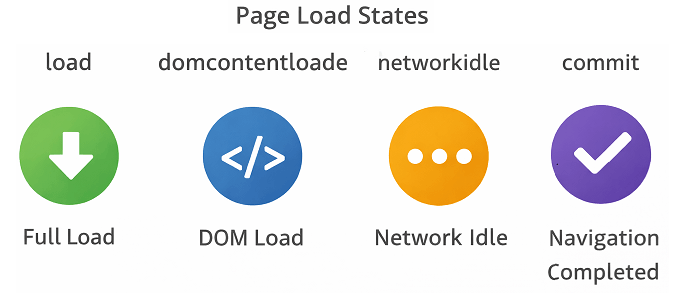
Playwright supports multiple load states:
- load: Full page load completed
- domcontentloaded: DOM is ready
- networkidle: No network requests for a short time
// Wait for full page load
page.waitForLoadState(LoadState.LOAD);
Which Load State Should You Use in Playwright?
Use domcontentloaded for faster execution, load for full page readiness, and networkidle when waiting for API calls to finish.
Example of Waiting for Network Idle
This example waits until all network requests are completed.
// Wait until network is idle
page.waitForLoadState(LoadState.NETWORKIDLE);| Load State | When to Use |
|---|---|
| domcontentloaded | When DOM is ready but resources may still load |
| load | When full page including images is loaded |
| networkidle | When no network requests are ongoing |
How to Wait for Page Navigation in Playwright Java After Click?
You can wait for navigation in Playwright Java using waitForURL or by relying on built in auto waiting with actions. These approaches ensure navigation completes before continuing execution.
Playwright automatically waits for navigation when actions like click trigger a page change. In most cases, you do not need to call waitForNavigation manually.
// Recommended: Click and rely on auto waiting
page.click("#loginBtn");

// Better approach: Wait for URL change
page.waitForURL("**/dashboard");
Is waitForNavigation Recommended in Playwright?
No. waitForNavigation is not recommended in modern Playwright usage. It is better to use waitForURL or rely on built in auto waiting.
How to Wait for Page Load After Click in Playwright Java?
You can wait for page load after a click in Playwright Java by relying on auto waiting or explicitly waiting for URL change using waitForURL.
Playwright automatically waits for navigation triggered by actions like click. However, using waitForURL ensures the navigation is complete before performing further actions.
How to Wait for URL Change in Playwright Java?
You can wait for URL changes using waitForURL. This ensures navigation is complete before continuing execution.
// Wait for specific URL
page.waitForURL("**/dashboard");
Why Use waitForURL Instead of waitForNavigation?
waitForURL is more reliable and recommended for modern Playwright tests compared to waitForNavigation.
After understanding all wait methods, it is important to follow best practices to keep tests stable and fast.
What Are Best Practices to Handle Waits in Playwright Java Tests?
Follow these best practices to write stable and fast tests:
- Prefer auto waiting over manual waits
- Avoid waitForTimeout unless debugging
- Use locator based waits instead of page level waits
- Wait for specific conditions instead of fixed delays
- Use load states only when necessary
Should You Use Hard Waits in Playwright Tests?
No. Hard waits like waitForTimeout should be avoided because they slow down tests and reduce reliability.
How to Handle Timeouts in Playwright Java?
You can configure timeouts in Playwright Java to control how long it waits for elements or actions before failing.
// Set default timeout
page.setDefaultTimeout(5000);

// Set navigation timeout
page.setDefaultNavigationTimeout(10000);
What Is Default Timeout in Playwright?
Playwright uses a default timeout of 30 seconds for most actions unless overridden.
What Happens When Wait Timeout Is Exceeded in Playwright?
Playwright throws a timeout error when the condition is not met within the specified time.
Common Mistakes When Using Waits in Playwright
Many beginners misuse waits, which leads to unstable tests.
- Using unnecessary waitForTimeout
- Overusing explicit waits
- Ignoring auto waiting capabilities
- Waiting for wrong element states
Examples in Other Languages
Playwright supports multiple languages. Below are simple examples of waits in different languages.
JavaScript Example: Wait for Selector
This example shows how to wait for an element using JavaScript.
await page.waitForSelector('#login');TypeScript Implementation: Load State Wait
This example demonstrates waiting for page load state in TypeScript.
await page.waitForLoadState('load');Python Example: Using wait_for_timeout
This example shows a simple timeout wait in Python.
page.wait_for_timeout(3000)Related Playwright Tutorials
To continue learning Playwright Java step by step, explore these related tutorials from the same series.
- Understand use getByRole locator in Playwright Java
- See how to click elements in Playwright Java with auto waiting
- Explore handle dynamic table in Playwright Java
- Learn handle alerts in Playwright Java
- Understand handle multiple tabs in Playwright Java
- Read understand browser, context, and page in Playwright Java
- Capture screenshots in Playwright Java
Conclusion
Handling waits correctly is essential for building stable and reliable automation tests. Playwright Java provides powerful built in auto waiting along with flexible explicit wait options. This makes it easier to handle dynamic web applications without adding unnecessary delays.
In this guide, you learned how to use Playwright Java waits including explicit waits, waitFor methods, and load states. You also explored best practices and common mistakes to avoid while working with waits.
As a next step, start applying these wait strategies in your real test cases. Focus on using auto waiting wherever possible and use explicit waits only when needed to improve performance and stability.
Mastering Playwright Java waits will help you write faster, more reliable, and production ready automation tests.
FAQs
Does Playwright Java need explicit waits?
No. Playwright uses auto waiting by default. Explicit waits are only needed for dynamic or complex scenarios.
What is auto waiting in Playwright?
Auto waiting is a built in feature where Playwright waits for elements to be visible, stable, and ready before interacting with them.
What Is waitForTimeout in Playwright Java and When Should You Use It?
waitForTimeout pauses execution for a fixed time. It is mainly used for debugging and should be avoided in real tests.
How to wait for element in Playwright Java?
You can wait for an element using locator.waitFor() or page.waitForSelector() depending on your use case.
What is waitForLoadState in Playwright?
waitForLoadState is used to wait for different page load stages like DOM content loaded, full load, or network idle.
Is waitForSelector deprecated in Playwright?
No. It is still supported, but using locator based methods is recommended for better readability and reliability.
What is the best wait strategy in Playwright Java?
The best strategy is to rely on auto waiting and use locator based explicit waits only when necessary.
Can Playwright wait for API responses?
Yes. You can wait for API responses using waitForResponse or network based conditions.
Why should I avoid hard waits in Playwright?
Hard waits slow down tests and do not adapt to real time conditions, which can lead to flaky and inefficient test execution.
How to wait for element in Playwright Java without timeout?
You can wait for an element without using a fixed timeout by using locator.waitFor or relying on Playwright auto waiting, which automatically waits until the element is ready.