File download is a common task in automation testing. If you are trying to download a file in Playwright Java, you need a reliable way to capture, save, and validate downloaded files during test execution.
Many beginners struggle with handling downloads because browsers treat them differently from normal page actions. However, Playwright provides a built in and clean approach to handle file downloads without complex configurations.
In this guide, you will learn how to download a file in Playwright Java using simple and practical examples. You will also explore best practices, advanced scenarios, and real world use cases to make your automation more robust.
- What is Download in Playwright Java?
- How to Download a File in Playwright Java?
- How to Download a File Step by Step in Playwright Java?
- How to Save and Validate Downloaded Files in Playwright Java?
- How to get downloaded file path in Playwright Java?
- How to get suggested file name in Playwright?
- How to check if download failed in Playwright Java?
- How to verify file exists after download?
- How to validate downloaded file content in Playwright Java?
- Is file content validation required in automation?
- How to handle different file types in Playwright Java?
- Does Playwright support handling all file formats?
- Which file types are most commonly tested?
- How to Download a File Using API in Playwright Java?
- UI vs API File Download in Playwright Java: Which One Should You Use?
- How to Use File Download in Playwright Java with TestNG or JUnit?
- Advanced File Download Scenarios in Playwright Java
- How to set custom download directory in Playwright Java?
- Handling multiple file downloads in a single test
- Downloading files behind authentication
- How to handle file download in new tab in Playwright Java?
- Can Playwright handle downloads from popup windows?
- Do downloads always happen in the same tab?
- How to handle slow downloads in Playwright?
- How to handle download failures and retry in Playwright Java?
- Why do file downloads fail in Playwright Java?
- Should you always implement retry logic?
- Examples in Other Languages
- Best Practices for File Download in Playwright Java
- What are Common Mistakes in Playwright File Download?
- Related Articles
- Conclusion
- FAQs
- What is the best way to download a file in Playwright Java?
- Does Playwright Java support file download validation?
- How do I handle multiple file downloads in Playwright Java?
- Where are downloaded files stored in Playwright?
- Can I change the download location in Playwright Java?
- Why is my file not downloading in Playwright Java?
- Can I download files in headless mode using Playwright Java?
- Should I use API or UI for file download in Playwright Java?
- Is waitForDownload() mandatory in Playwright Java?
What is Download in Playwright Java?
Download in Playwright Java refers to the process of capturing and handling files that are downloaded from the browser during test execution.
Playwright provides a built-in Download object that allows you to track, control, and save downloaded files without relying on browser level configurations.
This makes file download handling more reliable and consistent across browsers like Chromium, Firefox, and WebKit.
Does Playwright automatically handle file downloads?
Yes. Playwright automatically detects file downloads when triggered by user actions such as clicking a download link or button.
Where are files downloaded by default in Playwright?
By default, downloaded files are stored in a temporary location and are deleted after the browser context is closed unless explicitly saved.
Can you control the download location in Playwright Java?
Yes. You can use the saveAs() method to store the file in any custom directory during test execution.
How to Download a File in Playwright Java?
You can download files in Playwright Java by capturing the Download event and saving the file using the download.saveAs() method.
Playwright automatically listens for download events when a file is triggered, allowing you to capture and store the file in your desired location.
For more details, you can refer to the official Playwright download documentation.
// Wait for download event
Download download = page.waitForDownload(() -> {
    page.click("text=Download");
});

// Save the downloaded file
download.saveAs(Paths.get("downloads/sample.pdf"));
How to Download a File Step by Step in Playwright Java?
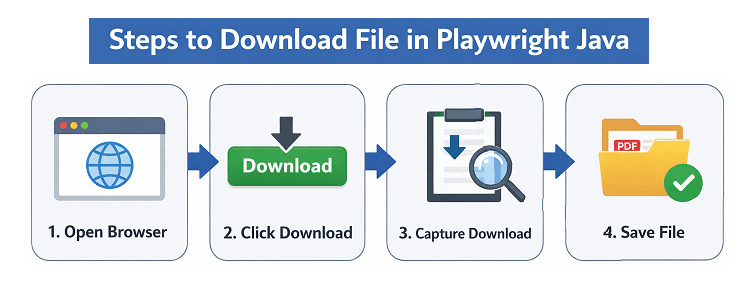
To download a file in Playwright Java, you need to follow a structured flow that includes triggering the download, capturing the event, and saving the file to your desired location.
Follow the steps below to implement file download handling in a clean and reliable way.
- Start the browser and create a new page
- Trigger the download using a click action
- Wait for the download event
- Save the file using saveAs() method
The example below shows a complete flow to download and save a file.
import com.microsoft.playwright.*;
import java.nio.file.Paths;

public class FileDownloadExample {
    public static void main(String[] args) {
        try (Playwright playwright = Playwright.create()) {

            Browser browser = playwright.chromium().launch();
            BrowserContext context = browser.newContext(
                new Browser.NewContextOptions().setAcceptDownloads(true)
            );
            Page page = context.newPage();

            page.navigate("https://example.com/download");

            // Wait for download event and trigger download
            Download download = page.waitForDownload(() -> {
                page.click("text=Download File");
            });

            // Save file to custom location
            download.saveAs(Paths.get("downloads/sample.pdf"));

            System.out.println("File downloaded successfully");

            browser.close();
        }
    }
}
This example demonstrates how to capture the download event and store the file locally during test execution.
Does file download work in headless mode?
Yes. Playwright supports file downloads in headless mode.
It works the same way as in headed mode without additional configuration.
While UI based downloads are commonly used, there are scenarios where you may need a faster and more direct approach.
After downloading files, it is important to verify that they are saved correctly and contain the expected data.
How to Save and Validate Downloaded Files in Playwright Java?
You can save and validate downloaded files in Playwright Java by using methods like saveAs(), path(), suggestedFilename(), and failure() from the Download object.
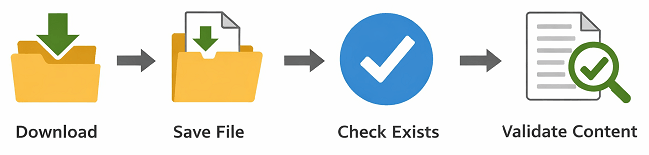
These methods help you not only store the file but also verify its name, location, and download status.
You can also enhance validation by capturing proof using screenshots in Playwright Java for test validation.
Below are the most useful methods you should use while working with downloads.
How to get downloaded file path in Playwright Java?
You can get the file path using the path() method after the download is complete.
import java.nio.file.Path;

Path filePath = download.path();
System.out.println("Downloaded file path: " + filePath);
How to get suggested file name in Playwright?
You can get the original file name using the suggestedFilename() method.
String fileName = download.suggestedFilename();
System.out.println("File name: " + fileName);
How to check if download failed in Playwright Java?
You can verify download failure using the failure() method which returns null if successful.
String error = download.failure();

if (error == null) {
    System.out.println("Download successful");
} else {
    System.out.println("Download failed: " + error);
}
How to verify file exists after download?
You can validate file existence using Java file utilities after saving the file.
import java.nio.file.Files;
import java.nio.file.Path;

Path path = Paths.get("downloads/sample.pdf");

if (Files.exists(path)) {
    System.out.println("File exists");
} else {
    System.out.println("File not found");
}
How to validate downloaded file content in Playwright Java?
You can validate downloaded file content in Playwright Java by reading the file and verifying its data based on the expected format such as CSV, PDF, or text.
This helps ensure that the downloaded file not only exists but also contains correct and expected data.
Validating CSV file content using Java
This example shows how to read a CSV file and verify its content after download.
import java.nio.file.*;
import java.util.*;

List<String> lines = Files.readAllLines(Paths.get("downloads/sample.csv"));

if (lines.contains("Expected Value")) {
    System.out.println("CSV content is valid");
} else {
    System.out.println("CSV validation failed");
}
Checking PDF file content in automation
You can validate PDF content using libraries like Apache PDFBox to extract and verify text.
Before using PDF validation, make sure to add the required dependency from PDFBox Maven dependency to your project.
import org.apache.pdfbox.Loader;
import org.apache.pdfbox.pdmodel.PDDocument;
import org.apache.pdfbox.text.PDFTextStripper;
import java.io.File;
import java.io.IOException;

// Example using PDFBox (conceptual)
try (PDDocument document = Loader.loadPDF(new File("downloads/sample.pdf"))) {

    PDFTextStripper stripper = new PDFTextStripper();
    String text = stripper.getText(document);

    if (text.contains("Invoice")) {
        System.out.println("PDF content is valid");
    } else {
        System.out.println("PDF validation failed");
    }

} catch (IOException e) {
    System.out.println("Error reading PDF: " + e.getMessage());
}
Is file content validation required in automation?
Yes. File content validation is important in automation.
It ensures that the downloaded file contains correct and expected data.
How to handle different file types in Playwright Java?
You can handle different file types in Playwright Java by applying specific validation or processing logic based on the file format such as PDF, CSV, ZIP, or images.
This ensures that each file type is validated correctly according to its structure and content.
Handling PDF files in automation
PDF files can be validated by extracting text using libraries like PDFBox and verifying expected content.
Working with CSV or Excel files
CSV or Excel files can be read using Java file utilities or libraries like Apache POI to validate rows and data
Handling ZIP file downloads
You can extract ZIP files using Java utilities and verify the extracted contents.
// Example: Extract ZIP (conceptual)
import java.io.FileInputStream;
import java.io.IOException;
import java.util.zip.ZipEntry;
import java.util.zip.ZipInputStream;

try (ZipInputStream zis = new ZipInputStream(new FileInputStream("downloads/sample.zip"))) {
        ZipEntry entry;

        while ((entry = zis.getNextEntry()) != null) {
            System.out.println("File: " + entry.getName());
        }
}
Validating image downloads
You can validate images by checking file size, format, or metadata using Java image libraries.
Does Playwright support handling all file formats?
Yes. Playwright can handle downloads for any file type supported by the browser. However, validation depends on external libraries based on the file format.
Which file types are most commonly tested?
Common file types include PDF, CSV, Excel, ZIP, and images.
How to Download a File Using API in Playwright Java?
You can download files directly using Playwright APIRequestContext by sending a request to the file URL and saving the response as a file.
This approach is useful when the download URL is known, or when you want faster and more reliable downloads without relying on browser interactions.
The example below shows how to download a file directly using Playwright API.
import com.microsoft.playwright.*;
import com.microsoft.playwright.options.*;
import java.nio.file.*;
import java.io.*;

public class ApiDownloadExample {
    public static void main(String[] args) throws Exception {
        try (Playwright playwright = Playwright.create()) {

            APIRequestContext request = playwright.request().newContext();

            APIResponse response = request.get("https://example.com/file.pdf");

            if (response.ok()) {
                byte[] body = response.body();
                Files.write(Paths.get("downloads/file.pdf"), body);
                System.out.println("File downloaded using API");
            } else {
                System.out.println("Download failed with status: " + response.status());
            }
        }
    }
}
This method directly downloads the file from the server and saves it locally, making it faster and more stable compared to UI based downloads.
Can you download files without UI interaction in Playwright Java?
Yes. You can download files without UI by using APIRequestContext to send a direct request to the file URL and save the response.
When should you use API download instead of UI download?
You should use API download when the file URL is accessible directly and UI interaction is not required.
Does API download support authentication?
Yes. You can pass headers, tokens, or cookies in APIRequestContext to handle authenticated downloads.
Now that you have seen both UI based and API based file download approaches, it is important to understand when to use each method in real world scenarios.
UI vs API File Download in Playwright Java: Which One Should You Use?
You can download files in Playwright Java using either UI interactions or API requests, depending on your test requirements and application behavior.
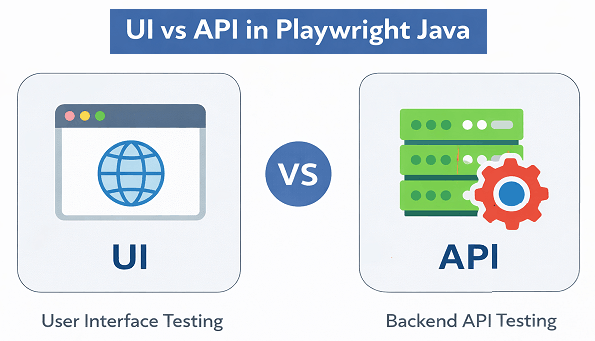
The table below compares both approaches to help you choose the right method.
| Feature | UI Based Download | API Based Download |
|---|---|---|
| Execution Speed | Slower due to browser interaction | Faster as it skips UI |
| Reliability | Can be flaky if UI changes | More stable and consistent |
| Setup Complexity | Easy to implement | Requires API understanding |
| Authentication Handling | Handled via UI login | Requires headers or tokens |
| Use Case | End to end UI validation | Backend or direct download validation |
| Best For | UI testing scenarios | Performance and direct access |
Which approach should you choose for file download?
You should use UI download for end to end testing.
Use API download when you need faster and more reliable file validation.
Is API download always better than UI download?
No. API download is faster, but UI download is required when you need to validate user interactions.
In real automation projects, file downloads are usually implemented inside test frameworks such as TestNG or JUnit. If you are new to framework setup, you can learn how to run Playwright tests using JUnit or run Playwright tests using TestNG before integrating file download functionality.
Once you understand both UI and API download approaches, the next step is integrating file downloads into your test framework.
How to Use File Download in Playwright Java with TestNG or JUnit?
You can use file download in Playwright Java with TestNG or JUnit by implementing download logic inside your test methods and validating the file as part of your test assertions.
This approach ensures that file downloads are tested as part of your automation workflow and helps maintain test reliability.
The example below shows how to use file download in a TestNG test case.
import com.microsoft.playwright.*;
import org.testng.annotations.Test;
import java.nio.file.*;

public class DownloadTest {

    @Test
    public void testFileDownload() {
        try (Playwright playwright = Playwright.create()) {

            Browser browser = playwright.chromium().launch();
            BrowserContext context = browser.newContext(
                 new Browser.NewContextOptions().setAcceptDownloads(true)
            );
            Page page = context.newPage();

            page.navigate("https://example.com/download");

            Download download = page.waitForDownload(() -> {
                page.click("text=Download File");
            });

            Path filePath = Paths.get("downloads/sample.pdf");
            download.saveAs(filePath);

            if (Files.exists(filePath)) {
                System.out.println("Download verified");
            } else {
                System.out.println("Download failed");
            }

            browser.close();
        }
    }
}
This example demonstrates how to include download handling and validation directly inside a TestNG test.
Can you use Playwright Java download in JUnit tests?
Yes. You can use Playwright Java download in JUnit tests.
The same logic works inside test methods annotated with @Test.
Should file download be part of test validation?
Yes. File download should be validated as part of your test to ensure correct functionality.
Can you reuse download logic in framework?
Yes. You can create reusable utility methods for file download and validation in your automation framework.
Advanced File Download Scenarios in Playwright Java
You can handle advanced file download scenarios in Playwright Java such as setting custom download directories, handling multiple downloads, and working with authentication based downloads.
These scenarios are commonly used in real world automation frameworks and help make your tests more stable and scalable.
How to set custom download directory in Playwright Java?
You can configure a custom download directory using BrowserContext options while creating a new context.
BrowserContext context = browser.newContext(
    new Browser.NewContextOptions()
        .setAcceptDownloads(true)
);
After this, you can use saveAs() to store files in your preferred location.
Handling multiple file downloads in a single test
You can capture multiple downloads by using separate waitForDownload() calls for each action.
Download download1 = page.waitForDownload(() -> {
    page.click("text=Download File 1");
});

Download download2 = page.waitForDownload(() -> {
    page.click("text=Download File 2");
});
Downloading files behind authentication
You can handle authenticated downloads by logging into the application before triggering the download.
page.navigate("https://example.com/login");
page.fill("#username", "user");
page.fill("#password", "password");
page.click("button[type=submit]");

// Now download file after login
Download download = page.waitForDownload(() -> {
    page.click("text=Download Report");
});
In some applications, file downloads are triggered in a new tab or popup instead of the same page. Handling these scenarios requires capturing the new page or context correctly.
How to handle file download in new tab in Playwright Java?
You can handle file downloads in a new tab in Playwright Java by listening for the new page event and then capturing the download event from that page.
This approach is useful when clicking a download link opens a new tab where the file download is triggered.
The example below shows how to handle a download that opens in a new tab.
// Wait for new page (tab) to open
Page newPage = context.waitForPage(() -> {
    page.click("text=Download in New Tab");
});

// Wait for download from new tab
Download download = newPage.waitForDownload(() -> {
    newPage.click("text=Download File");
});

// Save the file
download.saveAs(Paths.get("downloads/new-tab-file.pdf"));
This ensures that downloads triggered in a separate tab are properly captured and saved.
Can Playwright handle downloads from popup windows?
Yes. Playwright can handle downloads from popups by switching to the new page or context where the download is triggered.
Do downloads always happen in the same tab?
No. Some applications trigger downloads in a new tab or popup depending on implementation.
How to handle slow downloads in Playwright?
You can increase timeout in waitForDownload() to handle slow network or large files.
Download download = page.waitForDownload(
    new Page.WaitForDownloadOptions().setTimeout(60000),
    () -> page.click("text=Download")
);
In real world scenarios, downloads may fail due to network issues or timing problems. Handling such failures with proper retry logic helps make your automation more stable.
How to handle download failures and retry in Playwright Java?
You can handle download failures in Playwright Java by checking the download status and retrying the download action when needed.
This approach improves test stability, especially in cases of network delays or intermittent failures.
Implement retry logic for file download
The example below shows a simple retry mechanism for downloading a file.
int maxAttempts = 3;
int attempt = 0;
boolean success = false;

while (attempt < maxAttempts && !success) {
    attempt++;

    Download download = page.waitForDownload(() -> {
        page.click("text=Download File");
    });

    if (download.failure() == null) {
        download.saveAs(Paths.get("downloads/sample.pdf"));
        success = true;
        System.out.println("Download successful on attempt: " + attempt);
    } else {
        System.out.println("Retrying download... Attempt: " + attempt);
    }
}
Handle timeout issues in file download
You can increase timeout or handle exceptions to avoid failures due to slow downloads.
Download download = page.waitForDownload(
    new Page.WaitForDownloadOptions().setTimeout(60000),
    () -> page.click("text=Download")
);
Why do file downloads fail in Playwright Java?
File downloads may fail due to network interruptions, slow responses, or timeout issues during execution.
Should you always implement retry logic?
No. Retry logic should not be used in all scenarios.
It is recommended only for unstable environments to avoid masking real defects.
Examples in Other Languages
The concept of downloading files in Playwright is similar across all supported languages. Below are simple examples in JavaScript, TypeScript, and Python.
JavaScript Example: Download File Using Playwright
This example shows how to capture and save a downloaded file using Playwright in JavaScript.
const { chromium } = require('playwright');

(async () => {
  const browser = await chromium.launch();
  const page = await browser.newPage();

  await page.goto('https://example.com/download');

  const download = await page.waitForEvent('download', async () => {
    await page.click('text=Download');
  });

  await download.saveAs('downloads/sample.pdf');

  await browser.close();
})();
TypeScript Implementation: File Download
This TypeScript example demonstrates the same download flow with async and await syntax.
import { chromium } from 'playwright';

(async () => {
  const browser = await chromium.launch();
  const page = await browser.newPage();

  await page.goto('https://example.com/download');

  const download = await page.waitForEvent('download', async () => {
    await page.click('text=Download');
  });

  await download.saveAs('downloads/sample.pdf');

  await browser.close();
})();
Python Example: Save Downloaded File
In Python, the download handling follows the same pattern using expect_download().
from playwright.sync_api import sync_playwright

with sync_playwright() as p:
    browser = p.chromium.launch()
    page = browser.new_page()

    page.goto("https://example.com/download")

    with page.expect_download() as download_info:
        page.click("text=Download")

    download = download_info.value
    download.save_as("downloads/sample.pdf")

    browser.close()
Is file download behavior same across all languages?
Yes. Playwright provides consistent download handling APIs across Java, JavaScript, TypeScript, and Python.
Which language is best for Playwright file download?
All languages provide the same capabilities, so you can choose based on your project requirements and ecosystem.
Best Practices for File Download in Playwright Java
You should follow best practices like using proper waits, validating downloads, and managing file paths to ensure stable and reliable automation.
These practices help avoid flaky tests and improve maintainability in real world frameworks.
- Always use waitForDownload() to avoid timing issues
- Save files to a dedicated downloads folder
- Validate file existence after download
- Use meaningful file names for better tracking
- Handle large file downloads with increased timeout
- Clean up downloaded files after test execution
In addition to general best practices, managing the download folder structure is important for maintaining clean and scalable automation frameworks.
What is the best way to manage download folder in Playwright Java?
The best way to manage download folder in Playwright Java is to use a dedicated directory, generate dynamic file paths, and clean up files after test execution.
This ensures that your automation framework remains organized and avoids file conflicts between test runs.
Use a dedicated downloads directory
Create a separate folder such as downloads inside your project to store all downloaded files.
Path downloadPath = Paths.get("downloads/sample.pdf");
download.saveAs(downloadPath);
Generate dynamic file names to avoid conflicts
You can add timestamps or unique identifiers to file names to prevent overwriting existing files.
String fileName = "sample_" + System.currentTimeMillis() + ".pdf";
Path path = Paths.get("downloads/" + fileName);
download.saveAs(path);
Clean up downloaded files after test execution
Deleting files after test execution helps keep your project clean and avoids storage issues.
Files.deleteIfExists(Paths.get("downloads/sample.pdf"));Should you use different folders for each test run?
Yes. Using separate folders for each test run improves isolation and avoids conflicts between parallel executions.
Can you store downloads outside project directory?
Yes. You can store files in any system path, but using a project specific folder is recommended for better management.
Should you store downloaded files in project directory?
Yes. Storing files inside a project folder like downloads helps manage test artifacts easily.
Is it safe to reuse downloaded files across tests?
No. Each test should generate its own file to avoid dependency and flaky behavior.
Now that you understand best practices, let’s look at common mistakes you should avoid.
What are Common Mistakes in Playwright File Download?
Common mistakes include not waiting for download events, not saving files, and ignoring validation steps.
- Triggering download actions without properly capturing the download event
- Forgetting to call saveAs() resulting in lost files
- Not validating file existence after download
- Relying on fixed delays instead of event based download handling
- Not handling slow downloads or timeouts
Why does file download fail due to test issues?
File downloads may fail due to incorrect selectors, missing waitForDownload(), or improper test implementation.
Can downloads be flaky in automation?
Yes. Downloads can become flaky if not handled with proper waits and validations.
By combining all these techniques, you can build a reliable and scalable file download handling strategy in Playwright Java.
Related Articles
Now that you have learned file download handling in Playwright Java, explore these related tutorials to enhance your automation skills and build a more robust testing framework.
- Launch and manage browser in Playwright Java
- Understand Browser vs Context vs Page in Playwright
- Playwright Java locators complete guide
- Click actions in Playwright Java with examples
- Handle dynamic tables in Playwright Java
- Cross browser testing with Playwright and TestNG
Conclusion
Downloading files is an essential part of automation testing, especially when validating reports, exports, and documents. In this guide, you learned how to download a file in Playwright Java using built in methods like waitForDownload() and saveAs().
You also explored how to validate downloaded files, handle advanced scenarios, and apply best practices to avoid flaky tests. These techniques help you build stable and production ready automation frameworks.
Now you can confidently implement file download handling in your Playwright Java projects. As a next step, try integrating download validation into your existing test cases to improve test coverage.
FAQs
What is the best way to download a file in Playwright Java?
The best way to download a file in Playwright Java is to use page.waitForDownload() to capture the download event and then save the file using download.saveAs() to a desired location. This approach ensures reliable and consistent file handling during test execution.
Does Playwright Java support file download validation?
Yes, Playwright Java supports file download validation by allowing you to verify file existence, file name, and download status using methods like path(), suggestedFilename(), and failure(). You can also validate file content using Java libraries based on the file type.
How do I handle multiple file downloads in Playwright Java?
You can handle multiple file downloads in Playwright Java by calling waitForDownload() separately for each download action. This ensures that each file download event is captured correctly without timing issues during test execution.
Where are downloaded files stored in Playwright?
By default, Playwright stores downloaded files in a temporary location within the browser context. These files are automatically deleted when the browser context is closed unless you explicitly save them using the download.saveAs() method.
Can I change the download location in Playwright Java?
Yes, you can change the download location in Playwright Java by using the download.saveAs() method to save files to a custom directory. This allows you to control where downloaded files are stored during test execution.
Why is my file not downloading in Playwright Java?
A file may not download in Playwright Java if waitForDownload() is not used, the locator is incorrect, or the file is not saved before the browser closes. Ensuring proper event handling and saving the file correctly resolves most download issues.
Can I download files in headless mode using Playwright Java?
Yes, you can download files in headless mode in Playwright Java. File downloads work the same way as in headed mode when using waitForDownload() and saveAs(), without requiring any additional configuration.
Should I use API or UI for file download in Playwright Java?
Use UI-based download when you need to validate user interactions and end-to-end flows. Use API-based download when you need faster execution and direct file access without UI dependency. The right choice depends on your testing scenario.
Is waitForDownload() mandatory in Playwright Java?
Yes, waitForDownload() is mandatory in Playwright Java to reliably capture file downloads. It ensures the download event is properly handled and prevents timing issues during automation execution.