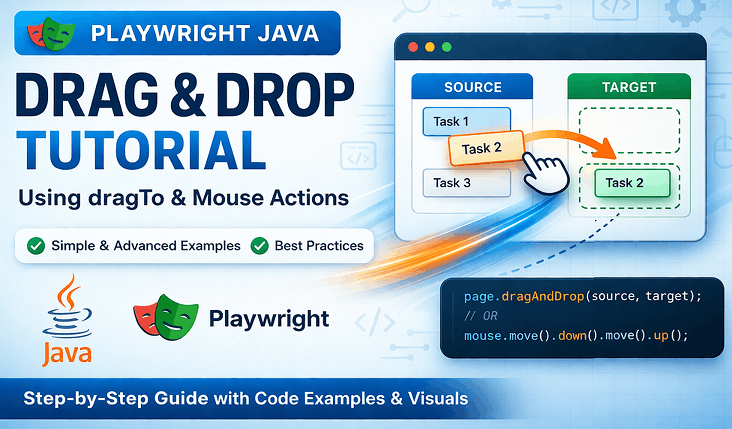
Drag and drop actions are common in modern web applications such as file uploads, kanban boards, and UI builders. If you are learning playwright drag and drop java, this is one of the most practical skills you need for real world automation testing.
Many beginners struggle with drag and drop because it behaves differently across applications. However, Playwright provides simple and reliable ways to handle this using built in methods and mouse actions.
In this guide, you will learn how to perform drag and drop in Playwright Java with step by step examples, best practices, and debugging tips. We will also cover real project scenarios where this action is commonly used.
This tutorial also helps you understand how drag and drop works in HTML5 applications, how to handle custom drag events, and how to improve test stability in real world automation testing.
- What is Drag and Drop in Playwright Java?
- How to Perform Drag and Drop in Playwright Java?
- How to Use dragTo Method in Playwright Java?
- How to Perform Drag and Drop Using Mouse Actions in Playwright Java?
- How to Handle Drag and Drop When Elements Are Not Interactable?
- How to Perform Drag and Drop Inside iframe in Playwright Java?
- How to Perform Drag and Drop Using Coordinates in Playwright Java?
- dragTo vs Mouse Actions in Playwright Java
- How to Verify Drag and Drop Action in Playwright Java?
- Common Mistakes in Playwright Drag and Drop Java
- Why is Drag and Drop Not Working in Playwright Java?
- Best Practices for Drag and Drop in Playwright Java
- What Are the Limitations of Drag and Drop in Playwright Java?
- Real World Use Cases of Drag and Drop in Playwright Java
- Related Playwright Java Articles
- Conclusion
- FAQs
- What is the difference between dragTo and mouse actions in Playwright Java?
- Why does dragTo fail in some applications?
- Can I perform drag and drop without dragTo in Playwright Java?
- How do I handle drag and drop inside an iframe in Playwright Java?
- Is drag and drop supported in headless mode in Playwright?
- What is the best way to debug drag and drop issues in Playwright?
- Can drag and drop work with canvas based applications?
- Should I always use drag and drop for file uploads?
- How do I verify drag and drop success in Playwright Java?
- Does drag and drop behave the same across all browsers in Playwright?
What is Drag and Drop in Playwright Java?
Drag and drop in Playwright Java is an automation action where one element is clicked, held, moved to another element, and released using built in methods like dragTo or mouse events.
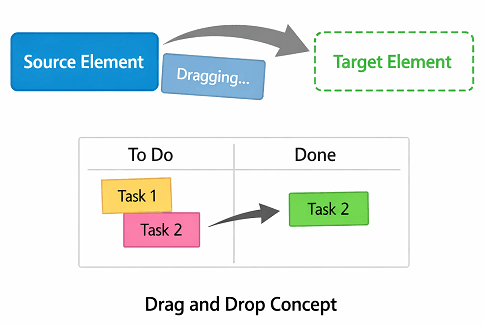
This action is commonly used in testing interactive UI components such as sliders, sortable lists, dashboards, and file upload zones.
In real world automation, drag and drop helps validate user interactions and UI behavior accurately across modern web applications.
Key Steps Involved in Drag and Drop Action
Before you implement drag and drop, it is important to understand the sequence of actions involved.
- Identify the source element to drag
- Identify the target element to drop
- Click and hold the source element
- Move the element to the target location
- Release the mouse to drop the element
Where is Drag and Drop Used in Real Applications?
Drag and drop is widely used in modern UI designs. Here are some common scenarios you will encounter in real projects.
- Kanban boards like task management tools
- File upload areas where files are dragged into drop zones
- Reordering lists or table rows
- Dashboard widgets rearrangement
- Image editors and design tools
Does Playwright Support Drag and Drop Natively?
Yes. Playwright provides built in support for drag and drop using the dragTo method, which simplifies implementation compared to older tools.
Is dragTo Always Reliable in Playwright?
In most cases, the dragTo method works reliably for standard HTML5 drag and drop implementations. However, it may not work as expected in applications that use custom JavaScript based drag logic.
This usually happens in frameworks where drag events are manually controlled instead of using native browser behavior.
- Works well with standard HTML drag and drop
- May fail in custom JavaScript frameworks
- Not reliable for canvas based UI interactions
Now that you understand the basics of drag and drop, let’s move to the practical implementation in Playwright Java.
How to Perform Drag and Drop in Playwright Java?
To perform drag and drop in Playwright Java, use the dragTo method by locating the source and target elements and calling source.dragTo(target). For complex UI, use mouse actions like mouse.move, mouse.down, and mouse.up.
// Locate source and target elements
Locator source = page.locator("#drag-source");
Locator target = page.locator("#drop-target");

// Perform drag and drop
source.dragTo(target);
Before applying this method in real projects, it is important to ensure the page and elements are ready for interaction.
Pre Checks Before Drag and Drop in Playwright Java
These checks apply to both dragTo and mouse based approaches.
Ignoring these conditions is one of the most common reasons why drag and drop fails in automation tests.
- Ensure both source and target elements are visible and attached to the DOM
- Use stable and reliable locators instead of dynamic selectors
- Make sure no overlapping elements block the interaction
- Wait for animations or transitions to complete before performing actions
- Verify that the page is fully loaded and elements are interactable
- If using mouse actions, ensure boundingBox values are not null
By validating these conditions in advance, you can significantly improve the reliability of drag and drop actions across different applications and browsers.
Once these conditions are satisfied, you can confidently implement drag and drop using Playwright methods.
How to Use dragTo Method in Playwright Java?
You can use the dragTo method in Playwright Java by locating the source and target elements, then calling dragTo on the source element.
This is the simplest and recommended approach for handling drag and drop in most modern web applications.
For a deeper understanding of available options and parameters, you can refer to the official Playwright documentation on dragTo method.
This section expands on the quick example shown earlier and explains how to use dragTo step by step in real test scenarios.
Let’s break it down step by step.
Steps to Perform Drag and Drop Using dragTo
Follow these steps to implement drag and drop using the built in method.
- Locate the source element using a stable locator
- Locate the target element where you want to drop
- Call the dragTo method on the source element
- Pass the target locator as an argument
If you are not sure how to identify elements correctly, refer to this guide on Playwright locators in Java to understand different locator strategies.
Java Example Using dragTo Method
// Initialize browser and page
Playwright playwright = Playwright.create();
Browser browser = playwright.chromium().launch();
Page page = browser.newPage();

// Navigate to application
page.navigate("https://example.com/drag-drop");

// Locate elements
Locator source = page.locator("#drag-item");
Locator target = page.locator("#drop-area");

// Perform drag and drop
source.dragTo(target);
This approach works well for most applications where standard HTML5 drag and drop behavior is implemented.
Can dragTo Fail in Some Applications?
Yes. In some JavaScript heavy frameworks, drag events are custom implemented and dragTo may not trigger the required events.
What to Do If dragTo Does Not Work?
If dragTo fails, you can use low level mouse actions such as mouse.move, mouse.down, and mouse.up to simulate the drag operation.
In some advanced scenarios, a more controlled approach is required to simulate drag and drop accurately.
How to Perform Drag and Drop Using Mouse Actions in Playwright Java?
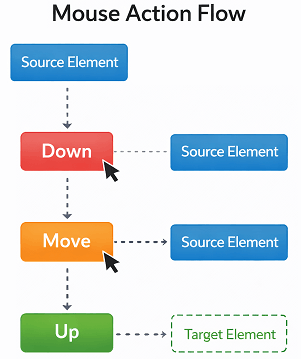
You can perform drag and drop in Playwright Java using mouse actions by manually controlling mouse movement with mouse.move, mouse.down, and mouse.up methods.
This approach is useful when the dragTo method does not work, especially in applications with custom drag and drop implementations.
Steps to Perform Drag and Drop Using Mouse
Follow these steps to simulate drag and drop using mouse actions.
- Locate the source element and get its position
- Locate the target element and get its position
- Move the mouse to the source element
- Press and hold the mouse button using mouse.down
- Move the mouse to the target element
- Release the mouse using mouse.up
Java Example Using Mouse Actions
This example shows how to perform drag and drop manually using mouse events in Playwright Java.
// Initialize browser and page
Playwright playwright = Playwright.create();
Browser browser = playwright.chromium().launch();
Page page = browser.newPage();

// Navigate to application
page.navigate("https://example.com/drag-drop");

// Locate elements
Locator source = page.locator("#drag-item");
Locator target = page.locator("#drop-area");

// Get bounding boxes
BoundingBox sourceBox = source.boundingBox();
BoundingBox targetBox = target.boundingBox();

if (sourceBox == null || targetBox == null) {
    throw new RuntimeException("Unable to perform drag and drop because element position is not available.");
}

// Perform mouse actions
page.mouse().move(sourceBox.x + sourceBox.width / 2, sourceBox.y + sourceBox.height / 2);
page.mouse().down();
page.mouse().move(targetBox.x + targetBox.width / 2, targetBox.y + targetBox.height / 2);
page.mouse().up();
This method gives you more control over drag and drop behavior and works well for complex UI interactions.
When Should You Use Mouse Actions Instead of dragTo?
You should use mouse actions when dealing with custom drag implementations, canvas based UI, or frameworks that do not rely on standard HTML5 drag events.
Is Mouse Based Drag and Drop More Reliable?
Mouse actions are more flexible but slightly more complex. They are reliable when implemented carefully with proper waits and element handling.
How to Handle Drag and Drop When Elements Are Not Interactable?
In some cases, drag and drop may fail because elements are not interactable due to overlays, animations, or visibility issues. Playwright provides options to handle such scenarios more effectively.
One approach is to ensure that the element is in an interactable state before performing drag and drop. However, if the application still blocks interaction, you may need to adjust your strategy.
- Wait for the element to become visible and stable
- Scroll the element into view before performing actions
- Ensure no overlay or modal is blocking the element
- Use mouse actions when dragTo does not trigger expected behavior
It is important to note that Playwright does not provide a direct force option for dragTo like click actions. Therefore, handling element readiness and using alternative approaches is the recommended solution.
By ensuring proper element state and using fallback strategies, you can handle even complex drag and drop scenarios reliably.
Now that you understand drag and drop using mouse actions, let’s explore how drag and drop works in more complex scenarios such as iframe based applications.
How to Perform Drag and Drop Inside iframe in Playwright Java?
You can perform drag and drop inside an iframe in Playwright Java by first switching to the iframe context using frameLocator, then locating the source and target elements.
This is required when drag and drop elements are embedded inside iframe based applications.
Steps to Handle Drag and Drop in iframe
Follow these steps to perform drag and drop inside an iframe.
- Identify the iframe locator on the page
- Switch to iframe using frameLocator
- Locate source and target elements inside the iframe
- Use dragTo or mouse actions within the frame
Java Example: Drag and Drop Inside iframe
This example shows how to switch context and perform drag and drop inside an iframe.
FrameLocator frame = page.frameLocator("#iframe-id");

Locator source = frame.locator("#drag-item");
Locator target = frame.locator("#drop-area");

source.dragTo(target);
This approach ensures that interactions happen within the correct frame context.
In real applications, drag and drop may also involve switching between contexts, so understanding how to handle multiple tabs and windows in Playwright Java is equally important.
In some cases, elements may not have a clear drop target. In such situations, using coordinate based drag and drop becomes useful.
How to Perform Drag and Drop Using Coordinates in Playwright Java?
You can perform drag and drop using coordinates by moving the mouse from a source position to a target offset using mouse actions.
This method is useful when the target element is not clearly defined or when working with canvas based applications.
Steps to Drag and Drop Using Offset
Follow these steps to move elements using coordinates.
- Get the bounding box of the source element
- Calculate starting position
- Define target offset coordinates
- Use mouse.move with calculated values
- Use mouse.down and mouse.up to complete action
Java Example Using Offset
This example demonstrates drag and drop using custom coordinates.
BoundingBox box = source.boundingBox();

page.mouse().move(box.x + box.width / 2, box.y + box.height / 2);
page.mouse().down();

// Move by offset (for example: +200px horizontally)
page.mouse().move(box.x + 200, box.y);

page.mouse().up();
This approach gives flexibility when exact drop targets are not available.
Now that you have seen both approaches, it is important to understand how they compare and when to use each method.
dragTo vs Mouse Actions in Playwright Java
The main difference between dragTo and mouse actions in Playwright Java is that dragTo is a high level method for simple drag and drop, while mouse actions provide low level control for complex or custom UI interactions.
Choosing the right approach depends on how the application implements drag and drop functionality.
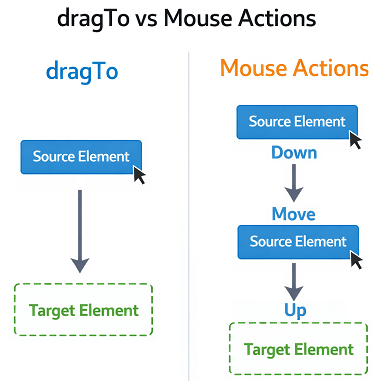
Comparison Between dragTo and Mouse Actions
The table below compares dragTo and mouse actions in Playwright Java based on ease of use, flexibility, and real world reliability.
| Feature | dragTo Method | Mouse Actions |
|---|---|---|
| Ease of Use | Very simple and quick | Requires multiple steps |
| Code Complexity | Low | Medium to High |
| Control Over Actions | Limited | High control over movement |
| Works with Custom UI | Sometimes fails | Works reliably |
| Best Use Case | Standard HTML drag and drop | Advanced or custom interactions |
In most cases, dragTo is the preferred choice for standard applications, while mouse actions are better suited for advanced or non standard drag and drop scenarios.
When to Use dragTo vs Mouse Actions in Playwright Java?
You should choose the drag and drop approach based on how the application handles user interactions. Not all applications behave the same way.
This section helps you decide the correct method based on real world scenarios instead of repeating the same logic.
Use the following guidelines to choose the right approach based on your testing scenario.
- Use dragTo when the application follows standard HTML5 drag and drop behavior
- Use mouse actions when dealing with custom UI frameworks or canvas based components
- Use mouse actions when precise control over movement or coordinates is required
- Prefer dragTo for cleaner and more maintainable test scripts
This approach ensures your test remains stable while also handling edge cases effectively.
Is dragTo Faster Than Mouse Actions?
Yes. The dragTo method is faster to write and execute because it performs the action internally without multiple steps.
Do Both Methods Work Across Browsers?
Yes. Both dragTo and mouse actions are supported across Chromium, Firefox, and WebKit, but behavior may vary slightly based on the application.
After performing drag and drop, it is important to verify whether the action was successful. This ensures your automation test is reliable.
How to Verify Drag and Drop Action in Playwright Java?
You can verify drag and drop in Playwright Java by asserting changes in element position, DOM structure, or UI state after the action is performed.
This is important because automation should validate outcomes, not just perform actions.
To implement strong validation in your tests, you can explore Playwright Java assertions with TestNG and JUnit for different assertion strategies.
Common Ways to Validate Drag and Drop
Use the following methods to confirm drag and drop success.
- Verify element is moved inside the target container using a locator assertion
- Check DOM structure change, for example element is now a child of drop area
- Validate CSS class or attribute changes after drop action
- Assert UI text or state update that confirms successful drop
For example, you can verify that the dragged element is now present inside the drop container using an assertion.
Java Example Using Assertion
This example shows how to validate drag and drop using a simple assertion.
// Example: Verify element moved to new container
assertTrue(page.locator("#drop-area #drag-item").isVisible());
This ensures that the drag and drop action actually worked as expected.
Before implementing drag and drop in real projects, it is important to understand common mistakes that can lead to failures.
Common Mistakes in Playwright Drag and Drop Java
Many beginners face issues with drag and drop because of small but critical mistakes. Identifying these early can save a lot of debugging time.
Here are the most common problems you should avoid when working with playwright drag and drop java.
What Are Common Drag and Drop Mistakes in Playwright Java?
Below are the frequent mistakes observed in real automation projects.
- Using unstable or dynamic locators for source or target elements
- Not waiting for elements to be visible before performing drag
- Assuming dragTo works for all applications
- Ignoring overlapping elements or hidden layers
- Not verifying element position using boundingBox
Debugging Tips for Drag and Drop Issues
Here is the fastest way to debug drag and drop failures in Playwright.
- Use page.pause() to inspect the UI during execution
- Check if elements are visible and enabled
- Print boundingBox values to verify positions
- Try slow motion mode to observe mouse movement
- Switch between dragTo and mouse actions
Important Warning Before You Proceed
Here is where most beginners make mistakes. Do not rely only on dragTo for complex applications.
Always validate the behavior in your application and choose the correct approach based on how drag events are implemented.
Can Timing Issues Affect Drag and Drop?
Yes. If elements are not fully loaded or stable, drag actions may fail. Always use proper waits to ensure reliability.
Does Headless Mode Affect Drag and Drop?
Yes, drag and drop behavior can sometimes differ in headless mode due to rendering differences and timing variations. Certain UI interactions may not behave exactly the same as in a real browser window.
For accurate debugging, it is recommended to first validate drag and drop in headed mode before running tests in headless mode.
- Use headed mode during debugging
- Switch to headless mode after validation
- Compare behavior across both modes if issues occur
Even after avoiding common mistakes, drag and drop may still fail in some scenarios. Let’s understand the possible reasons and how to troubleshoot them effectively.
Why is Drag and Drop Not Working in Playwright Java?
Drag and drop may not work in Playwright Java when the application uses custom JavaScript instead of standard HTML5 drag events, when elements are not interactable, or when timing and visibility issues prevent proper execution.
Drag and drop failures in Playwright Java usually occur due to how modern web applications implement drag events. In most cases, the issue is not with Playwright itself but with custom UI behavior, element state, or timing conditions.
Understanding the root cause helps you choose the correct approach between dragTo and mouse based actions.
Common Reasons Drag and Drop Fails
Below are the most common real world reasons why drag and drop does not work as expected.
- The application uses custom drag and drop logic instead of HTML5 standard events
- Elements are not fully loaded or still in animation state
- Source or target elements are hidden or covered by overlays
- Incorrect or unstable locators are used
- iframe or shadow DOM is involved in the UI structure
To fix this issue effectively, you first need to identify what is causing the failure in your specific scenario.
How to Debug Drag and Drop Issues in Playwright Java
You can debug drag and drop issues by checking whether the element responds to mouse events or not.
- Try performing manual drag in browser to verify behavior
- Use Playwright inspector with page.pause()
- Check if boundingBox values are valid and not null
- Test both dragTo and mouse actions separately
In many real world cases, switching from dragTo to mouse actions immediately resolves the issue when dealing with custom drag implementations.
Important Insight for Automation Engineers
In real automation projects, drag and drop failures are often caused by application design rather than Playwright limitations.
That is why switching to mouse based actions or adjusting timing usually resolves most issues.
Should You Always Switch to Mouse Actions?
No. You should only switch when dragTo fails consistently. In standard HTML based applications, dragTo remains the preferred and most stable approach.
In summary, most drag and drop issues are caused by application behavior rather than Playwright limitations, and can be resolved by choosing the correct approach and ensuring proper element readiness.
Best Practices for Drag and Drop in Playwright Java
Following best practices for drag and drop in Playwright Java helps improve test stability, reduce flakiness, and ensure consistent behavior across different browsers and applications.
Follow these guidelines to improve the reliability of your drag and drop tests.
- Prefer dragTo for simple and standard drag operations
- Use mouse actions for complex or custom UI interactions
- Use strong and reliable locators instead of dynamic ones
- Always validate the result using assertions after drag and drop
How to Improve Test Stability
Stability is critical when working with drag and drop because UI interactions can be sensitive to timing and rendering behavior.
- Use built in waits instead of hard coded delays
- Avoid using Thread.sleep in test scripts
- Use assertions to confirm successful drop actions
- Run tests across multiple browsers to ensure consistent behavior
Performance Considerations for Drag and Drop
Drag and drop actions are generally lightweight, but inefficient implementation can impact test execution speed, especially in large test suites.
Efficient implementation of drag and drop can improve execution speed, especially in large automation test suites.
- Avoid unnecessary repeated mouse movements
- Use dragTo instead of mouse actions when applicable
- Reuse locators instead of recalculating positions
- Minimize waiting time by relying on smart waits
In real automation projects, reducing unnecessary UI interactions can significantly improve execution time.
Should You Use Assertions After Drag and Drop?
Yes. Assertions confirm that the application state changed as expected after the action.
Is dragTo Part of Latest Playwright Features?
Yes. The dragTo method is part of modern Playwright APIs and is recommended as the default approach for drag and drop actions.
Even when using the recommended methods and best practices, drag and drop behavior can still vary depending on how the application is implemented. Understanding these limitations helps you choose the right approach in complex scenarios.
By following these best practices, you can create stable and maintainable drag and drop tests that work reliably across different environments and application types.
What Are the Limitations of Drag and Drop in Playwright Java?
Drag and drop in Playwright Java works well in most scenarios, but it has certain limitations when dealing with complex or custom UI implementations.
These limitations usually depend on how the application handles drag events rather than Playwright itself.
Common Limitations You Should Know
Below are the most common limitations observed in real automation projects.
- dragTo may not work with custom JavaScript drag implementations
- Canvas based applications may require manual mouse actions
- iframe and shadow DOM elements require special handling
- Precise positioning may be difficult in dynamic layouts
- Behavior may differ slightly across browsers or headless mode
When Should You Consider Alternative Approaches?
You should consider alternative methods when drag and drop does not behave as expected using standard approaches.
- Use mouse actions for better control
- Use direct API or input methods where applicable
- Avoid drag and drop if it does not add test value
Understanding these limitations helps you design more stable and maintainable automation tests.
After understanding limitations of drag and drop, let’s explore where drag and drop is used in real world applications.
Real World Use Cases of Drag and Drop in Playwright Java
Drag and drop is widely used in real applications. Understanding these use cases helps you apply playwright drag and drop java effectively in actual automation projects.
These scenarios are commonly seen in enterprise applications, dashboards, and modern UI frameworks.
Common Real World Scenarios
Below are practical situations where drag and drop automation is required.
- Moving tasks between columns in kanban boards
- Uploading files by dragging into drop zones
- Reordering items in lists or tables
- Arranging dashboard widgets
- Dragging elements in design tools or editors
Example Scenario: Kanban Board Drag and Drop
This example demonstrates how to move a task card from one column to another using Playwright Java.
// Locate task card and target column
Locator taskCard = page.locator(".task-card").first();
Locator targetColumn = page.locator("#in-progress-column");

// Perform drag and drop
taskCard.dragTo(targetColumn);
This scenario is commonly used to validate workflow transitions in project management applications.
Another Scenario: File Upload Drag and Drop
In some applications, files can be uploaded using drag and drop. However, Playwright also provides direct file upload methods which are more reliable.
- Use drag and drop only if UI behavior needs validation
- Use setInputFiles for direct file upload
When Should You Avoid Drag and Drop?
Drag and drop should not be used when simpler alternatives are available.
- Prefer direct API or input methods for file uploads
- Avoid drag actions if they do not add validation value
- Use simpler interactions when possible for faster tests
Is Drag and Drop Required in Every Test?
No. Drag and drop should be used only when the application behavior depends on it. Otherwise, simpler actions are preferred for stability and speed.
Does Drag and Drop Improve Test Coverage?
Yes. It helps validate real user interactions, especially in applications where UI behavior is critical to functionality.
By now, you should have a clear understanding of how to handle drag and drop in different scenarios using Playwright Java.
Related Playwright Java Articles
If you want to build strong automation skills in Playwright Java, exploring related topics can help you understand the complete workflow from setup to advanced interactions.
- Install Playwright with Java step by step guide
- How to launch a browser in Playwright Java
- Playwright Java XPath locators with Examples
- How to handle alerts in Playwright Java
- Capture screenshots in Playwright Java for debugging
Conclusion
In this guide, you learned how to perform playwright drag and drop java using both dragTo and mouse actions. You also understood when to use each approach based on real world application behavior.
The dragTo method is the best choice for standard HTML5 drag and drop scenarios because it is simple and reliable. However, for complex UI or custom JavaScript implementations, mouse based actions provide better control and flexibility.
To build stable automation tests, always verify element readiness, choose the correct method, and validate the result using assertions after drag and drop.
Now that you understand both approaches, try implementing drag and drop in your own Playwright projects to improve test coverage and reliability.
FAQs
What is the difference between dragTo and mouse actions in Playwright Java?
dragTo is a high level method that performs drag and drop in a single step, while mouse actions provide low level control for handling complex or custom UI interactions.
Why does dragTo fail in some applications?
dragTo may fail when applications use custom JavaScript drag logic instead of standard HTML5 drag and drop behavior.
Can I perform drag and drop without dragTo in Playwright Java?
Yes, you can perform drag and drop using mouse actions like mouse.move, mouse.down, and mouse.up in Playwright Java.
How do I handle drag and drop inside an iframe in Playwright Java?
You need to switch to the iframe using frameLocator and then perform drag and drop using locators inside that frame.
Is drag and drop supported in headless mode in Playwright?
Yes, drag and drop is supported in headless mode, but behavior may slightly differ compared to headed mode.
What is the best way to debug drag and drop issues in Playwright?
Use page.pause(), verify element visibility, check boundingBox values, and try both dragTo and mouse actions to debug issues.
Can drag and drop work with canvas based applications?
Yes, but dragTo may not work. Mouse actions are usually required for canvas based drag and drop interactions.
Should I always use drag and drop for file uploads?
No, use setInputFiles for file uploads unless you specifically need to validate drag and drop UI behavior.
How do I verify drag and drop success in Playwright Java?
You can verify drag and drop by checking DOM changes, element position, or UI updates using assertions.
Does drag and drop behave the same across all browsers in Playwright?
Drag and drop works across Chromium, Firefox, and WebKit, but behavior may vary slightly depending on application implementation.