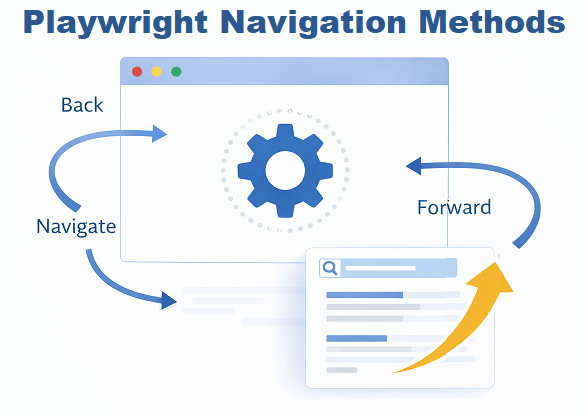
Many beginners start using Playwright by opening a browser and loading a page. However Playwright Java navigation is where most automation scripts fail and become flaky if not handled correctly. Without proper navigation handling, your tests can become slow, unreliable, or break due to timing issues.
In this Playwright Java navigation tutorial, you will learn how to handle page navigation using methods like navigate, reload, goBack, and goForward in a simple and practical way. These methods are essential for real world automation scenarios such as login flows, multi page forms, and validation checks.
We will also cover best practices, common mistakes, and advanced tips that most tutorials miss. By the end, you will be able to write stable and efficient navigation flows using the latest Playwright features and current best practices.
How to Perform Page Navigation in Playwright Java?
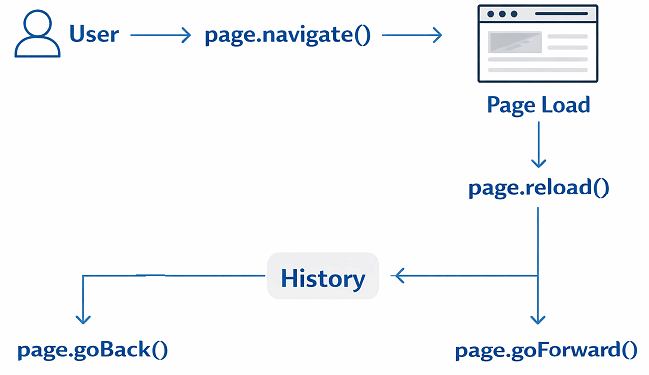
You can perform navigation in Playwright Java using page.navigate to open URLs, page.reload to refresh the page, and page.goBack or page.goForward to move through browser history.
// Navigate to a URL
page.navigate("https://example.com");

// Reload the current page
page.reload();

// Go back to previous page
page.goBack();

// Go forward to next page
page.goForward();
Here is the list of playwright navigation methods with purpose.
| Method | Purpose |
|---|---|
| page.navigate() | Open a new URL |
| page.reload() | Refresh current page |
| page.goBack() | Navigate to previous page |
| page.goForward() | Navigate to next page |
Now that you understand the basic navigation methods in Playwright Java, it is important to know how these methods differ across other Playwright languages.
What is Page Navigation in Playwright Java with Example?
Navigation in Playwright Java is the process of controlling browser page transitions such as opening URLs, refreshing pages, and moving through browser history using automation scripts. It plays a key role in automation testing where tests need to simulate real user journeys across multiple pages.
It is commonly used in scenarios like login redirects, checkout flows, and multi step forms where accurate page transitions are required for validation.
Why is Navigation Important in Playwright Automation Testing?
Navigation is important because most web applications involve multiple pages or dynamic page transitions. Without handling navigation correctly, your automation script may interact with elements before the page is fully loaded.
- Ensures correct page is loaded before performing actions
- Prevents flaky tests caused by timing issues
- Supports real user journey simulation
- Helps validate redirects and URL changes
As a result, mastering navigation methods is one of the first steps toward writing stable and production ready Playwright tests.
Does Playwright Automatically Wait During Navigation?
Yes. Playwright automatically waits for page navigation to complete based on built in waiting mechanisms, which reduces the need for manual waits in most cases.
Can Playwright Handle Single Page Application Navigation?
Yes. Playwright can handle both traditional navigation and Single Page Application transitions using its auto waiting and event handling capabilities.
Now that you understand the concept of navigation, let us start with the most commonly used method to open a web page.
page.navigate vs page.goto in Playwright Java Explained
In Playwright, page.navigate and page.goto are used to open a URL in the browser. However the method name depends on the programming language you are using.
In Playwright Java, you should use page.navigate to load a URL. In JavaScript and TypeScript, the equivalent method is page.goto. Both perform the same action of navigating to a web page and waiting for it to load.
| Method | Used In | Purpose |
|---|---|---|
| page.navigate | Java | Navigate to a URL |
| page.goto | JavaScript, TypeScript, Python | Navigate to a URL |
Important note. If you are following Playwright official documentation, you may see page.goto in examples. When working with Java, always use page.navigate instead.
How to Navigate to URL in Playwright Java Using page.navigate?
You can use page.navigate in Playwright Java to open a specific URL and load a web page. This method is the primary way to start any automation flow.
This method is commonly used when you need to open a website, navigate to a specific page, or validate URL navigation in automation tests.
It loads the given URL and waits for the page to reach a stable state based on Playwright’s default waiting strategy. This is the fastest way to begin navigation in any test.
Here is the basic syntax and usage.
// Navigate to a URL
page.navigate("https://example.com");
The above code opens the given URL in the current browser page. Playwright automatically waits for the page to load before moving to the next step.
What is the Fastest Way to Navigate to a URL in Playwright Java?
You can quickly navigate to a URL in Playwright Java using page.navigate(“https://example.com”), which opens the page and waits for it to load automatically.
Step by Step Example Using page.navigate
This example shows how to launch a browser and navigate to a website using Playwright Java.
import com.microsoft.playwright.*;

public class NavigateExample {
    public static void main(String[] args) {
        try (Playwright playwright = Playwright.create()) {

            Browser browser = playwright.chromium().launch(new BrowserType.LaunchOptions().setHeadless(false));
            Page page = browser.newPage();

            // Navigate to URL
            page.navigate("https://example.com");

            // Print page title
            System.out.println(page.title());
        }
    }
}
This example shows a simple navigation flow where you open a browser, load a page, and verify the page title.
If you are new to Playwright setup, you can first learn how to launch a browser in Playwright Java before implementing navigation in your tests.
How to Handle Navigation After Click in Playwright Java?
You can handle navigation after a click in Playwright Java by combining the click action with proper wait handling to ensure the next page loads correctly.
This is commonly used when clicking login buttons, links, or submit actions that trigger page navigation.
To ensure stable navigation after user actions, it is important to properly handle waits in Playwright Java so that elements and page transitions are fully loaded before execution.
// Click and wait for navigation
page.locator("#loginButton").click();
page.waitForLoadState(LoadState.DOMCONTENTLOADED);
Quick tip. Always wait for the next page to load after a click to avoid flaky tests.
How to Handle Redirect After Login in Playwright Java?
You can handle redirect after login by validating the final URL or checking a unique element on the dashboard page.
This ensures that login navigation is successful and the user is redirected to the correct page.
// Perform login action
page.locator("#loginButton").click();

// Wait for dashboard to load
page.waitForLoadState(LoadState.NETWORKIDLE);

// Validate redirect
System.out.println(page.url());
Quick tip. Always validate the final page after login to ensure navigation completed successfully.
What are the Key Options in page.navigate in Playwright Java?
The key options available in page.navigate are timeout and waitUntil. These options help control how long Playwright waits and when navigation is considered complete.
| Option | Description |
|---|---|
| timeout | Maximum time to wait for navigation to complete |
| waitUntil | Defines when navigation is considered finished |
Here is an example using options.
// Navigate with options
page.navigate("https://example.com",
    new Page.NavigateOptions()
        .setTimeout(60000)
        .setWaitUntil(WaitUntilState.NETWORKIDLE)
);
Important note before you proceed. Choosing the correct waitUntil value can significantly impact test stability.
What Does waitUntil Mean in Playwright Navigation?
The waitUntil option in Playwright defines when navigation is considered complete, such as after DOM content loads, full page load, or network activity becomes idle.
- load: Waits for full page load including resources
- domcontentloaded: Waits until DOM is ready
- networkidle: Waits until network requests are minimal
In most real projects, domcontentloaded or networkidle is preferred depending on application behavior.
Common Mistakes When Using page.navigate
Here is where most beginners make mistakes. Avoid these issues to improve test reliability.
- Using hardcoded waits instead of Playwright auto waiting
- Not handling slow network or dynamic content
- Choosing incorrect waitUntil option
- Navigating without validating page load
Quick tip. Always validate navigation using title, URL, or element presence to ensure the page has loaded correctly.
Can page.navigate Handle Redirects?
Yes. Playwright automatically follows redirects and waits until the final page is loaded.
Is page.navigate Blocking or Non Blocking?
page.navigate is a blocking call. It waits until the defined load state is reached before executing the next step.
Once you know how to navigate to a page, the next step is to control browser movement using reload, back, and forward actions.
How to Use page.reload, goBack, and goForward in Playwright Java for Navigation?
You can use page.reload to refresh the current page, page.goBack to navigate to the previous page, and page.goForward to move to the next page in browser history.
These methods are useful for browser navigation control, testing user journey flows, and validating browser history behavior in automation scenarios.
Here is the fastest way to use these methods.
// Reload current page
page.reload();

// Navigate back
page.goBack();

// Navigate forward
page.goForward();
Step by Step Example Using reload, goBack, and goForward
This example demonstrates a real navigation flow where a user visits multiple pages and uses browser navigation controls.
import com.microsoft.playwright.*;

public class NavigationActionsExample {
    public static void main(String[] args) {
        try (Playwright playwright = Playwright.create()) {

            Browser browser = playwright.chromium().launch(new BrowserType.LaunchOptions().setHeadless(false));
            Page page = browser.newPage();

            // Navigate to first page
            page.navigate("https://example.com");

            // Navigate to second page
            page.navigate("https://example.com/about");

            // Go back to previous page
            page.goBack();

            // Go forward to next page
            page.goForward();

            // Reload current page
            page.reload();
        }
    }
}
What Does page.reload Do in Playwright?
page.reload refreshes the current page in Playwright and reloads all resources while keeping the same URL.
- Reloads the same URL
- Re fetches all resources
- Waits for page load automatically
Does page.reload clear cache in Playwright?
No. page.reload refreshes the page but does not clear browser cache unless explicitly configured through context settings.
When Should You Use page.goBack?
You should use page.goBack when you want to navigate to the previous page in browser history during automation testing.
- Validating navigation history
- Testing cancel or back button flows
- Checking session persistence
When Should You Use page.goForward in Playwright?
You should use page.goForward to move to the next page in browser history after navigating back.
- Testing forward navigation scenarios
- Validating browser history consistency
- Ensuring state restoration
Real World Use Cases of Navigation in Automation
Navigation is used in almost every real automation scenario. Here are some practical examples.
- Login and redirect validation
- Checkout and payment flows
- Multi step form submission
- Session timeout and re login testing
These scenarios require proper navigation handling to ensure accurate test results.
Important Note Before You Use These Methods
These methods depend on browser history. If there is no previous or next page, goBack or goForward may return null.
Quick tip. After using goBack or goForward, verify that the expected page is loaded by checking a unique element specific to that page.
Does reload Keep Form Data in Playwright?
It depends on browser behavior. In most cases, reload may prompt resubmission or clear temporary form state.
Do goBack and goForward Trigger Full Page Load?
Yes. These methods trigger navigation events and Playwright waits based on the configured load state.
After performing navigation actions, it is important to ensure the page is fully loaded before interacting with elements.
How to Handle Page Load and Waits in Playwright Java?
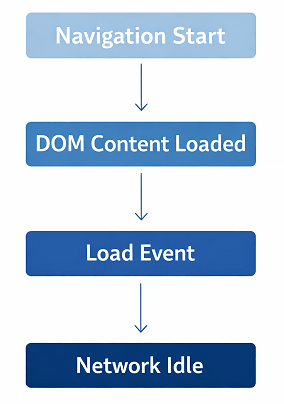
You can handle waits in Playwright navigation using built in auto waiting, waitUntil options, and explicit load state methods like waitForLoadState.
Handling page load correctly is critical for avoiding flaky tests and ensuring stable automation execution in real world applications.
Playwright automatically waits for navigation to complete. However choosing the correct load state and validation strategy is important for stable automation.
This is where most beginners struggle. They rely on fixed delays instead of using Playwright’s smart waiting features.
What is waitForLoadState in Playwright?
waitForLoadState is used to explicitly wait for a specific page load condition such as load, domcontentloaded, or networkidle.
Here is a simple example.
// Wait for DOM to be ready
page.waitForLoadState(LoadState.DOMCONTENTLOADED);

// Wait for full page load
page.waitForLoadState(LoadState.LOAD);

// Wait for network to be idle
page.waitForLoadState(LoadState.NETWORKIDLE);
What is the Difference Between waitForNavigation and waitForLoadState?
waitForLoadState is used to wait for a specific page load condition, while waitForNavigation waits for a full navigation event to occur.
| Method | Purpose | Usage |
|---|---|---|
| waitForLoadState | Wait for page readiness | After navigation or actions |
| waitForNavigation | Wait for navigation event | When navigation is expected |
In most cases, waitForLoadState is preferred for better control and stability.
This method is useful when you want additional control over page readiness before performing actions.
Which Load State Should You Use?
Choosing the correct load state depends on your application behavior and test scenario.
| Load State | Best Use Case |
|---|---|
| domcontentloaded | When you need basic DOM interaction quickly |
| load | When all resources like images and scripts must load |
| networkidle | For SPA or API heavy applications |
In most real projects, domcontentloaded is fast and reliable, while networkidle is useful for modern web apps.
Why You Should Avoid Thread.sleep in Navigation
You should avoid Thread.sleep because it introduces unnecessary delays and makes tests slow and unreliable.
- Increases execution time
- Causes flaky tests on slow networks
- Does not guarantee page readiness
Quick tip. Always prefer Playwright auto waiting or waitForLoadState instead of fixed delays.
How to Validate Navigation Successfully?
You can validate navigation in Playwright Java by checking the page URL, verifying the page title, or confirming the presence of a unique element on the page.
For example, you can get page title in Playwright Java to confirm that the correct page is loaded after navigation.
- Check page URL using page.url()
- Validate page title using page.title()
- Verify important element visibility
Here is a simple validation example.
// Validate URL
System.out.println(page.url());

// Validate title
System.out.println(page.title());

// Wait for element
page.locator("#loginButton").waitFor();
Does Playwright Auto Wait for Elements After Navigation?
Yes. Playwright automatically waits for elements to be ready before performing actions, reducing the need for manual waits.
Can You Combine Navigation and Waits?
Yes. You can combine navigation with waitUntil or follow up with waitForLoadState for better control.
Real World Debugging Tip for Navigation Issues
If your test fails after navigation, print the current URL and take a screenshot to verify the actual page state.
- Use page.screenshot for debugging
- Log page.url to confirm navigation
- Check for unexpected redirects
This simple debugging step can save hours of troubleshooting time.
Quick Checklist to Debug Navigation Issues in Playwright
Use this checklist to quickly identify and fix navigation related failures in your automation tests.
- Verify the URL after navigation
- Check if the expected element is present
- Ensure correct waitUntil condition is used
- Increase timeout if required
- Capture screenshot for debugging
This checklist helps reduce debugging time and improves test reliability.
Even with proper waits, you may still face issues in some scenarios. Let us look at common problems and their causes.
Playwright Java Navigation Best Practices and Common Mistakes
Common mistakes in Playwright navigation include using fixed waits, not validating page load, and misunderstanding browser history behavior. Following best practices helps create stable and reliable automation tests.
This section covers real world mistakes and proven practices based on actual automation experience. These are often missed in most tutorials but are critical for production ready frameworks.
Understanding common mistakes can help you avoid many navigation related issues in your tests.
Common Mistakes in Playwright Java Navigation
Here are the most common mistakes beginners make while working with navigation.
- Using Thread.sleep instead of Playwright auto waiting
- Not verifying page URL or title after navigation
- Not handling page navigation timing issues properly
- Assuming navigation always succeeds without validation
- Using networkidle blindly for all scenarios
- Calling goBack or goForward without browser history
Now that you know the common issues, let us look at best practices to write stable and reliable navigation tests.
Best Practices for Stable Navigation Tests in Playwright
Follow these best practices to make your Playwright tests faster and more reliable.
- Always validate navigation using URL or element checks
- Use domcontentloaded for faster execution when possible
- Use networkidle only for API heavy applications
- Prefer Playwright auto waiting over manual delays
- Handle redirects and dynamic content properly
Following these practices helps improve test stability, reduce flaky failures, and create reliable Playwright automation frameworks.
Quick tip. The fastest way to stabilize your tests is to remove unnecessary waits and rely on Playwright’s built in waiting mechanisms.
Performance Considerations for Playwright Navigation
Navigation performance directly affects your test execution time. Optimizing navigation can significantly speed up your automation suite.
| Practice | Impact |
|---|---|
| Using domcontentloaded | Faster execution |
| Avoiding unnecessary reload | Reduces test time |
| Minimizing navigation steps | Improves efficiency |
In large automation frameworks, even small optimizations can save minutes per test run.
Common Playwright Java Navigation Issues and How to Fix Them
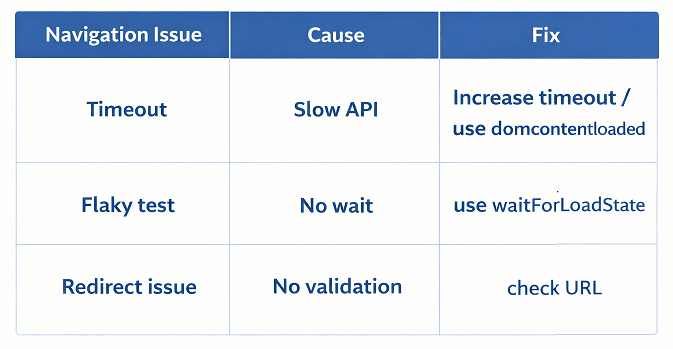
Playwright navigation issues are common when working with dynamic web applications, redirects, and asynchronous loading. These problems can lead to flaky tests, failed executions, or incorrect page interactions if not handled properly.
In this section, you will learn the most common Playwright Java navigation issues and how to fix them using practical solutions and current best practices.
Here are the most common Playwright Java navigation issues:
- Navigation not waiting properly after actions
- Timeout errors during page load
- Incorrect waitUntil configuration
- Unexpected redirects after login
- Navigation failing due to slow network or APIs
Playwright navigation issues usually occur due to incorrect wait conditions, slow network responses, or missing validation after navigation. Using proper wait strategies and validating page state helps fix most navigation related failures.
Why is navigation not working in Playwright Java?
Navigation may not work in Playwright Java due to incorrect wait conditions, timing issues, or unexpected redirects. Proper use of waitForLoadState and validation checks helps resolve this issue.
- Incorrect or broken URL
- Slow API or network response
- Wrong waitUntil configuration
- Page redirects not handled properly
How to Fix Navigation Timeout in Playwright Java?
You can fix navigation timeout issues in Playwright Java by increasing timeout values, using appropriate waitUntil conditions, and validating page load correctly.
- Increase timeout using NavigateOptions
- Use domcontentloaded for faster execution
- Check network delays or API dependencies
- Validate navigation using URL or element checks
What Causes Navigation Timeout in Playwright Java?
Navigation timeout usually occurs when the page takes longer to load than the defined timeout or does not reach the expected load state.
- Slow network or API response
- Heavy page resources
- Incorrect waitUntil condition
- Unexpected redirects
Understanding the root cause helps you fix flaky navigation issues effectively.
Let us combine all the concepts and see how navigation works in a complete real world example.
End to End Navigation Example in Playwright Java
This example demonstrates a complete navigation flow including page navigation, login action, redirect validation, and browser navigation.
import com.microsoft.playwright.*;

public class EndToEndNavigation {
    public static void main(String[] args) {
        try (Playwright playwright = Playwright.create()) {

            Browser browser = playwright.chromium().launch(new BrowserType.LaunchOptions().setHeadless(false));
            Page page = browser.newPage();

            // Open login page
            page.navigate("https://example.com/login");

            // Perform login
            page.locator("#loginButton").click();

            // Wait for dashboard
            page.waitForLoadState(LoadState.NETWORKIDLE);

            // Validate navigation
            System.out.println(page.url());

            // Navigate back
            page.goBack();

            // Reload page
            page.reload();
        }
    }
}
This type of flow is commonly used in real world automation scenarios.
Although this guide focuses on Playwright Java navigation, the same concepts apply across other supported languages with only syntax differences.
Playwright Navigation Examples in JavaScript, TypeScript, and Python Languages
The navigation methods in Playwright work similarly across all supported languages. Here are simple examples in JavaScript, TypeScript, and Python to help you understand the syntax differences.
These examples demonstrate the same navigation actions using goto, reload, back, and forward.
JavaScript Example: Navigation Methods
This example shows how to perform navigation using Playwright in JavaScript.
const { chromium } = require('playwright');

(async () => {
  const browser = await chromium.launch({ headless: false });
  const page = await browser.newPage();

  await page.goto('https://example.com');
  await page.reload();
  await page.goBack();
  await page.goForward();

  await browser.close();
})();
TypeScript Implementation: Navigation Flow
This TypeScript example demonstrates the same navigation flow with typed support.
import { chromium } from 'playwright';

(async () => {
  const browser = await chromium.launch({ headless: false });
  const page = await browser.newPage();

  await page.goto('https://example.com');
  await page.reload();
  await page.goBack();
  await page.goForward();

  await browser.close();
})();
Python Example: Using Navigation Methods
This Python example shows how to use navigation methods in Playwright.
from playwright.sync_api import sync_playwright

with sync_playwright() as p:
    browser = p.chromium.launch(headless=False)
    page = browser.new_page()

    page.goto("https://example.com")
    page.reload()
    page.go_back()
    page.go_forward()

    browser.close()
These examples confirm that navigation concepts remain consistent across languages while syntax changes slightly.
To deepen your understanding and build a complete Playwright framework, explore these related tutorials.
Related Playwright Tutorials
To build a strong foundation in Playwright automation, you should also explore these related tutorials. These guides will help you understand browser handling, element interaction, and advanced automation techniques in Playwright Java.
- How to install Playwright with Java step by step
- Playwright locators with Java complete guide
- How to click an element in Playwright Java
- Handle file upload in Playwright Java example
- Playwright Java assertions with TestNG and JUnit
Conclusion
You have now learned how to handle navigation effectively in Playwright Java.
Playwright Java navigation methods such as navigate, reload, goBack, and goForward are essential for building reliable automation tests. These methods help you control browser flow and validate page transitions effectively in automation tests.
By using proper wait strategies, validating navigation results, and avoiding common mistakes, you can significantly improve test stability and performance. Following current best practices also helps reduce flaky failures in real projects.
Mastering Playwright Java navigation is a key step toward building stable, fast, and scalable automation tests.
FAQs
When should I use goBack and goForward?
Use goBack to return to the previous page and goForward to move ahead in browser history when testing navigation flows.
Can Playwright handle redirects automatically?
Yes, Playwright automatically follows redirects and waits until the final page is loaded.
What happens if there is no history for goBack?
If there is no previous page, goBack may return null and no navigation will occur.
Is page.navigate better than page.goto in Playwright Java?
In Playwright Java, page.navigate is the correct method to use. page.goto is used in JavaScript, TypeScript, and Python, but both perform the same navigation function.