Last updated on June 4th, 2026 at 03:29 am
This Playwright TypeScript tutorial helps you learn how to automate web testing using Playwright with TypeScript step by step. In this guide, you will learn installation, real examples, best practices, and how to build reliable automation tests from scratch.
If you are a beginner or switching from Selenium or Cypress, this guide will help you understand Playwright in a simple and practical way.
Playwright is a modern automation framework used for testing web applications across Chromium, Firefox, and WebKit. It offers fast execution, built-in auto-waiting, and powerful features for creating scalable test automation.
In this tutorial, you will learn everything from setup to advanced concepts so you can start building real-world Playwright automation tests using TypeScript with confidence.
Let’s start with the basics and understand how Playwright with TypeScript works in real automation scenarios.
- What is Playwright TypeScript?
- Why Use TypeScript with Playwright Instead of JavaScript?
- Playwright vs Selenium vs Cypress
- How to Install Playwright TypeScript Step by Step
- How to Write Your First Test in Playwright TypeScript
- How to Locate Elements in Playwright TypeScript
- How Does Auto Waiting Work in Playwright TypeScript?
- How to Handle Forms in Playwright TypeScript (Real Examples)
- Playwright Navigation and Multiple Tabs Handling Guide
- How to Perform Assertions in Playwright TypeScript?
- How to Organize Tests and Project Structure in Playwright with TypeScript?
- How to Run Tests in Parallel and Improve Performance in Playwright TypeScript?
- What Are Common Playwright TypeScript Mistakes and How to Avoid Them?
- Playwright with TypeScript Best Practices for Real Projects
- Playwright TypeScript Learning Roadmap for Beginners to Advanced
- Real-World Experience with Playwright
- How Playwright TypeScript Skills Help in Real Jobs
- Conclusion: Why You Should Learn Playwright TypeScript in 2026
- Playwright TypeScript Interview Questions and Answers
- FAQs on Playwright TypeScript
What is Playwright TypeScript?
Playwright with TypeScript is a modern end-to-end testing framework that allows you to automate web applications using TypeScript. It supports cross-browser testing across Chromium, Firefox, and WebKit, and provides built-in features like auto-waiting, parallel execution, and reliable locators to create stable automation tests.
Playwright handles browser automation, while TypeScript improves code quality with strong typing and a better developer experience.
For detailed documentation and advanced usage, you can refer to the official Playwright typescript documentation, which provides complete guidance on features, APIs, and best practices.
Key Features of Playwright with TypeScript
- Cross browser testing support including Chromium, Firefox, and WebKit
- Built-in auto waiting to reduce flaky tests
- Powerful locator strategies like getByRole and getByText
- Parallel test execution for faster test runs
- Built-in test runner with assertions
- Network interception and API testing support
- Easy integration with CI/CD tools
How to Use Playwright TypeScript for Automation Testing?
You can get started with Playwright using TypeScript by installing Playwright, creating a test file, and running tests using the built-in test runner. It allows you to automate browser actions like navigation, clicking, and validation.
This is a simple way to get started with modern web automation using best practices.
import { test, expect } from '@playwright/test';

test('basic test', async ({ page }) => {
  await page.goto('https://example.com');
  await expect(page).toHaveTitle(/Example/);
});
Why Use TypeScript with Playwright Instead of JavaScript?
You can use Playwright with JavaScript, but TypeScript provides better structure and error handling. This is especially useful for large test automation projects.
| Feature | TypeScript | JavaScript |
|---|---|---|
| Type Safety | Strong typing helps catch errors early | No type checking by default |
| Code Maintainability | Better for large projects | Can become harder to manage |
| IDE Support | Excellent autocomplete and hints | Basic support |
| Learning Curve | Slightly higher | Easier for beginners |
Top Benefits of Using Playwright with TypeScript
- Strong typing helps catch errors early during development
- Better code readability and maintainability for large projects
- Excellent IDE support with autocomplete and debugging
- Easier scaling for enterprise-level automation frameworks
- Improved collaboration across teams due to structured code
Is Playwright testing with TypeScript Good for Beginners?
Yes, Playwright with TypeScript is beginner friendly because it comes with a built-in test runner, clear syntax, and excellent documentation.
However, beginners should first understand basic JavaScript concepts before moving to TypeScript for better learning.
Real-World Use Cases of Playwright with TypeScript
Here is how Playwright with TypeScript is used in real projects:
- End-to-end testing for web applications
- Regression testing in CI CD pipelines
- UI validation for dynamic applications like React or Angular
- API testing and network mocking
- Cross browser compatibility testing
Before you proceed, keep this in mind: Most beginners focus only on writing tests. But in real projects, structuring your framework and writing resilient selectors is what actually matters.
Before writing tests, you need to set up Playwright TypeScript on your system. Let’s go step by step.
Playwright vs Selenium vs Cypress
Choosing the right automation tool is important for building stable and scalable test frameworks. Here is a quick comparison of Playwright, Selenium, and Cypress based on real-world usage.
| Feature | Playwright | Selenium | Cypress |
|---|---|---|---|
| Speed | Fast execution with parallel support | Slower due to WebDriver architecture | Fast but limited parallelism |
| Auto Waiting | Built-in auto waiting | Requires explicit waits | Partial support |
| Browser Support | Chromium, Firefox, WebKit | All major browsers | Limited (no Safari) |
| Architecture | Modern, direct browser control | Uses WebDriver protocol | Runs inside browser |
| Parallel Execution | Built-in and easy | Requires setup | Limited |
| Best For | Modern web apps, scalable automation | Legacy systems, wide browser coverage | Frontend-focused testing |
In short, Playwright is best for modern automation needs with better speed, stability, and developer experience. Selenium is still widely used in enterprise environments, while Cypress is suitable for frontend-focused testing with simpler setups.
If you’re still unsure which tool to focus on, a detailed Playwright vs Selenium guide can help you understand the differences in real-world usage, performance, and job demand.
How to Install Playwright TypeScript Step by Step
You can install Playwright with TypeScript using Node.js with a single command. This setup automatically installs Playwright, TypeScript, and the test runner, making it the fastest and recommended approach for beginners in 2026.
If you are new to TypeScript, you can explore the official TypeScript documentation to understand its syntax, types, and development benefits.
Step by Step Installation Guide
Follow these steps to install Playwright with TypeScript from scratch.
- Install Node.js (LTS version)
Download and install Node.js from the official Nodejs website. The LTS version is recommended for better stability and compatibility. - Install Visual Studio Code (Optional but Recommended)
Download and install Visual Studio Code if it is not already installed. It provides excellent TypeScript support, debugging features, and extensions for Playwright.
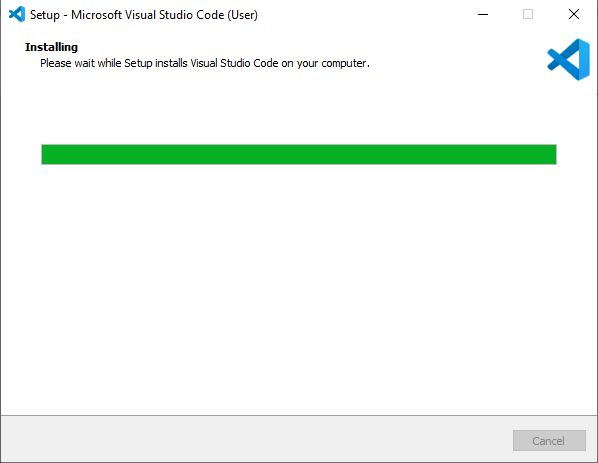
Once the installation is complete, open Visual Studio Code and proceed to create your Playwright project folder.
- Create a new project folder
Create a folder on your system where you want to set up your Playwright project. - Open the folder in Visual Studio Code
Open the project folder in Visual Studio Code or any preferred editor.
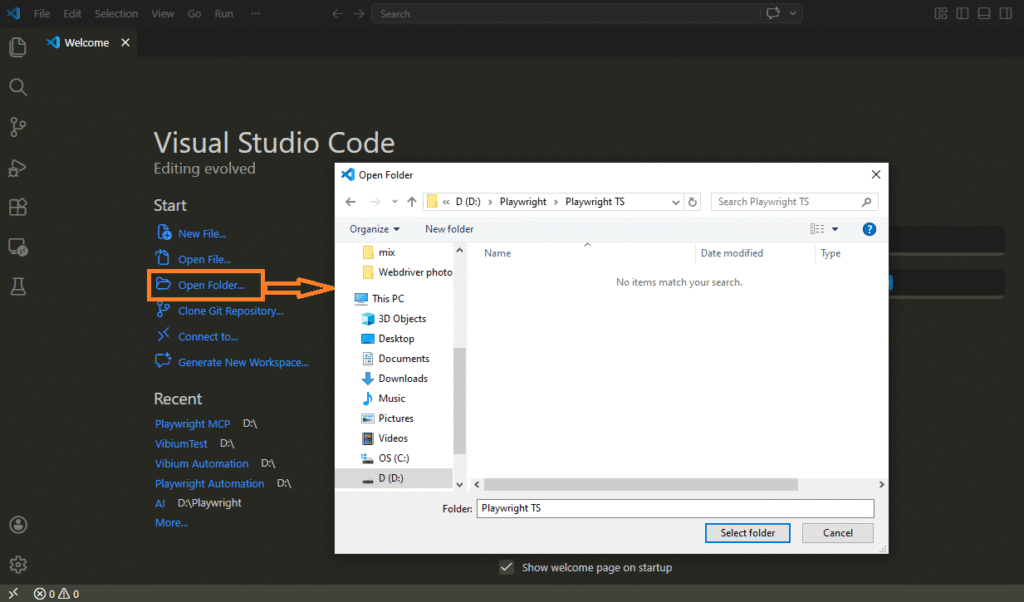
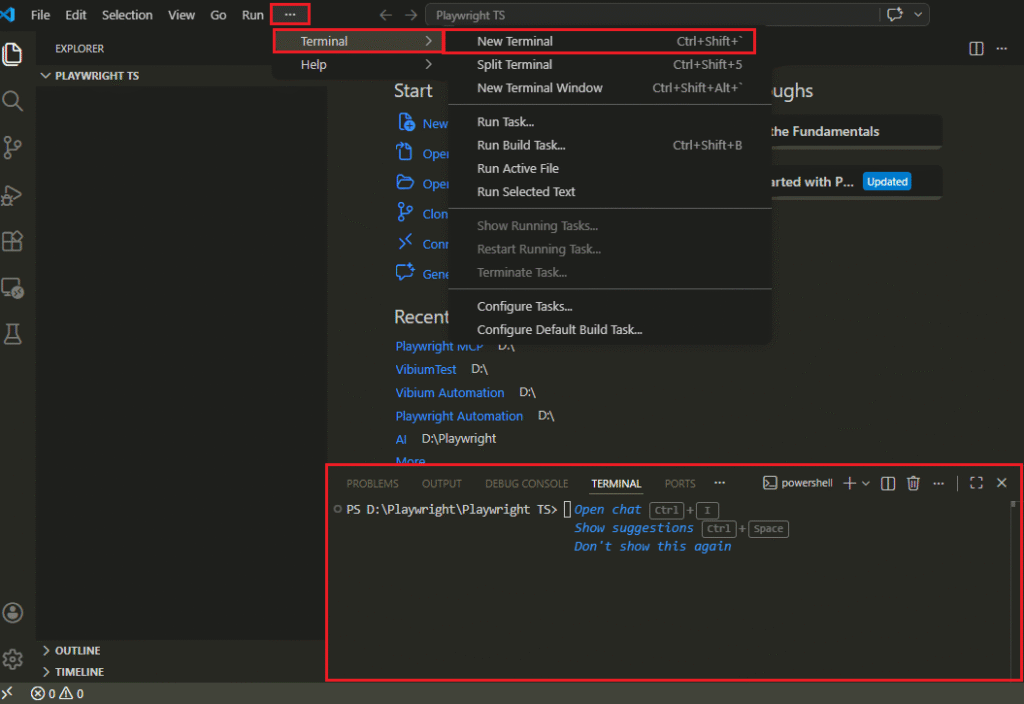
- Open terminal inside the folder
- Open the terminal inside your project directory to run Playwright commands.
This will open the terminal at the bottom of the screen, where you can run Playwright commands.
- Run Playwright setup command
npm init playwright@latestThis command will ask a few setup questions:
- Select TypeScript
- Choose test folder name
- Enable GitHub Actions (optional)
- Install browsers (recommended: Yes)
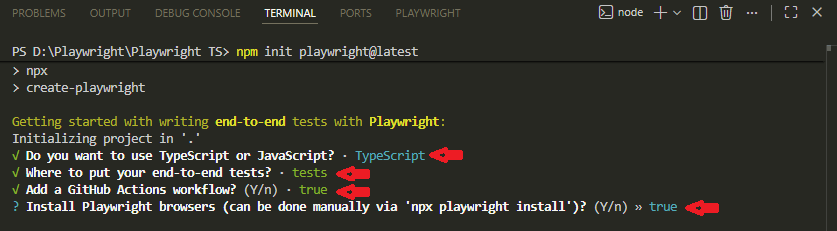
The Playwright installation process may take a few seconds to a few minutes, depending on your internet speed and system performance.
Do not close the terminal while installation is in progress, as it may interrupt the setup and cause errors.
Once the installation is complete, your Playwright project is ready for real-world automation testing.
Project Structure After Installation
After installation, your project will look like this:
project-root/
├── .github/
├── node_modules/
├── tests/
│   └── example.spec.ts
├── package-lock.json
├── package.json
└── playwright.config.ts
This is a clean and production-ready structure. You can start writing tests immediately.
How to Run Your First Playwright Test
Run the following command to execute your tests:
npx playwright testThis will run tests in headless mode across supported browsers.
Common Installation Issues and Fixes
- Node.js not installed → Install latest LTS version
- Browsers not installed → Run
npx playwright install - Wrong folder → Run command inside project root
- Permission error → Run terminal as administrator or use sudo (Mac/Linux)
Do You Need Visual Studio Code for Playwright?
No, it is not mandatory. However, Visual Studio Code is recommended because it provides better TypeScript support, debugging, and extensions for Playwright.
In real-world projects, most developers use VS Code for a faster and smoother workflow.
Note: If you want a detailed step-by-step guide with screenshots and troubleshooting, read our complete Playwright installation tutorial.
Now your Playwright project is ready for TypeScript-based automation, let’s write your first automation test using Playwright TypeScript.
How to Write Your First Test in Playwright TypeScript
You can write your first Playwright test using TypeScript by creating a test file inside the tests folder, using the test() function, and performing actions like navigation and assertions.
Playwright automatically looks for test files inside the tests directory by default, so this is the recommended location for all your test cases.
This is where you move from setup to real automation. Let’s start with a simple example.
Step: Create Your First Test File
Inside your Playwright project, go to:
tests/Create a new file named:
first-test.spec.tsYou can also use other names like:
- login.spec.ts
- homepage.spec.ts
Basic Test Example in TypeScript
This example opens a website and verifies its page title.
import { test, expect } from '@playwright/test';

test('verify page title', async ({ page }) => {
  await page.goto('https://example.com');
  await expect(page).toHaveTitle(/Example Domain/);
});
This test launches a browser, navigates to example.com, and checks whether the page title matches the expected value.
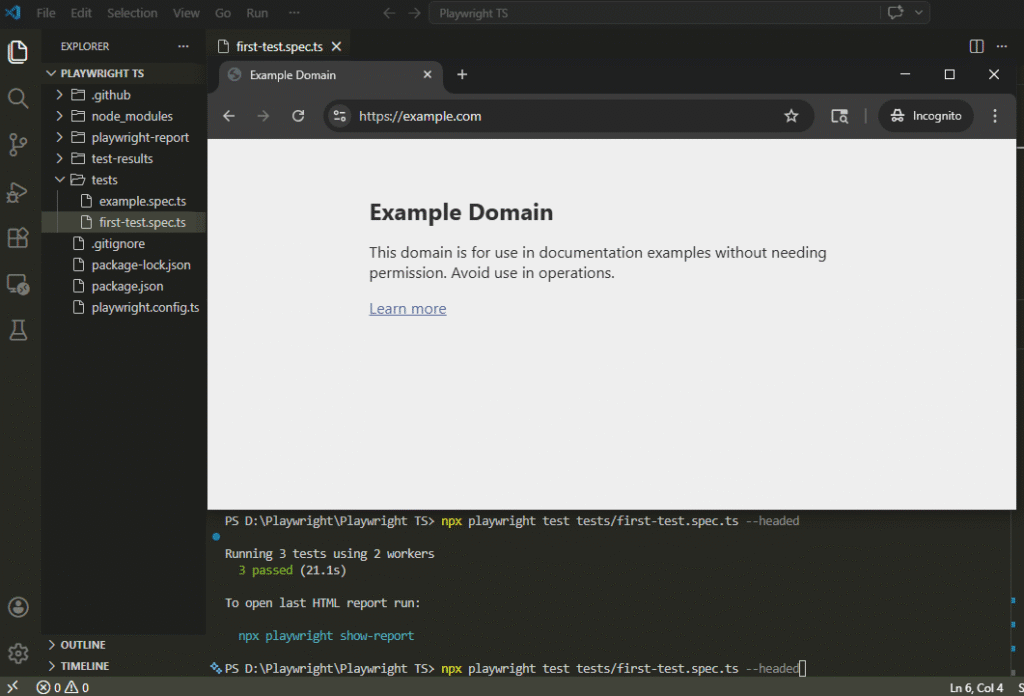
Once execution is complete, Playwright will display the test result in the terminal. If the test passes, you will see a success message along with execution details.
Understanding the Test Structure
- test() → Defines a test case
- page → Represents the browser tab
- page.goto() → Opens a URL
- expect() → Used for validation
Once you understand this structure, writing Playwright tests becomes simple and consistent.
When you start writing real tests, you will notice that keeping tests small and focused makes debugging much easier compared to large e2e flows.
Running Playwright Tests (Headless and Headed Mode)
Use the following command to run all tests:
npx playwright testTo run a specific test file:
npx playwright test tests/first-test.spec.tsBy default, Playwright runs tests in headless mode. To see the browser while execution, use:
npx playwright test --headedYou can use this to visually debug failing tests.
Common Issues and Quick Fixes
- Wrong selector → Use robust locators like getByRole
- Element not found → Ensure page is loaded or use proper waits
- Too many steps in one test → Keep tests small and focused
- Missing assertions → Always validate expected behavior
Parallel Execution in Playwright
Playwright runs tests in parallel by default using multiple workers, which makes execution faster.
Built-in Assertions in Playwright
Playwright provides built-in assertions to validate UI behavior such as text, visibility, URL, and title without requiring additional libraries.
Once you can run tests, the next step is learning how to locate elements correctly.
How to Locate Elements in Playwright TypeScript
You can locate elements in Playwright with TypeScript using built-in locator methods like getByRole, getByText, getByLabel, and CSS or XPath selectors.
Choosing the right locator is critical because it directly affects test stability, readability, and reliability.
Best Locator Strategy in Playwright
The recommended approach is to use user-facing locators instead of technical selectors.
- Use getByRole() for buttons, links, and interactive elements
- Use getByLabel() for input fields
- Use getByText() for visible text
- Use getByTestId() for stable custom attributes
This approach makes your tests easier to read and less likely to break when UI changes.
In most real projects I’ve worked on, fixing locators alone reduces a large percentage of flaky test failures. Choosing the right locator strategy early saves a lot of debugging effort later.
Example: Using getByRole Locator
This example shows how to click a login button using an accessible role.
await page.getByRole('button', { name: 'Login' }).click();This is the most stable way to locate elements in Playwright.
To use resilient selectors like getByRole, you can inspect the element using browser developer tools. This helps you understand the role, attributes, and accessibility properties of UI elements.
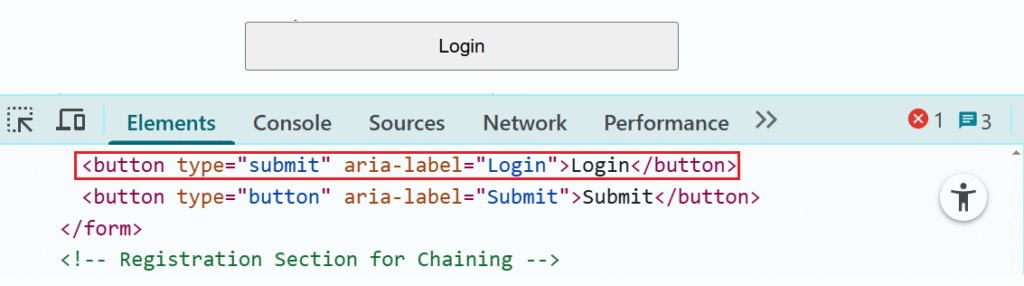
Once you inspect the element, you can identify its role (such as button, link, or textbox) and use it in Playwright locators for more stable and reliable test automation.
Using CSS Selectors in Playwright
You can use CSS selectors for elements that do not have accessible roles.
await page.locator('#username').fill('testuser');CSS selectors are powerful, but they may break if the UI structure changes.
When Should You Use XPath?
Use XPath only when no other locator works.
await page.locator('//input[@id="username"]').fill('testuser');In most practical scenarios, XPath is avoided because it is harder to maintain.
Locator Comparison
| Locator Type | Stability | Readability | Recommended |
|---|---|---|---|
| getByRole | High | High | Yes |
| getByText | Medium | High | Yes |
| CSS Selector | Medium | Medium | Sometimes |
| XPath | Low | Low | No |
Common Locator Mistakes to Avoid
- Using long and complex XPath expressions
- Relying on dynamic IDs or classes
- Ignoring accessibility-based locators
- Using nth-child selectors unnecessarily
In practice, weak locators are the main reason for unstable test results in automation projects.
To understand locator strategies in more depth, you can refer to this detailed guide on Playwright locators in JavaScript.
Does Playwright Auto Wait for Elements?
Yes, Playwright automatically waits for elements to be ready before performing actions. This reduces the need for manual waits.
Does getByRole Work Without Accessibility Attributes?
Yes, Playwright can infer roles based on HTML structure. However, adding proper accessibility attributes improves accuracy and test stability.
After understanding locators, it is important to know how Playwright handles timing and waits.
How Does Auto Waiting Work in Playwright TypeScript?
Playwright automatically waits for elements to be ready before performing actions like click, fill, or assertions. This built-in auto waiting reduces flaky tests and removes the need for manual waits in most cases.
It is one of the biggest reasons why Playwright tests are more stable compared to traditional automation tools.
What Does Playwright Auto Wait For?
Before performing any action, Playwright ensures that the element is fully ready for interaction.
- Element is attached to the DOM
- Element is visible on the page
- Element is stable and not moving
- Element is enabled and clickable
This built-in behavior makes your tests more reliable without adding extra wait logic.
In real-world scenarios, this built-in waiting significantly reduces the need for manual synchronization, especially in dynamic applications where elements load unpredictably.
Example: Auto Waiting in Action
This example clicks a button. Playwright automatically waits until the button is ready.
await page.getByRole('button', { name: 'Submit' }).click();You do not need to add any manual wait here. Playwright handles it internally.
Do You Need Explicit Waits in Playwright?
No, in most cases you do not need explicit waits because auto waiting is already built-in.
However, there are a few situations where explicit waits are still required.
When Should You Use Explicit Waits?
Use explicit waits only when Playwright cannot automatically detect the condition.
- Waiting for API responses
- Waiting for dynamic UI updates
- Handling loaders or spinners
- Waiting for specific state changes
await page.waitForSelector('#loading', { state: 'hidden' });This waits until the loading element disappears from the page.
Auto Wait vs Explicit Wait vs Hard Wait
This comparison will help you understand when to use each approach.
| Type | Behavior | Recommended |
|---|---|---|
| Auto Wait | Waits intelligently based on element state | Yes |
| Explicit Wait | Waits for a specific condition | Sometimes |
| Hard Wait (waitForTimeout) | Waits fixed time regardless of condition | No |
Common Waiting Mistakes Beginners Make
- Using waitForTimeout unnecessarily
- Adding delays instead of fixing locators
- Ignoring built-in auto waiting
In most cases, hard waits slow down your tests and still do not guarantee stability.
Can Playwright Wait for Network Calls?
Yes, Playwright can wait for network responses using methods like waitForResponse or route interception.
Do Playwright Assertions Also Auto Wait?
Yes, Playwright assertions automatically wait until the expected condition is met or the timeout is reached.
Why Auto Waiting Makes Playwright More Reliable
Many automation failures happen due to timing issues. Playwright handles this by automatically waiting for elements to be ready before performing actions. This reduces the need for manual waits and helps keep your tests faster and more consistent.
How to Handle Forms in Playwright TypeScript (Real Examples)
You can handle forms in Playwright with TypeScript using methods like fill, click, check, selectOption, and press to simulate real user interactions.
Form handling is one of the most common real-world use cases in automation. It includes login forms, search fields, checkout flows, and user input validations.
Filling Input Fields in Playwright
This example shows how to enter text into a username field.
await page.getByLabel('Username').fill('testuser');This approach is recommended because it uses user-visible labels, making tests more stable and readable.
Clicking Buttons to Submit Forms
After filling the form, you can submit it by clicking a button.
await page.getByRole('button', { name: 'Login' }).click();This simulates a real user clicking the login button.
Selecting Dropdown Values
Playwright provides a simple way to handle dropdown selections.
await page.locator('#country').selectOption('USA');You can select values by label, value, or index depending on your requirement.
Handling Checkboxes and Radio Buttons
You can use check and uncheck methods for checkboxes and radio buttons.
await page.getByLabel('Accept Terms').check();This ensures the option is selected before proceeding.
Typing with Keyboard Actions
Sometimes you need to simulate keyboard actions instead of using fill.
await page.getByLabel('Search').press('Enter');This is useful for search inputs and keyboard-driven interactions.
Uploading Files in Playwright
You can upload files using the setInputFiles method.
await page.locator('input[type="file"]').setInputFiles('test-data/file.pdf');This is commonly used for testing upload features like profile images or documents.
Form Handling Best Practices
- Use getByLabel for input fields whenever possible
- Avoid hardcoded selectors for form elements
- Always validate form submission using assertions
- Keep form tests small and focused
These practices help you write stable and maintainable tests in real projects.
Common Mistakes While Handling Forms
- Using incorrect or unstable locators
- Not waiting for form submission result
- Skipping validation after actions
Just clicking a button is not enough for a valid test. Always verify the result after form submission.
Can Playwright Handle File Uploads?
Yes, Playwright supports file uploads using the setInputFiles method.
Does Playwright Support Keyboard Shortcuts?
Yes, you can simulate keyboard shortcuts like Enter, Tab, Escape, and combinations using the press method.
Playwright Navigation and Multiple Tabs Handling Guide
You can handle navigation and multiple pages in Playwright tests written in TypeScript using methods like goto, waitForURL, and context.newPage to control browser tabs and page transitions.
This is important for scenarios like login redirects, new tabs, and multi-page workflows.
Navigating to a URL in Playwright
This is the most basic navigation step in any test.
await page.goto('https://example.com');This opens the URL and waits until the page is loaded.
Waiting for Navigation to Complete
Sometimes you need to ensure navigation is complete before performing the next action.
await page.waitForURL('**/dashboard');This waits until the page URL matches the expected pattern.
Handling New Tabs in Playwright
Many applications open links in a new tab. You can capture and control the new tab like this.
const [newPage] = await Promise.all([
  context.waitForEvent('page'),
  page.getByRole('link', { name: 'Open Details' }).click()
]);

await newPage.waitForLoadState();
This approach ensures the new tab is captured correctly before interaction.
Switching Between Multiple Pages
You can switch between tabs using page references returned by Playwright.
- Use the original page for the main tab
- Use newPage for the newly opened tab
This makes your test flow clear and easy to manage.
Closing Pages or Tabs
After completing actions, you can close a tab if needed.
await newPage.close();This is useful in multi-tab workflows to keep tests clean.
Using Browser Contexts for Isolation
Playwright allows you to create separate browser contexts, which act like independent sessions.
const context = await browser.newContext();
const page = await context.newPage();
This is useful for testing multiple users, sessions, or roles without sharing cookies or storage.
Navigation Best Practices
- Always wait for URL or load state when needed
- Avoid hard waits or unnecessary delays
- Use flexible URL patterns instead of exact matches
- Validate navigation using assertions
These practices help prevent common navigation issues and keep your tests predictable.
Common Navigation Mistakes
- Not handling new tabs correctly
- Assuming navigation happens instantly
- Using hard waits instead of proper waits
Always verify navigation using the URL or page content.
Can Playwright Handle Redirects Automatically?
Yes, Playwright automatically follows redirects and waits for the final page to load.
Does Playwright Support Multiple Browser Contexts?
Yes, Playwright supports multiple browser contexts, allowing you to simulate separate users with isolated sessions.
How to Perform Assertions in Playwright TypeScript?
You can perform assertions in Playwright automation using TypeScript with the built-in expect API to validate UI elements, page titles, URLs, visibility, and more.
Assertions are essential because they verify whether your test actually passed or failed.
Basic Assertion Example
This example verifies that a page has the expected title.
import { test, expect } from '@playwright/test';

test('validate title', async ({ page }) => {
  await page.goto('https://example.com');
  await expect(page).toHaveTitle(/Example Domain/);
});
If the title does not match, the test will fail automatically.
Common Types of Assertions
Playwright provides multiple assertion methods for different scenarios.
- toHaveText() to verify text content
- toBeVisible() to check element visibility
- toHaveURL() to validate current URL
- toHaveValue() to verify input values
These assertions cover most real-world UI validation needs.
Example: Verifying Element Visibility
This example checks if a success message is visible on the page.
await expect(page.getByText('Login successful')).toBeVisible();This ensures the expected message appears after an action.
Soft Assertions vs Hard Assertions
Playwright supports both hard and soft assertions depending on your testing needs.
| Type | Behavior | Use Case |
|---|---|---|
| Hard Assertion | Stops test execution on failure | Critical validations |
| Soft Assertion | Continues execution even if it fails | Multiple validations in one test |
Example: Using Soft Assertions
This example shows how to continue execution even if an assertion fails.
await expect.soft(page.getByText('Welcome')).toBeVisible();This logs the failure but allows the test to continue.
Assertion Best Practices
- Always validate expected outcomes
- Use meaningful and specific assertions
- Avoid duplicate or unnecessary checks
- Validate real user behavior, not just element presence
Good assertions improve both test reliability and confidence.
Pro Tip: Always combine assertions with user actions like clicks or form submissions. This ensures your test validates real user behavior, not just static page content.
Common Assertion Mistakes
- Not using assertions at all
- Using weak or generic validations
- Validating too many things in one test
Important: A test without assertions is not a test. It is just a script.
Do Playwright Assertions Auto Wait?
Yes, Playwright assertions automatically wait until the expected condition is met or the timeout is reached.
Can You Use External Assertion Libraries?
Yes, but using Playwright’s built-in expect API is recommended for better integration and auto waiting support.
How to Organize Tests and Project Structure in Playwright with TypeScript?
You can organize Playwright automation tests by structuring files into folders, using reusable design patterns, and managing configuration through a central config file.
A clean project structure is what separates beginner scripts from production-ready automation frameworks. Without proper organization, test suites quickly become difficult to maintain as they grow.
Recommended Project Structure
This is a commonly used structure in real-world Playwright projects.
project-root/
 ├── tests/
 │   ├── login.spec.ts
 │   ├── dashboard.spec.ts
 │
 ├── pages/
 │   ├── LoginPage.ts
 │   ├── DashboardPage.ts
 │
 ├── utils/
 │   ├── testData.ts
 │
 ├── playwright.config.ts
├── package.json- tests/ → Contains test files
- pages/ → Stores page classes for reusable UI actions
- utils/ → Holds test data and helper functions
- playwright.config.ts → Central configuration for test execution
This structure improves readability, scalability, and long-term maintenance.
Similar project structuring approaches are used across different languages. For example, this Playwright Java tutorial explains how scalable automation frameworks are organized in enterprise-level projects.
In larger projects, a well-structured framework is often more important than the test code itself. Poor structure leads to duplication and makes maintenance difficult as the test suite grows.
Framework Design and Configuration
In real-world Playwright frameworks, project structure works together with design patterns and centralized configuration.
One of the most widely used patterns is the Page Object Model (POM). It helps separate page logic (locators and actions) from test logic, making tests cleaner and easier to maintain.
If you want to understand how Page Object Model is implemented in real projects, you can explore this detailed guide on Page Object Model in Playwright JavaScript, which covers reusable design patterns and scalable test structure.
For example, instead of writing locators directly inside tests, you can move them into page classes and reuse them across multiple test cases.
import { Page } from '@playwright/test';

export class LoginPage {
  constructor(private page: Page) {}

  async login(username: string, password: string) {
    await this.page.getByLabel('Username').fill(username);
    await this.page.getByLabel('Password').fill(password);
    await this.page.getByRole('button', { name: 'Login' }).click();
  }
}
You can then use this page object inside your test:
import { test } from '@playwright/test';
import { LoginPage } from '../pages/LoginPage';

test('login test', async ({ page }) => {
  const loginPage = new LoginPage(page);
  await loginPage.login('user', 'password');
});
In addition, the playwright.config.ts file controls global settings such as:
- Base URL configuration
- Browser and device settings
- Timeout values
- Parallel execution settings
By combining a clean folder structure, Page Object Model, and centralized configuration, you can build a scalable and production-ready Playwright framework.
For a deeper understanding of building production-ready automation frameworks, this Playwright Java enterprise framework series provides practical insights into scalable architecture, reusable components, and real-world implementation.
Test Organization Best Practices
- Keep test files small and focused
- Use clear and meaningful file names
These simple practices help improve readability and make debugging easier as your test suite grows.
Common Mistakes in Project Structure
- Writing all code in a single file
- Mixing test logic with locator logic
Quick tip: A poor structure may work for small projects, but it becomes difficult to manage as your test suite grows.
When Should You Use Page Object Model?
You should start using Page Object Model when your test suite begins to grow or when multiple tests interact with the same pages.
For very small projects, you can start without it. However, for long-term scalability and maintainability, using POM is a better approach.
How to Run Tests in Parallel and Improve Performance in Playwright TypeScript?
You can run tests in parallel in Playwright with TypeScript using built-in workers, which execute multiple tests at the same time. This significantly reduces execution time and makes it ideal for modern CI/CD pipelines.
How Parallel Execution Works in Playwright
Playwright runs tests in parallel using multiple workers by default. Each worker launches its own browser context, which keeps test execution isolated and avoids interference between tests.
- Each test file can run in parallel
- Tests are fully isolated from each other
- No shared state between test runs
This isolation is what makes parallel execution both fast and reliable.
Configure Parallel Execution in playwright.config.ts
You can control how many tests run in parallel using the workers setting in your configuration file:
import { defineConfig } from '@playwright/test';

export default defineConfig({
  workers: 4
});
This configuration will run tests using 4 parallel workers. You can adjust this number based on your system capacity or CI environment.
Run Tests in Fully Parallel Mode
By default, Playwright runs test files in parallel. If you want all tests within a single file to run in parallel as well, you can enable fully parallel mode:
test.describe.configure({ mode: 'parallel' });This is useful when your test cases are completely independent and do not rely on shared setup.
Parallel vs Sequential Execution
This comparison will help you decide when to use each mode:
| Execution Type | Speed | Use Case |
|---|---|---|
| Parallel | Fast | Independent tests |
| Sequential | Slower | Dependent workflows |
Performance Optimization Best Practices
To get the best performance from Playwright, focus on how your tests are designed, not just how they are executed.
- Keep tests independent so they can safely run in parallel
- Avoid sharing test data between tests
- Use API calls for setup instead of UI flows where possible
- Run only the required browsers in CI environments
Pro tip: Most performance issues come from unnecessary UI steps. Reducing navigation and setup time can make a bigger difference than increasing workers.
Avoid running tests sequentially unless there is a strict dependency, as it can slow down your test suite significantly.
Does Parallel Execution Cause Data Issues?
Parallel execution can cause issues only when tests share the same data. To avoid conflicts, always use isolated or unique test data for each test run.
What Are Common Playwright TypeScript Mistakes and How to Avoid Them?
When working with Playwright automation using TypeScript, most test failures are not caused by the tool itself, but by how the tests are designed and implemented.
Common mistakes like unstable locators, hard waits, and poor test design often lead to inconsistent failures, slow execution, and high maintenance effort.
Fixing these early will help you build a stable and scalable automation framework.
Using Unstable Locators
One of the biggest reasons for unstable test results is unreliable element selection.
Many beginners depend on dynamic IDs or long XPath expressions, which break whenever the UI changes.
What to do instead:
- Avoid long and complex XPath selectors
- Do not rely on dynamic classes or IDs
- Prefer
getByRole,getByLabel, orgetByTestId
Stable locators are the foundation of reliable automation.
Using Hard Waits (waitForTimeout)
Hard waits are a quick fix, but they create long-term problems.
await page.waitForTimeout(5000);This slows down execution and still doesn’t guarantee stability.
Better approach:
- Use Playwright’s built-in auto-waiting
- Add proper assertions to handle timing
Fix the root cause instead of adding delays.
Writing Large and Complex Tests
Trying to test everything in one test case is a common mistake.
Large tests are harder to debug, slower to run, and more fragile.
Best approach:
- Keep tests small and focused
- Test one behavior per test
- Avoid long end-to-end flows in a single test
Smaller tests are easier to maintain and scale.
Skipping Proper Assertions
A test that performs actions but doesn’t validate results is incomplete.
Good practices:
- Always verify expected outcomes
- Use specific assertions instead of generic checks
Without assertions, your tests don’t provide real value.
Repeating Setup Instead of Using Fixtures
Repeating steps like login or test data setup in every test leads to duplication.
Fix this by:
- Using Playwright fixtures for reusable setup
- Keeping tests focused only on validation
This reduces duplication and improves maintainability.
Quick Debugging Tips for Flaky Tests
If your test fails randomly, don’t rush to add waits.
Instead:
- Run tests in headed mode
- Use debug mode (
--debug) - Check locator stability
- Validate timing using assertions
Pro Tip: Run failing tests multiple times to identify patterns before fixing.
Quick Mistakes Summary Table
| Mistake | Impact | Solution |
|---|---|---|
| Unstable locators | Inconsistent failures | Use role/testId locators |
| Hard waits | Slow execution | Use auto waiting |
| Large tests | Hard to debug | Keep tests small |
| Missing assertions | Invalid tests | Add validations |
Can Flaky Tests Be Completely Avoided?
In most cases, yes.
By using stable locators, proper assertions, and clean test design, you can eliminate the majority of flaky test issues.
Playwright with TypeScript Best Practices for Real Projects
To use Playwright with TypeScript effectively in real projects, you need more than just writing test scripts. The real difference comes from following proven practices that keep your tests stable, fast, and easy to maintain.
These best practices are based on real-world automation projects and will help you avoid flaky tests, reduce execution time, and scale efficiently in CI/CD pipelines.
These practices are not limited to TypeScript. You can also explore this Playwright JavaScript tutorial and Playwright Python guide to understand how similar strategies are applied across different Playwright implementations.
Write Stable and Readable Locators
Locators are one of the most critical parts of any automation framework.
Using unstable selectors is the fastest way to create unstable test results.
Best practices:
- Prefer user-facing locators like
getByRoleandgetByLabel - Use
getByTestIdfor stable custom attributes - Avoid dynamic classes, IDs, or long XPath chains
Readable locators not only improve stability but also make your tests easier to understand.
Keep Tests Independent and Isolated
Each test should be able to run on its own without relying on other tests.
Follow this approach:
- Avoid shared state between tests
- Use fresh or isolated test data
- Never depend on execution order
Test isolation is essential for reliable parallel execution and consistent results.
Use Fixtures for Reusable Setup
Instead of repeating setup steps in every test, use Playwright fixtures to handle common setup logic.
Why this matters:
- Reduces duplicate code
- Keeps test cases clean and focused
- Makes your framework easier to maintain
A well-designed fixture strategy is a big step toward building a scalable automation framework.
Use Page Object Model for Better Code Organization
As your test suite grows, managing test code becomes more challenging.
Using Page Object Model (POM) helps you organize your code effectively.
Key benefits:
- Keeps test logic separate from page logic
- Promotes code reuse
- Improves readability and maintainability
For medium to large projects, this becomes almost essential.
Write Meaningful Assertions
Assertions should validate real outcomes, not just check if elements exist.
Good practices:
- Validate business logic whenever possible
- Avoid unnecessary or duplicate assertions
- Use specific assertion methods
Strong assertions increase confidence in your test results.
Optimize Test Execution for Speed
Fast test execution is critical, especially in CI/CD pipelines.
How to improve speed:
- Run tests in parallel
- Reduce unnecessary UI steps
- Use API calls for setup where possible
Even small optimizations can significantly reduce overall execution time.
Manage Test Data Properly
Test data is often overlooked, but it plays a huge role in test reliability.
Best practices:
- Keep test data separate from test code
- Avoid hardcoding values
- Clean up data after test execution
Proper data handling prevents conflicts and makes tests more predictable.
Configure Timeouts and Retries Carefully
Incorrect configuration is a common cause of flaky tests.
Recommended approach:
- Set realistic timeout values
- Use retries only for unstable environments
- Avoid increasing timeouts blindly
The goal is to stabilize tests without slowing them down.
Focus on Root Cause, Not Workarounds
Many teams try to fix issues by adding delays or shortcuts.
In reality, most failures are caused by:
- Poor test design
- Unstable locators
- Weak data handling
If you fix these areas, your automation will be far more stable than most beginner setups.
Quick Best Practices Checklist
| Area | Best Practice |
|---|---|
| Locators | Use role based or testId selectors |
| Tests | Keep tests small and independent |
| Structure | Use page object model |
| Execution | Run tests in parallel |
| Data | Use clean and isolated test data |
Should You Use Playwright for Enterprise Projects?
Yes, Playwright is widely used in enterprise environments because of its speed, reliability, and modern architecture.
It supports parallel execution, cross-browser testing, and scalable automation frameworks, making it a strong choice for large projects.
Is Playwright with TypeScript Better Than Selenium?
For modern web applications, Playwright with TypeScript is often preferred due to:
- Built-in auto waiting
- Faster execution
- Better handling of dynamic elements
However, Selenium is still widely used and may be preferred in legacy environments.
Playwright TypeScript Learning Roadmap for Beginners to Advanced
If you want to learn Playwright TypeScript step by step, following a structured roadmap is the fastest and most effective approach. Instead of jumping between random topics, this roadmap helps you build real-world automation skills in the right order.
The tutorials below are designed to help you move from beginner to advanced level while building a production-ready Playwright framework.
Beginner Level Tutorials
Start with these foundational topics to build a strong base in Playwright with TypeScript.
- Playwright installation guide (complete setup with TypeScript)
- Playwright Project Structure Explained (TypeScript)
- How to launch browser in Playwright with TypeScript
- Playwright test() and describe() Explained with Examples
- How to use Playwright Test Runner effectively
- Playwright Locators in TypeScript (Complete Guide)
- How to Click, Type, and Fill in Playwright
- Playwright navigation methods with examples
- How to get page title in Playwright (coming soon)
- Playwright locators complete guide (coming soon)
These topics will help you understand how Playwright works and how to write your first stable tests.
Intermediate Level Tutorials
Once you are comfortable with the basics, move to these intermediate topics.
- Playwright Assertions Guide with Examples
- waitForSelector vs locator.waitFor in Playwright
- Auto Waiting in Playwright TypeScript Explained
- Handling forms and user input in Playwright (coming soon)
- Handling multiple tabs and windows (coming soon)
- Page Object Model in Playwright TypeScript (coming soon)
At this stage, you will start writing cleaner, more maintainable test cases.
Advanced Level Tutorials
These topics will help you build real-world automation frameworks and scale your tests.
- Parallel execution in Playwright (coming soon)
- API testing with Playwright (coming soon)
- Playwright CI CD integration (GitHub Actions, Jenkins) (coming soon)
- Playwright reporting (Allure, HTML reports) (coming soon)
- Playwright framework design and architecture (coming soon)
These concepts are essential for working on large projects and enterprise level automation.
Playwright Troubleshooting: Common Errors & Fixes
Even with the right setup and best practices, Playwright tests can fail due to timing issues, incorrect selectors, or dynamic UI behavior. This section covers the most common Playwright errors along with practical fixes and debugging techniques to help you quickly resolve issues and write more stable automation tests.
- waitForSelector in Playwright is Not Working? Fix
- How to Fix Playwright Timeout Errors
- Fix Playwright Test Stuck on Loading Page
- How to Fix Playwright Tests Fail in CI
- Why Playwright Cannot Find Element Even When It Exists
How to Follow This Playwright Tutorial Series
To get the best results from this Playwright with TypeScript tutorial series, follow this approach:
- Start with installation and basic concepts
- Practice each example on your local setup
- Move to intermediate topics step by step
- Avoid skipping directly to advanced topics
Quick tip: Consistency matters more than speed. Practicing regularly will help you build strong automation skills.
Who Should Follow This Playwright TypeScript Guide?
This Playwright with TypeScript tutorial is designed for:
- Beginners learning automation testing from scratch
- QA engineers switching from Selenium to Playwright
- Developers writing e2e tests for web applications
- Teams building scalable automation frameworks
If your goal is to learn Playwright TypeScript for real projects or job readiness, this roadmap will guide you step by step.
Here are practical insights based on real project experience that most beginners do not learn early:
- Flaky tests are usually caused by poor locators, not timing issues
- Avoid testing everything through UI, use API setup wherever possible
- Keep test execution fast by reducing unnecessary navigation steps
- Use trace viewer and debug tools instead of guessing failures
These small improvements can save hours of debugging and significantly improve test stability.
Real-World Experience with Playwright
In real projects, most Playwright test failures are caused by unstable locators, poor test design, or improper data handling rather than issues with the framework itself.
By focusing on reliable element selectors, proper assertions, and clean project structure, you can build highly reliable automation frameworks used in production environments.
How Playwright TypeScript Skills Help in Real Jobs
By learning Playwright with TypeScript, you’re building a skill that is directly used in modern software companies.
In real-world projects, teams use Playwright with TypeScript for:
- Writing scalable and maintainable automation test frameworks
- Testing complex web applications built with modern JavaScript frameworks
- Running reliable tests in CI/CD pipelines with better type safety
Because TypeScript improves code quality and reduces runtime errors, many companies prefer it over plain JavaScript for large automation projects.
This makes Playwright with TypeScript especially valuable for roles like:
- Automation Test Engineer
- SDET (Software Development Engineer in Test)
- QA Automation Engineer
As companies continue shifting toward modern testing tools, having this skill can significantly improve your job opportunities and career growth in automation testing.
Let’s quickly summarize what you learned and what you should do next.
Conclusion: Why You Should Learn Playwright TypeScript in 2026
Playwright TypeScript is one of the most powerful tools for modern web automation testing. It is fast, reliable, and built for today’s complex web applications.
In this Playwright TypeScript tutorial, you learned how to install Playwright, write your first test, use locators, handle waits, and apply best practices used in real projects.
If your goal is to build a stable automation framework, reduce flaky tests, or switch from traditional tools like Selenium, Playwright with TypeScript is a smart and future ready choice.
It helps you write clean and scalable automation code while improving overall test reliability.
You can also explore the Playwright GitHub repository to see real-world examples, updates, and community contributions.
Key Takeaways
- Playwright automation using TypeScript is designed for modern web testing
- Built-in auto waiting reduces timing-related issues
- Parallel execution reduces overall test execution time
- Strong typing helps maintain large automation projects
- Best suited for scalable and production-ready frameworks
What to Do Next
Now that you understand the basics, the next step is to start applying what you learned.
- Set up Playwright for TypeScript-based automation on your machine
- Write small and focused test cases daily
- Follow the tutorial roadmap shared above
- Apply these concepts on real-world projects
Consistency is key. Even practicing 30 minutes daily can help you build strong automation skills in a short time.
Final Tip for Faster Growth
Do not just copy code from tutorials. Try to understand how each command works and experiment with your own test scenarios.
This approach will help you gain real confidence and become job ready much faster.
Start Your Playwright TypeScript Journey Today
If you found this Playwright TypeScript tutorial helpful, here is what you should do next:
- Bookmark this guide so you can revisit it anytime
- Explore the complete Playwright tutorial series with TypeScript step by step
- Share this guide with your team or colleagues
If you have any questions or get stuck while practicing, drop your queries in the comments.
Start learning, keep practicing, and build your Playwright TypeScript skills step by step.
Playwright TypeScript Interview Questions and Answers
Here are some commonly asked questions about the Playwright TypeScript framework that help beginners and professionals quickly understand key concepts.
What is Playwright TypeScript used for?
Playwright TypeScript is used for automating end-to-end testing of web applications. It helps simulate real user actions like clicking, typing, navigation, and validation across different browsers.
How do I install Playwright with TypeScript?
You can install Playwright with TypeScript using the command npm init playwright@latest and selecting TypeScript during setup. This installs Playwright, required browsers, and the test runner automatically.
Does Playwright support TypeScript by default?
Yes, Playwright provides built-in support for TypeScript. You can create TypeScript-based test projects without additional configuration during installation.
How do you run Playwright tests in TypeScript?
You can run Playwright tests using the command npx playwright test. This executes all test files in the project using the built-in test runner.
What are locators in Playwright?
Locators in Playwright are methods used to find elements on a web page. Common locators include getByRole, getByText, getByLabel, and CSS selectors.
Is Playwright better than Selenium?
Playwright is often preferred for modern web applications because it offers built-in auto waiting, faster execution, and better handling of dynamic elements. However, Selenium is still widely used in enterprise environments.
Can Playwright handle multiple browsers?
Yes, Playwright supports Chromium, Firefox, and WebKit, allowing you to run tests across multiple browsers using a single framework.
Does Playwright require coding knowledge?
Yes, basic knowledge of JavaScript or TypeScript is required to write and maintain Playwright tests effectively.
FAQs on Playwright TypeScript
Do I need to know TypeScript to use Playwright?
No, you do not need TypeScript to start with Playwright.
If you know JavaScript, you can begin quickly, but TypeScript helps you write more maintainable and error free code.
Which is better Playwright JavaScript or TypeScript?
TypeScript is generally better than JavaScript for long term and large automation projects because of type safety and structure.
Can Playwright replace Selenium?
Yes, Playwright can replace Selenium in many modern automation projects.
It offers faster execution, built-in auto waiting, parallel testing, and better handling of modern web applications.
Is Playwright used in real companies?
Yes, Playwright is widely used in real companies for e2e testing because of its speed, reliability, and cross-browser support including Chromium, Firefox, and WebKit.
Is Playwright better than Cypress?
Playwright is often better than Cypress for flexibility and cross browser support.
It supports more browsers, allows parallel execution, and works well for complex automation scenarios.
How long does it take to learn Playwright TypeScript?
In 2026, you can learn the basics of Playwright TypeScript in a few days with consistent practice.
However, mastering it with real-world frameworks and best practices may take a few weeks of consistent practice.
Is Playwright free to use?
Yes, Playwright is completely free and open source.
You can use it for personal, professional, and enterprise level automation without any licensing cost.